Tag: Amazon Seller Tips

  • Why Your Amazon Listings Are Invisible to Your Best Customers (And How 360° and AR Images Fix That)

    Why Your Amazon Listings Are Invisible to Your Best Customers (And How 360° and AR Images Fix That)

    360° and AR product images on Amazon — the conversion edge most sellers miss

    There is a fundamental problem baked into every Amazon product listing: the customer cannot pick up the product. They cannot turn it over, peer at the stitching, feel the weight, or hold it up to the light. Every purchase is an act of faith — and the only thing standing between that faith and a click away is your product imagery.

    Most sellers know this in theory. In practice, the vast majority of Amazon listings still rely on the same three or four flat, static photographs that haven’t changed since the ASIN was first created. Meanwhile, a growing number of brand-registered sellers are quietly watching their conversion rates climb — not because they rewrote their bullet points, launched another PPC campaign, or chased review velocity — but because they changed how shoppers experience their product visually before buying.

    This article is not about making your images “look nicer.” It’s about the specific mechanics of 360-degree spin views, 3D model uploads, and Amazon’s AR features — what the data actually shows, who qualifies, how to execute without a large production budget, and how to build a visual asset stack that does measurable work at every stage of the shopper’s decision process.

    If you have already read generic advice about “using high-quality images,” this is something different. What follows is the operational reality of visual commerce on Amazon in 2026 — including a policy shift in early 2024 that most sellers still haven’t caught up with.

    The Visual Trust Gap: Why Shoppers Need More Than a Pretty Photo

    Before getting tactical, it’s worth understanding the psychological problem that 360° and AR imagery actually solves — because the solution only makes sense when you see how deep the problem runs.

    According to the Amazon Shopper Report, which surveyed 1,000 shoppers across the US, UK, Germany, France, Spain, and Italy, 92% of Amazon shoppers cite detailed product images as a key factor in converting their interest into a purchase — second only to price at 95%. That ranking puts imagery ahead of reviews, shipping speed, and brand reputation. Shoppers, in other words, are looking at your images before they read a single word of your listing.

    The “imagination gap” in online retail

    Neuroscience and consumer behavior research consistently show that buying decisions are driven by the buyer’s ability to mentally simulate ownership of a product. When you pick up a chair in a furniture store, your brain is already placing it in your living room. When you hold a pair of shoes, you’re imagining them on your feet. Online shopping strips out this simulation entirely — and a flat photograph does almost nothing to rebuild it.

    This is why static images, no matter how professionally shot, create what researchers call an “imagination gap”: a residual uncertainty about whether the product will actually look, fit, and function as expected in the buyer’s real-world context. That uncertainty is one of the main reasons shoppers add items to carts and never check out. It’s also why 22% of all e-commerce returns are triggered specifically by products not matching their photos — not defects, not sizing issues, but a failure of visual representation.

    The mobile multiplier

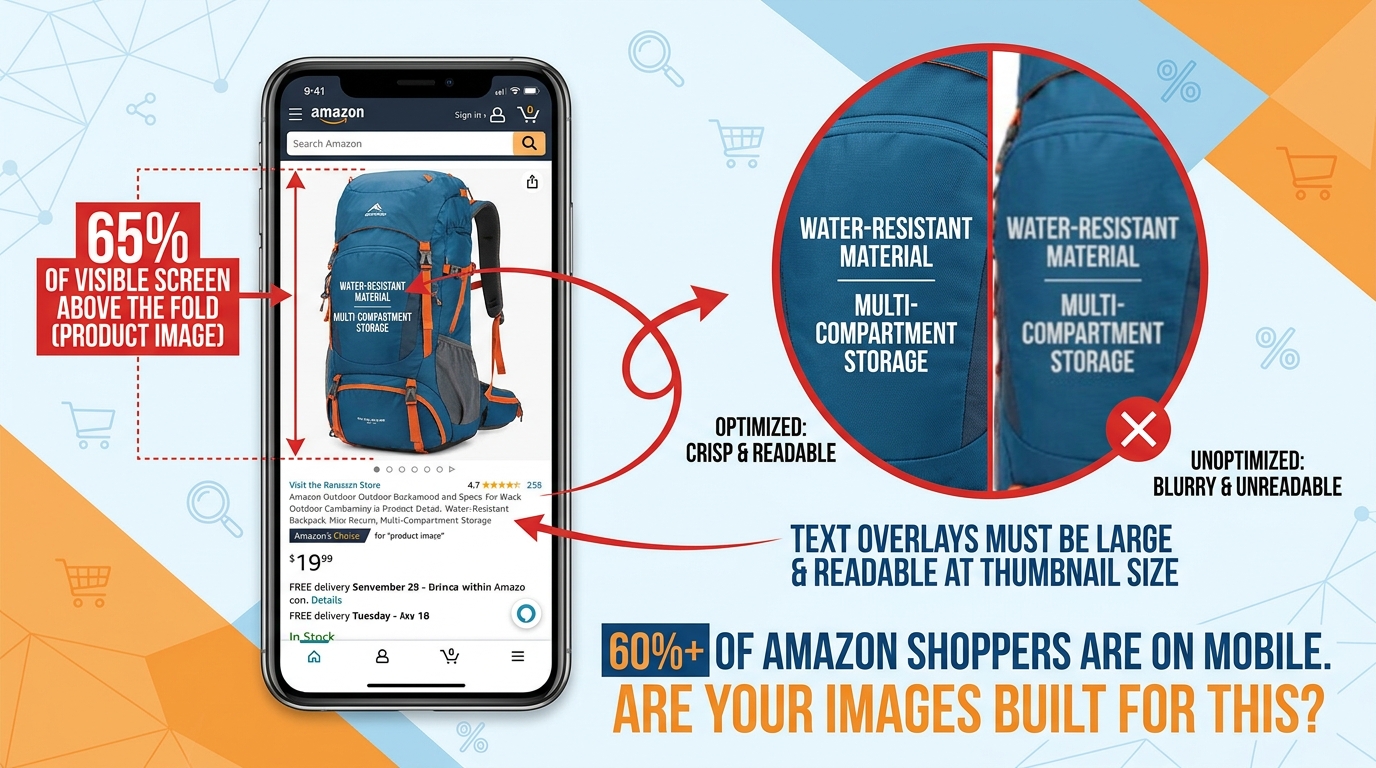
    The problem is compounded by the device most shoppers now use. With 73% of Amazon shoppers regularly browsing via smartphone, the limitations of a 1,200-pixel static JPEG are even more severe. On a small screen, details disappear. Texture becomes indistinguishable from color. Scale becomes guesswork. Research shows mobile shoppers abandon listings 2.1 times faster than desktop shoppers when they encounter visual friction — unclear sizing, missing lifestyle context, or no way to examine product details up close.

    Interactive imagery — the kind that lets a shopper spin a product, zoom into a seam, or drop a piece of furniture into a photo of their own living room — collapses the imagination gap. It replaces uncertainty with simulated experience, and simulated experience is far closer to the certainty of holding a physical product than any static shot can achieve.

    Static images versus 360° interactive views: conversion rate comparison showing +22% conversions and +35% add-to-cart

    What Happened When Amazon Killed Traditional 360° Photography in January 2024

    In January 2024, Amazon made a policy change that most sellers are still trying to fully understand: the platform formally discontinued support for the traditional 360-degree product photography format — the animated GIF-style spinning images that had become common on many listings. This wasn’t a minor update buried in Seller Central. It was a deliberate architectural shift in how Amazon intends for interactive product views to work going forward.

    The reasoning was straightforward. Traditional 360-degree photography — which involves capturing 24 to 72 individual frames and stitching them into a spinning animation — produces large file sizes, loads slowly on mobile, and cannot be adapted for augmented reality features. Amazon’s infrastructure had moved on. The platform is now built around 3D models as the primary vehicle for interactive product visualization.

    Why many sellers missed the memo

    The discontinuation of 360° photography created a knowledge gap that persists into 2026. Sellers who had invested in 360° photo rigs or paid agencies for spinning images found themselves with assets that couldn’t be uploaded. Many responded by doing nothing — reverting to static images and assuming the feature was simply gone. Others conflated “360° photography” with “interactive spin view” and assumed the entire capability had been removed.

    Neither assumption is correct. The interactive spin experience is alive, well, and delivering stronger results than ever. It’s just delivered through a different medium. Instead of a spinning animation built from dozens of photographs, Amazon’s interactive views are now rendered from 3D models — digital objects that can be spun in real time, zoomed, lit from any angle, and placed into an augmented reality environment by the shopper’s own smartphone camera.

    What this means for competitive positioning

    The transition to 3D models created a short-term competitive gap that still exists today. Because 3D model creation has a steeper learning curve and higher upfront cost than traditional photography, many sellers have opted out entirely. This means that in most product categories, the share of listings with interactive spin views or AR capability is still very low — which means sellers who do make the investment stand out substantially in search results and on listing pages.

    The January 2024 policy shift, in other words, didn’t end the opportunity for sellers who embrace interactive imagery. It filtered out the sellers who weren’t willing to adapt, leaving more visible runway for those who are.

    The 3D Model Era: How Amazon’s Spin View Actually Works Today

    Understanding how Amazon’s current interactive imagery system works is essential before investing time or money into it. The feature is often described loosely as “360-degree views,” but the technical reality is more precise — and more powerful.

    From photographs to digital objects

    When Amazon displays a “spin view” of a product today, it is rendering a 3D model file in real time inside the browser or app. The shopper can grab and rotate the product with their finger or cursor, zoom in to examine texture and detail at any angle, and in eligible categories, activate the “View in Your Room” AR feature to place the product in their own physical space using their device’s camera.

    This is fundamentally different from a spinning animation. A 3D model is not a sequence of photographs — it is a mathematical representation of the product’s geometry, surface materials, and textures. Amazon renders it on the fly, which means the shopper controls the experience rather than watching a pre-set rotation.

    File requirements and technical specifications

    Amazon accepts 3D models in GLB or GLTF format. The GLB format (Binary GL Transmission Format) is generally preferred because it packages all textures and geometry into a single file. Key technical requirements as of 2026 include:

    • Polygon count: Maximum 1 million triangles per model; Amazon’s recommended sweet spot is 150,000–200,000 for optimal loading performance
    • No cameras attribute: The model must not include embedded camera objects
    • No KHR_materials_specular extensions or other incompatible shader types
    • Textures: Accurate material textures that represent real-world product appearance — Amazon will reject submissions that appear inaccurate
    • Reference photos: 2–10 high-quality photographs of the actual physical product submitted alongside the model to verify accuracy
    • Dimensions: Accurate real-world dimensions required for AR placement to work correctly

    Files can be validated before submission using the Khronos glTF Validator, a free open-source tool that identifies technical errors before Amazon’s review team sees them — saving the two-week review turnaround on easily fixable mistakes.

    The submission process step by step

    Upload happens through Seller Central under Catalog → Upload Images → Image Manager tab. Search for the ASIN or SKU, verify that the Registered Brand Owner icon is showing (this step is required), and select 3D Models → Upload 3D Model. Submit the GLB file alongside reference photos and product dimensions. Amazon’s review team typically takes up to two weeks to approve or reject the submission, with feedback provided on rejections. Once approved, the spin view and AR badge appear on the listing automatically.

    Brand Registry enrollment is non-negotiable. Sellers without it cannot access the 3D model upload feature at all.

    Amazon 3D model upload workflow for Seller Central — 5-step process from GLB file creation to live spin view

    “View in Your Room” and “View in 3D” — Who Qualifies and How to Enable It

    Amazon operates two distinct interactive visualization features that are often confused with each other. Understanding the difference — and which one applies to your product — is important for setting the right production and submission expectations.

    View in 3D: the spin experience on listing pages

    “View in 3D” is the interactive spin capability that appears on the main product detail page. When activated, shoppers see an icon on the image gallery inviting them to rotate and zoom the product in 3D. This feature is available across a wide range of categories including:

    • Shoes and footwear
    • Eyewear (sunglasses, glasses frames)
    • Home and furniture
    • Consumer electronics
    • Beauty and personal care
    • Baby products
    • Sports and outdoor equipment
    • Toys and games
    • Pet supplies
    • Automotive accessories

    This list is expanding. Amazon has been systematically broadening the eligible categories as 3D model production becomes more widespread and its review infrastructure scales up.

    View in Your Room: the full AR experience

    “View in Your Room” is a separate, more powerful feature that uses the shopper’s device camera to place the product into their actual physical environment using augmented reality. The shopper points their phone at their floor, table, or wall, and sees a true-to-scale 3D rendering of the product appear in their space — positioned accurately, casting realistic shadows, and viewable from any angle by moving the phone.

    Eligibility is more specific: any product that would naturally sit on a floor or table, or be mounted to a wall or vertical surface. Practically, this covers the bulk of the furniture, home décor, lighting, kitchen appliance, and storage categories. Supported marketplaces include amazon.com, amazon.ca, amazon.co.uk, amazon.de, amazon.es, amazon.fr, and amazon.it.

    When Amazon analyzed listings using “View in Your Room” in a 2023 study, the feature delivered an average 9% improvement in sales for enrolled products. In high-consideration categories like furniture and home décor, results are considerably more dramatic: AR visualization for furniture has been cited in Adobe and industry research at conversion lift figures as high as 250% over static images, as shoppers who can place a sofa in their living room before buying eliminate virtually all scale and color uncertainty.

    The “Virtual Try-On” features for fashion and beauty

    Amazon also operates category-specific AR try-on features that sit slightly outside the standard 3D model workflow. Virtual Try-On for Shoes (launched 2022) uses the device camera to overlay shoe imagery onto the shopper’s actual feet. Similar functionality exists for eyewear. These features are managed through Amazon’s fashion and brand programs rather than the standard 3D model upload path, and eligibility is typically connected to brand participation agreements rather than a standard self-service upload process.

    Amazon describes all of these AR features as ongoing experiments and does not publish category-level conversion data. What is known from Amazon’s own public statements is that products with 3D views or virtual try-on features saw purchase rates approximately double compared to listings without them in the period following their introduction, and that eight times more customers engaged with AR-viewed products between 2018 and 2022.

    The Return Rate Problem That Nobody Talks About (And Why Visuals Are the Fix)

    Most sellers think about product imagery purely in terms of conversion. Getting more shoppers to click “Add to Cart” is the obvious goal. But there is a second, equally important dimension to the imagery problem that rarely makes it into the seller conversation: returns.

    Returns are expensive in a way that doesn’t always show up cleanly in an advertising dashboard. FBA return fees, restocking costs, the likelihood of returned inventory being graded as unsellable, and the downstream impact on seller metrics — all of this compounds quickly. In categories like apparel, furniture, and electronics, return rates can reach 15–30% of all units sold. A meaningful fraction of those returns is not the product’s fault at all. It’s the listing’s fault.

    The data on image-driven returns

    Research consistently points to a direct link between image quality and return rates. The key statistics from 2024–2026 data:

    • 22% of e-commerce returns are triggered by products not matching their photographs or descriptions — not defects, sizing errors, or buyer’s remorse, but a failure of visual expectation-setting
    • Professional multi-angle photography reduces return rates by 23% compared to basic single-angle images
    • Adding 360-degree or interactive views on top of multi-angle photography reduces returns by a further 15%
    • 3D model and AR visualization tools deliver return reductions of up to 40% in categories where spatial context matters most (furniture, home goods)
    • 34% of all product returns across e-commerce are linked directly to poor product presentation

    Put simply: every dollar invested in better imagery does double work. It increases the number of buyers who convert, and it decreases the number of buyers who convert and then return. The economics of this compound in a way that makes visual investment one of the highest-return line items in a seller’s budget.

    The category-specific return problem

    Returns driven by visual mismatch are not distributed evenly across categories. They are most severe in categories where real-world context matters most — where a buyer needs to know how something fits in a space, how a color reads under natural light rather than studio lighting, or how a texture feels relative to other materials in the image. Furniture, rugs, curtains, lighting, apparel, footwear, and electronics accessories are the highest-risk categories. Counterintuitively, these are also the categories where 3D and AR solutions deliver the most dramatic return-rate reductions, because the solution directly addresses the source of the uncertainty.

    Returns caused by poor product images versus AR visualization reducing return rates by up to 40%

    The Categories Where 360°/AR Has the Biggest Impact — and Where It Doesn’t

    Not every product benefits equally from 360-degree and AR imagery. Understanding where the ROI is highest — and where additional visual investment delivers diminishing returns — helps sellers prioritize their production budgets intelligently.

    Highest-impact categories

    Furniture and home décor is the category where AR delivers the most transformative results. Scale uncertainty — “will this sofa fit in my living room?” — is the single biggest barrier to purchase in this category. AR’s ability to place a true-to-scale rendering of a product in the shopper’s actual room eliminates that barrier entirely. Amazon’s own data shows a 9% average sales improvement from “View in Your Room,” and category-specific research puts the conversion lift from AR visualization in the 200–250% range over static images for high-consideration pieces.

    Footwear and apparel benefit enormously from interactive spin views and virtual try-on features. The ability to rotate a shoe 360 degrees to inspect the sole, heel construction, and profile addresses the most common pre-purchase questions. Fashion retailers using 360-degree rotation imagery have documented conversion improvements of up to 27% over static front-and-back shots.

    Consumer electronics and gadgets benefit from spin views because buyers want to understand port placement, button locations, connection points, and physical scale before committing. A laptop bag, for example, sells much better when a shopper can rotate it to see every pocket, zipper, and strap attachment point rather than relying on separate flat images of each angle.

    Eyewear and accessories are strong candidates for virtual try-on features where available, and for spin views more broadly. The physical shape and profile of a pair of sunglasses from multiple angles is difficult to represent in two or three static images alone.

    Lower-impact categories

    Commodity consumables — vitamins, cleaning products, batteries, and similar items — see minimal conversion benefit from interactive imagery because purchasing decisions are driven almost entirely by price, reviews, and brand recognition. The product’s shape is largely irrelevant to the purchase decision, and there is no spatial context needed.

    Books, digital media, and software are similarly immune to the benefits of interactive visualization for obvious reasons.

    Highly standardized components — screws, cables, replacement parts sold by spec number — convert on specification matching, not visual exploration. A buyer purchasing a specific HDMI cable by length and specification does not need to rotate the cable in 3D.

    The general rule: the more the purchase decision depends on understanding how a product looks from multiple angles, how it fits in a space, or how it sits on or with the buyer’s body, the more interactive imagery will move the conversion needle.

    Conversion lift by category using 360° and AR versus static images: furniture, footwear, apparel, electronics, beauty

    How to Create 3D Models Without a Studio Budget

    The single most common reason sellers cite for not pursuing 3D model uploads is cost. Traditional 3D modeling — commissioning a CAD artist to build a product from reference photographs — can run anywhere from $150 to $1,500+ per model depending on product complexity. For a catalog of 50 SKUs, that math gets uncomfortable quickly. But the production landscape has changed substantially in the last two years.

    Photogrammetry: turning a smartphone into a 3D scanner

    Photogrammetry is the process of creating a 3D model by photographing an object from dozens of angles and using software to stitch those images into a 3D mesh. What was once a process requiring expensive camera rigs and specialized software is now achievable with a smartphone and accessible software tools.

    The workflow is straightforward: place the product on a turntable or clean surface, capture 40–100 photos covering every angle and height, then process those images through software such as RealityCapture, Meshroom (free and open-source), or Polycam (mobile app). The output is a GLB file that can be cleaned up and submitted to Amazon. For products with relatively simple geometry — most consumer goods fall into this category — photogrammetry delivers results that meet Amazon’s accuracy requirements at dramatically lower cost than traditional 3D modeling.

    CGI and product visualization agencies

    For products that don’t photograph well (highly reflective surfaces, transparent materials, very small or intricate objects), computer-generated 3D models built from product specifications and reference images are often the better path. The market for this service has grown considerably alongside Amazon’s 3D feature rollout, and pricing has become more competitive. Specialist agencies offering Amazon-optimized GLB models now exist at multiple price points, with some offering per-SKU packages starting around $75–$150 for simple products.

    Manufacturer files: the overlooked shortcut

    Many manufacturers — particularly in electronics, furniture, and consumer goods — already have CAD or 3D model files of their products that were used in the design and tooling process. Private label sellers sourcing from manufacturers, especially larger factories, should ask explicitly whether product 3D files are available. These files often need format conversion and texture cleanup before they meet Amazon’s GLB requirements, but the base geometry is already there — saving significant production time and cost.

    Amazon’s own AI generation tools

    Amazon has been expanding its internal tools for sellers. In 2026, Amazon’s generative AI capabilities — including the Nova Canvas model — include functionality that can synthesize product imagery, lifestyle images, and virtual try-on composites directly from existing product photos. These AI-generated assets are permitted in secondary images and A+ Content (not in the main product image, where Amazon’s white-background rules still apply). While AI-generated assets don’t yet fully replace professional 3D model uploads for spin views, they represent a growing toolkit for sellers who need to produce high volumes of visual content without per-image photography costs.

    A/B Testing Your Visual Assets: The Framework Serious Sellers Use

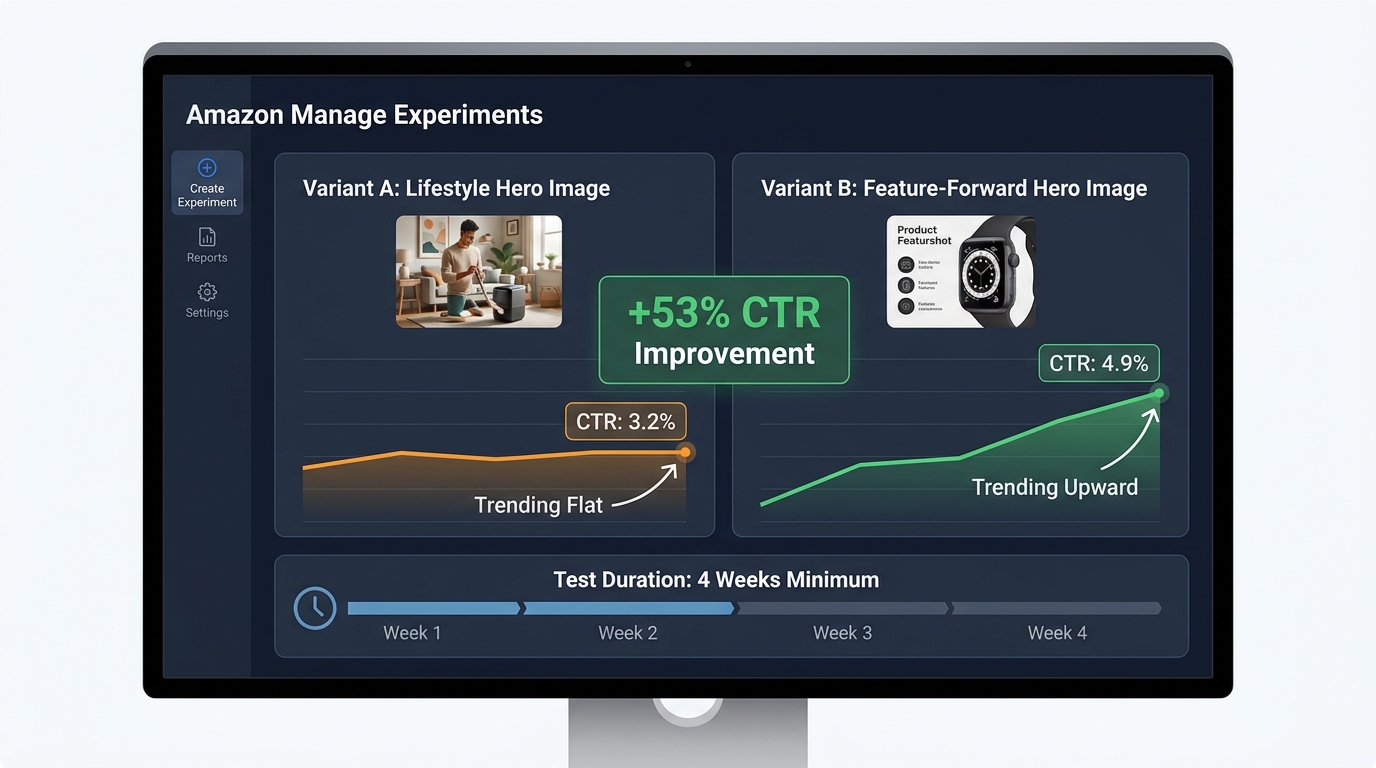
    Investing in 3D models and interactive imagery is a significant decision. The sellers who extract the most value from that investment are the ones who treat it as a controlled experiment rather than a one-time production project. Amazon’s “Manage Your Experiments” tool — available to brand-registered sellers in Seller Central — makes this unusually achievable without external testing platforms.

    What you can and cannot test

    Manage Your Experiments supports A/B testing on main product images, secondary images, titles, bullet points, and A+ Content. For the purposes of visual testing, the most impactful tests in order of return are:

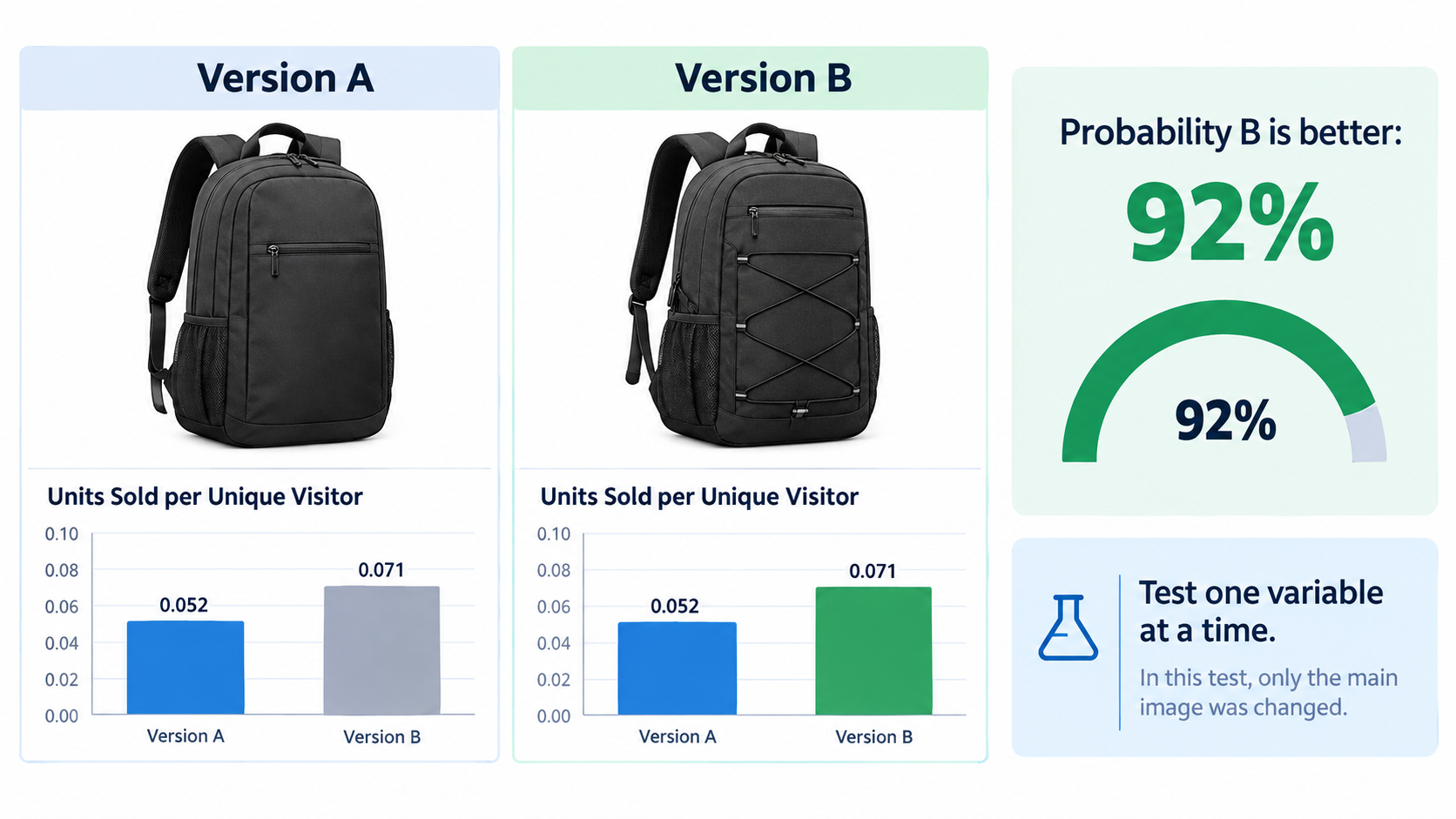
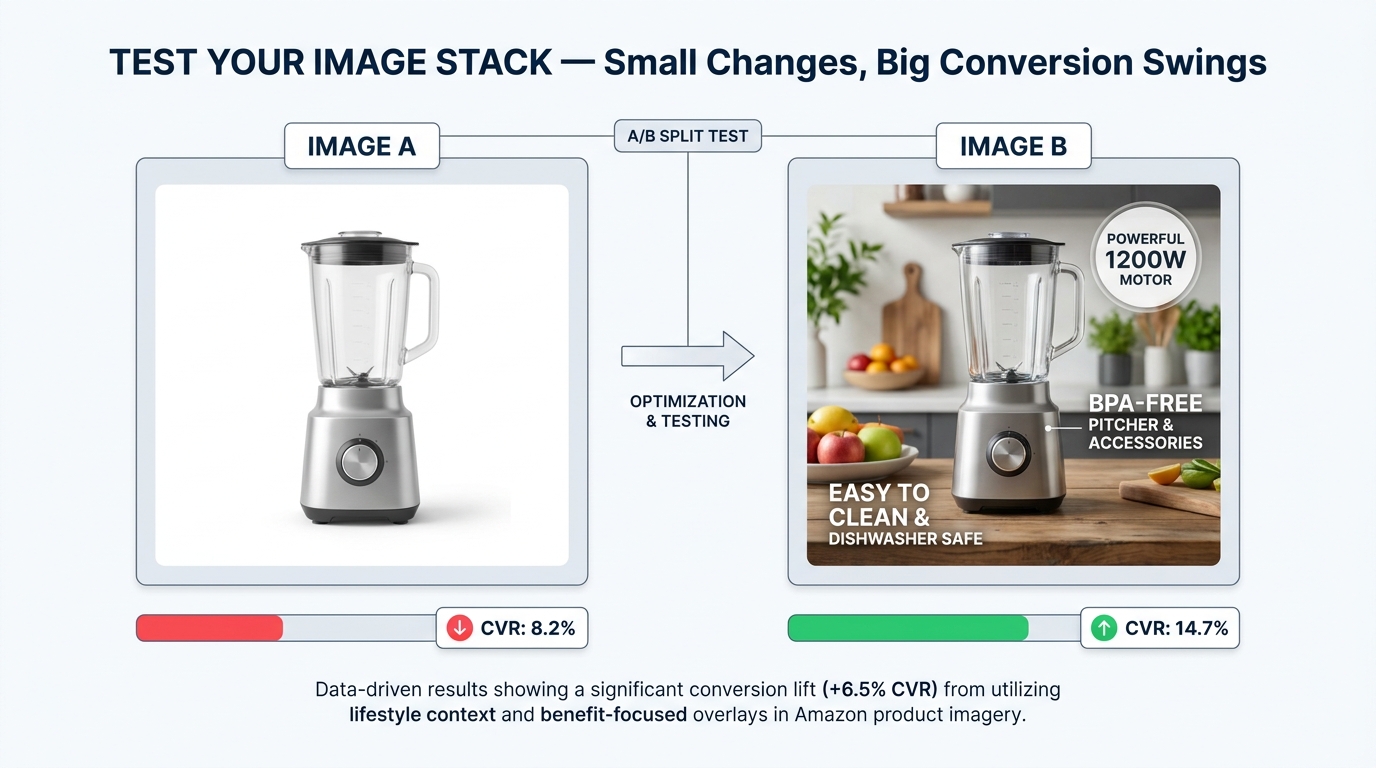
    1. Main image variation — This is the highest-leverage test because it directly affects click-through rate from search results. A main image change affects every impression your listing receives. Test angle (3/4 vs. straight-on), background style (pure white vs. contextual lifestyle for categories where it’s permitted), and scale (product filling the frame vs. showing packaging or accessories).
    2. Secondary image sequence — Once the main image is optimized, test the order and composition of supporting images. Does a lifestyle image as the second image outperform an infographic? Does a size comparison image earlier in the stack reduce returns measurably?
    3. Spin view vs. no spin view — For sellers who have uploaded a 3D model, testing the before/after impact on unit session percentage (conversion rate) provides clean attribution data for the investment in 3D production.

    Test duration and traffic requirements

    Amazon recommends running experiments for a minimum of four weeks to achieve statistical significance. Shorter tests — two to three weeks — can provide directional signals on high-traffic ASINs, but should not be treated as conclusive. Manage Your Experiments requires sufficient traffic to generate statistically valid results; low-traffic ASINs may need to run experiments for eight to twelve weeks before the data is reliable. Amazon provides a confidence indicator within the tool that shows when the winning variant has reached statistical significance.

    The metrics that matter

    When evaluating the results of visual experiments on Amazon, focus on three metrics in descending order of priority:

    • Unit Session Percentage (conversion rate): The proportion of page visits that result in a purchase. This is the most direct measure of visual impact on buying behavior.
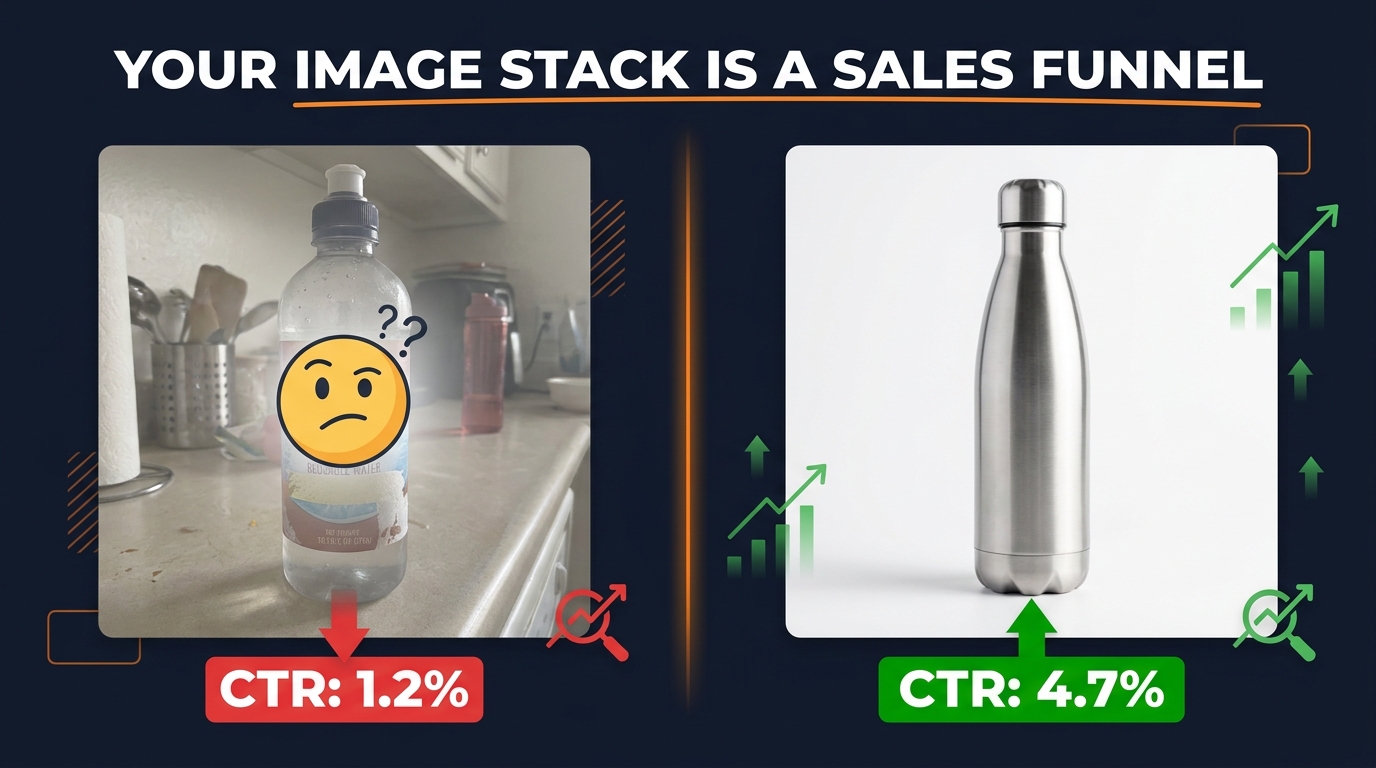
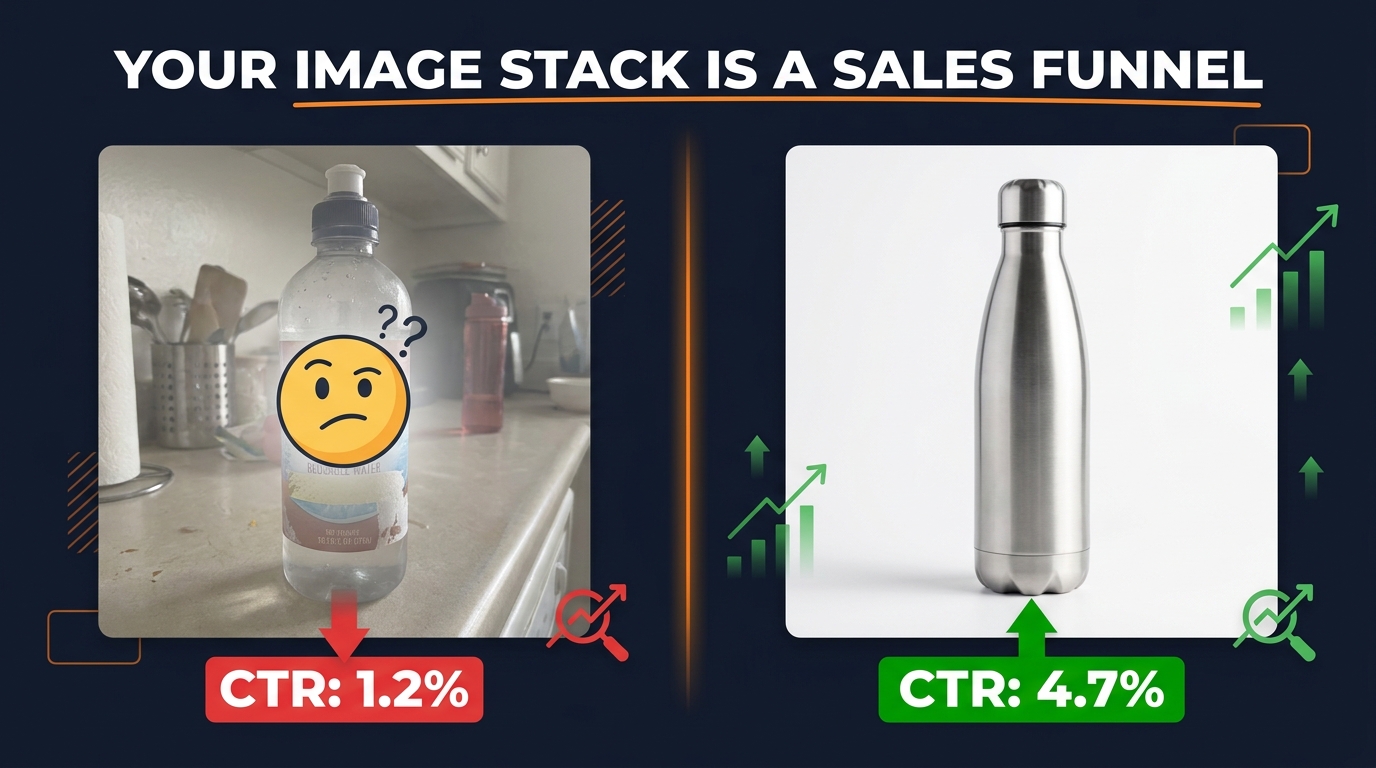
    • Click-Through Rate (CTR) from search: For main image tests, this measures how effectively the image draws shoppers from search results to the listing page. An image that generates 20% more clicks at the same conversion rate produces 20% more sales with no change to anything else.
    • Return rate over time: This is not visible in Manage Your Experiments directly, but should be tracked manually against visual changes. A main image that dramatically understates the product’s true appearance may lift short-term conversion while increasing returns — a net negative result that only appears if you’re watching the full picture.

    The most common A/B testing mistakes

    Sellers who run visual experiments on Amazon tend to make a handful of predictable errors. The most costly is testing multiple elements simultaneously — changing the main image, two secondary images, and the title at the same time. When one variant wins, you have no idea which change drove the result. The second most common mistake is ending experiments early when one variant is trending ahead — Amazon’s confidence indicators exist for a reason, and early results frequently reverse as more data comes in. Third is ignoring segment differences: a main image that converts well for mobile shoppers may underperform for desktop shoppers, and vice versa.

    Building an Image Stack That Converts at Every Stage of the Funnel

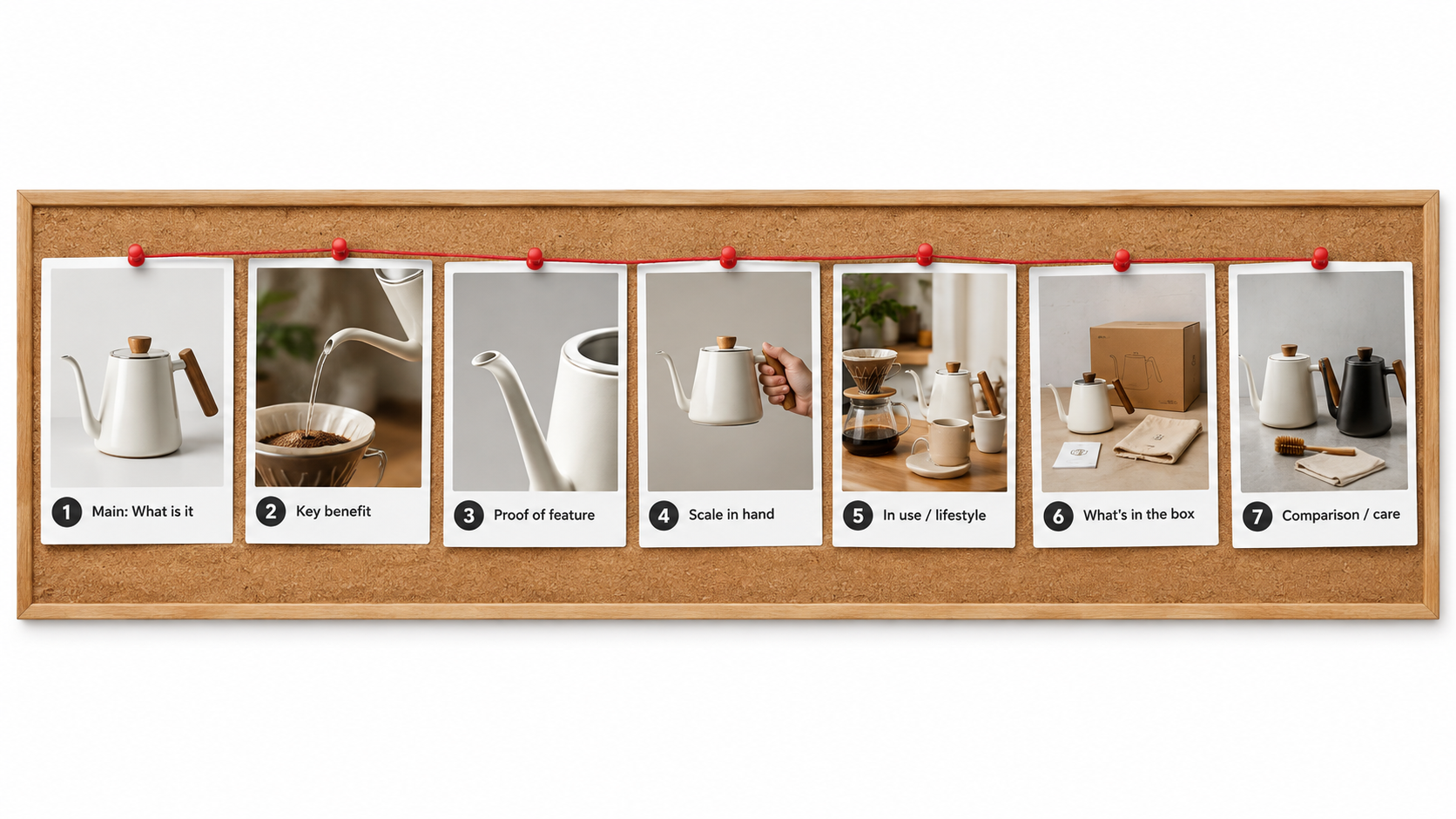
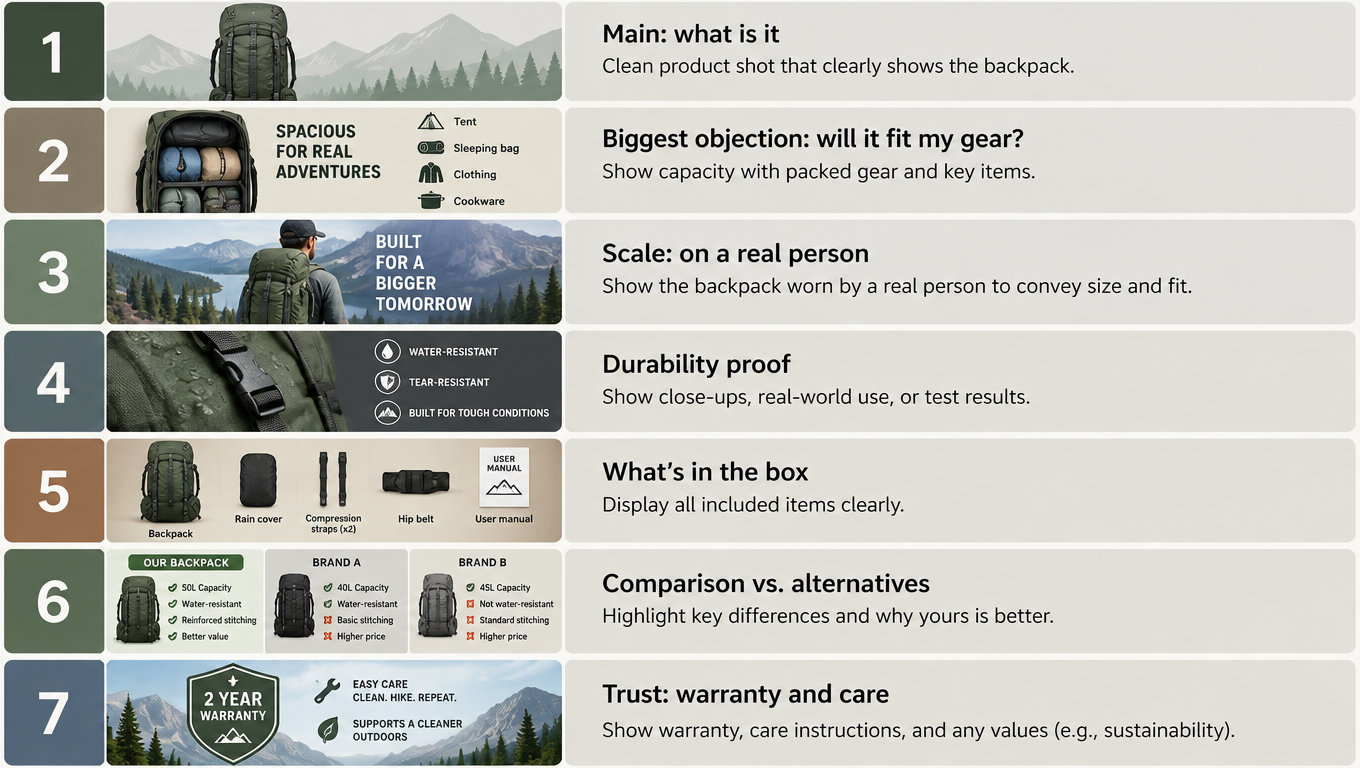
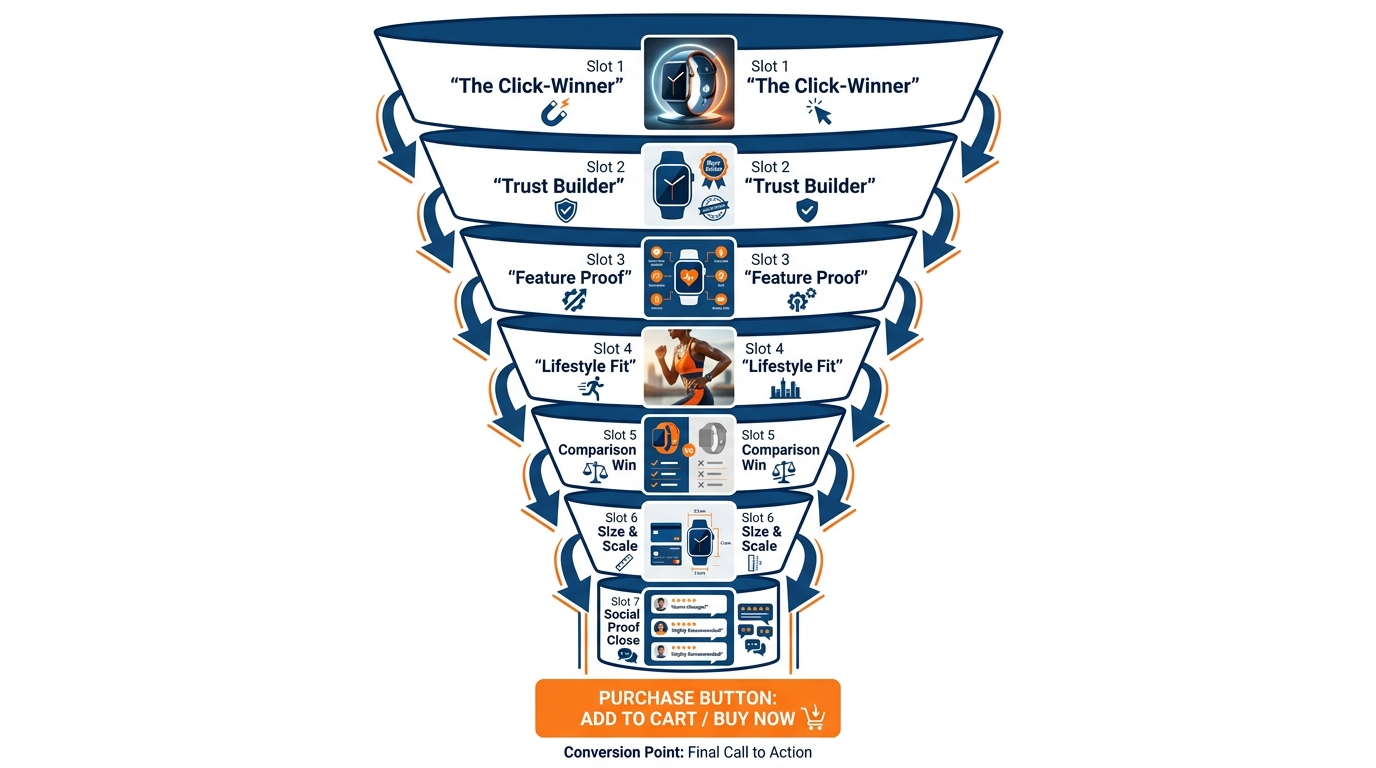
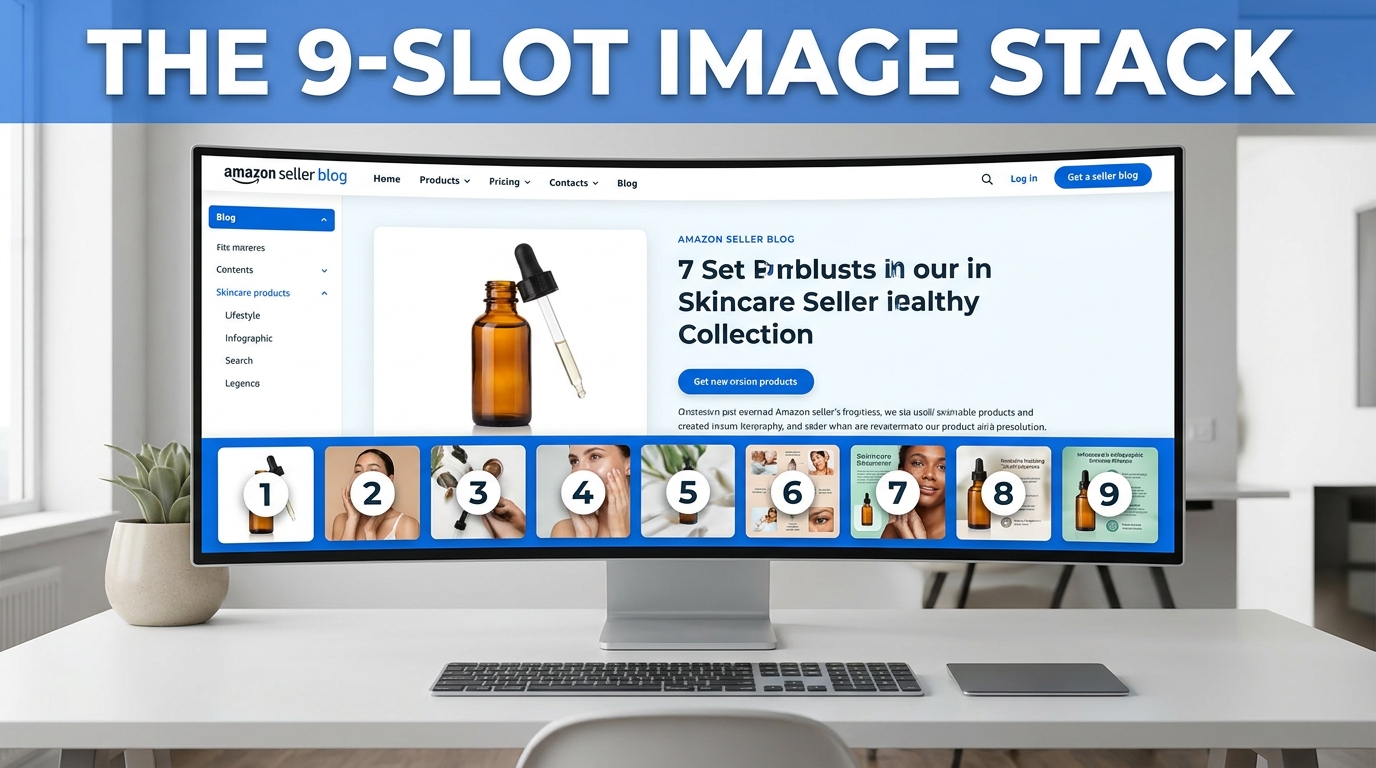
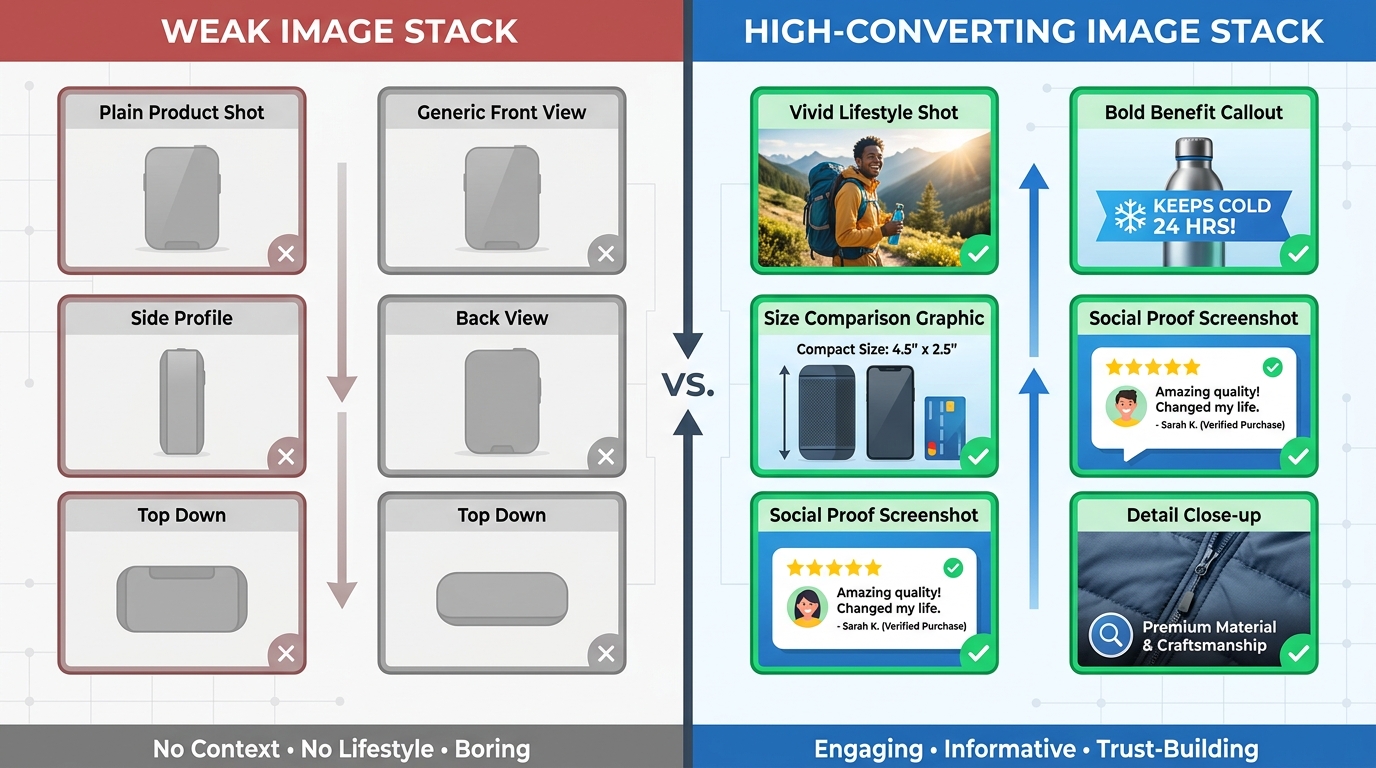
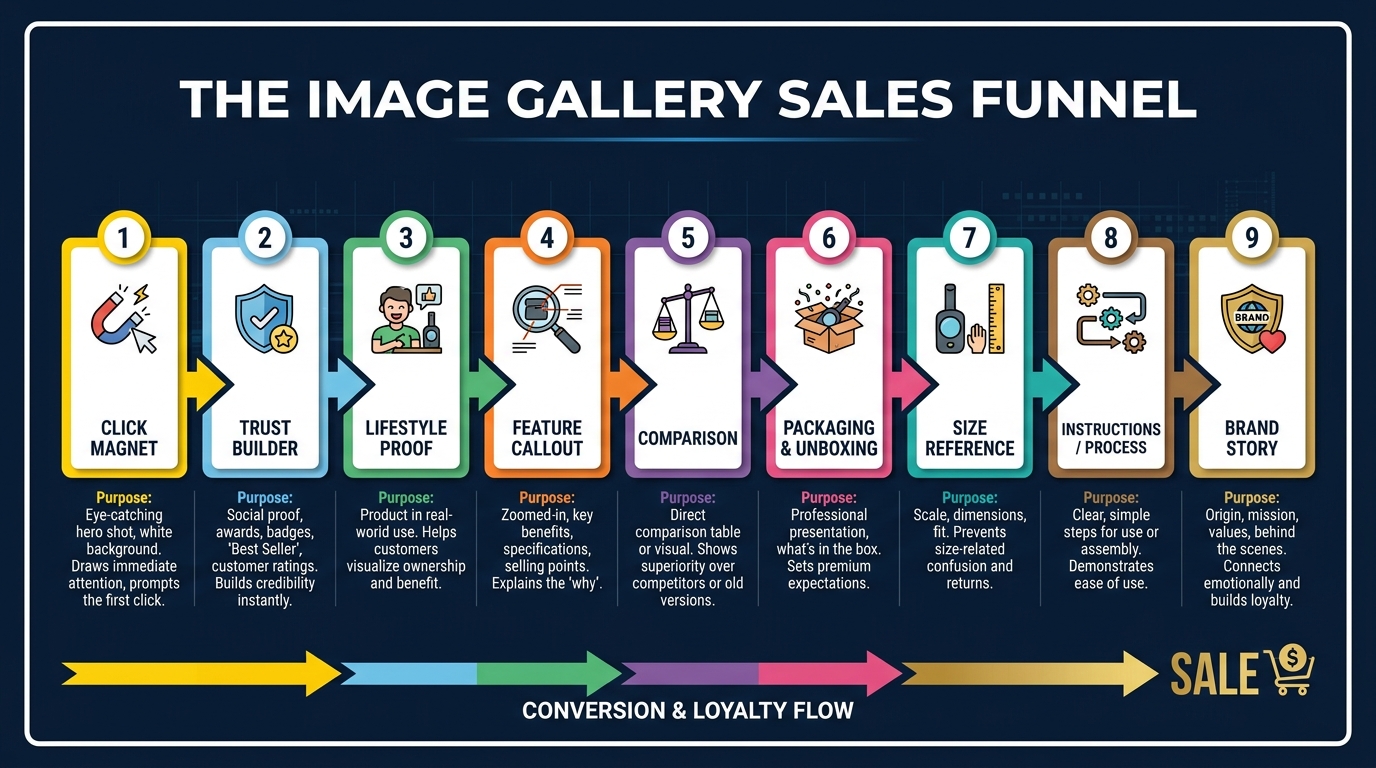
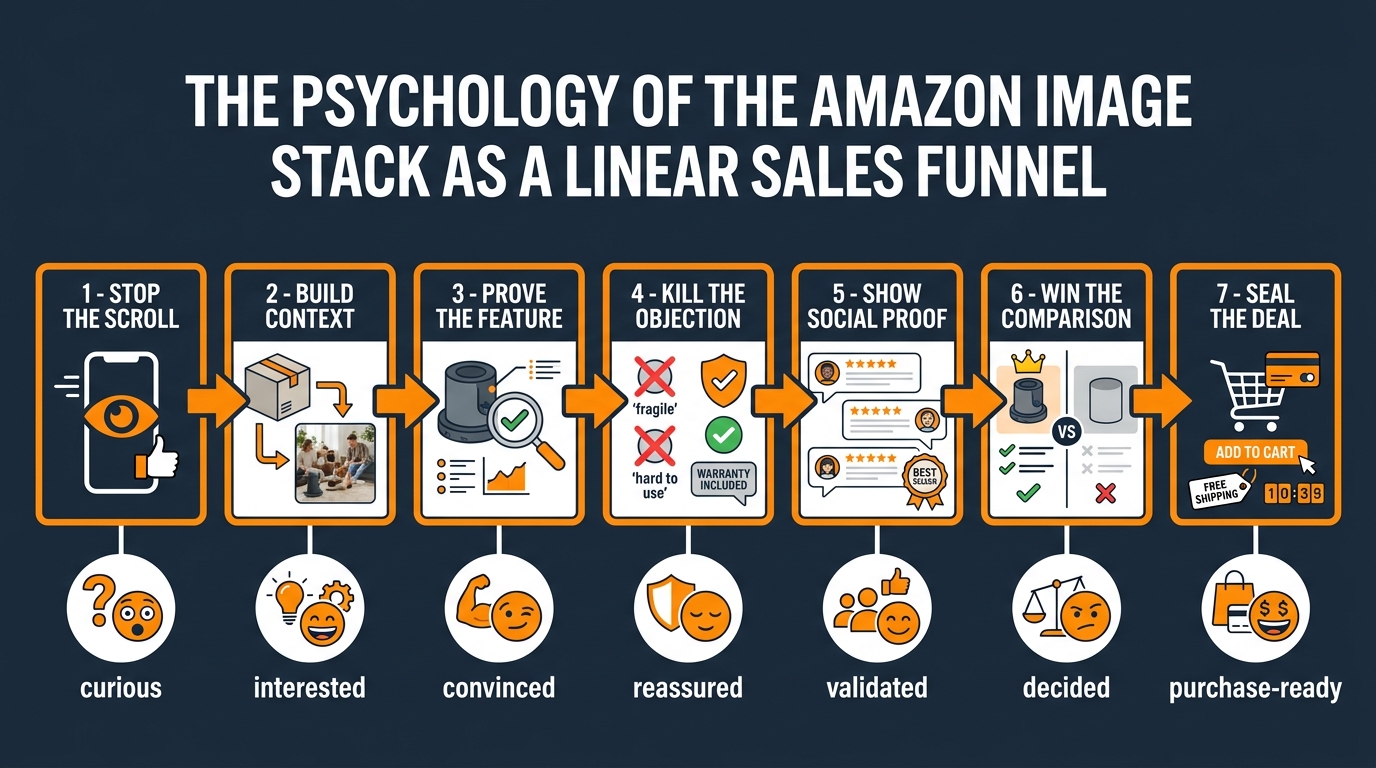
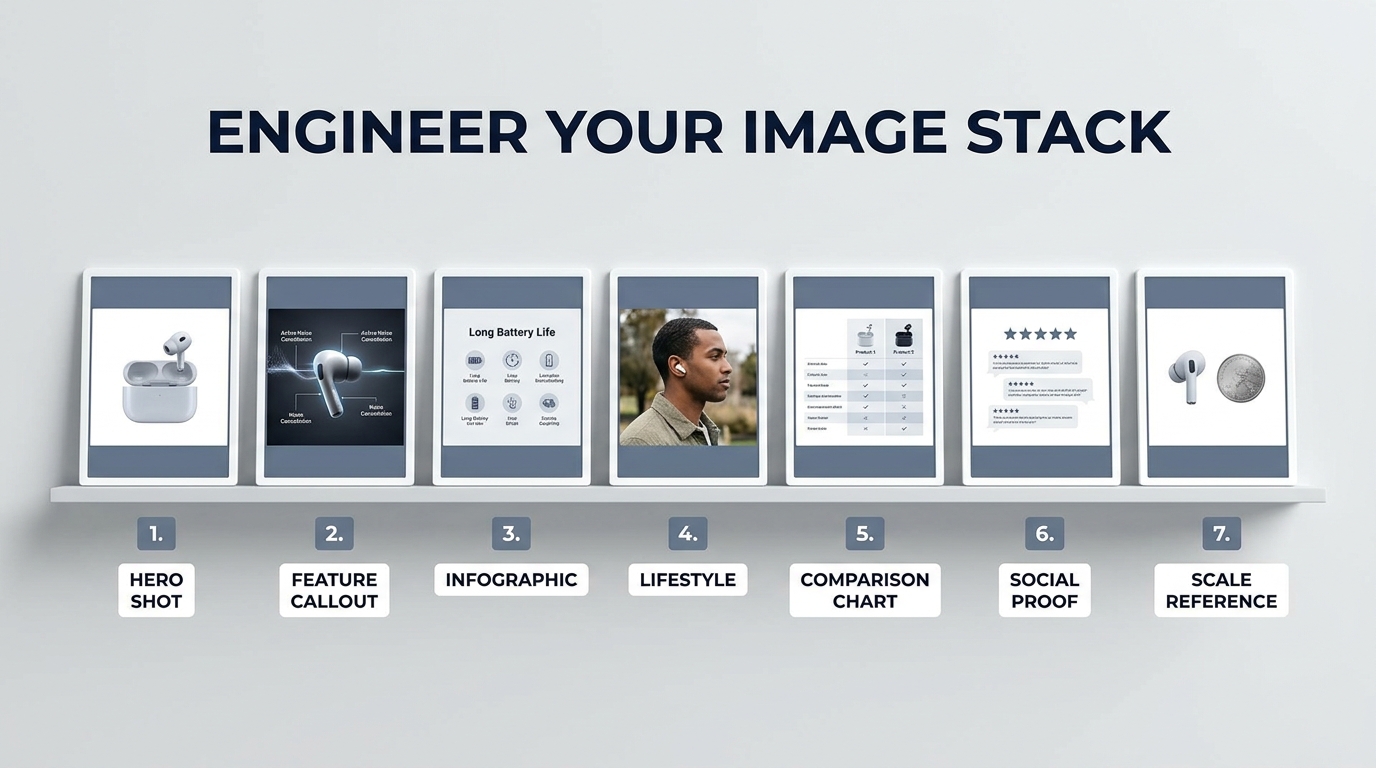
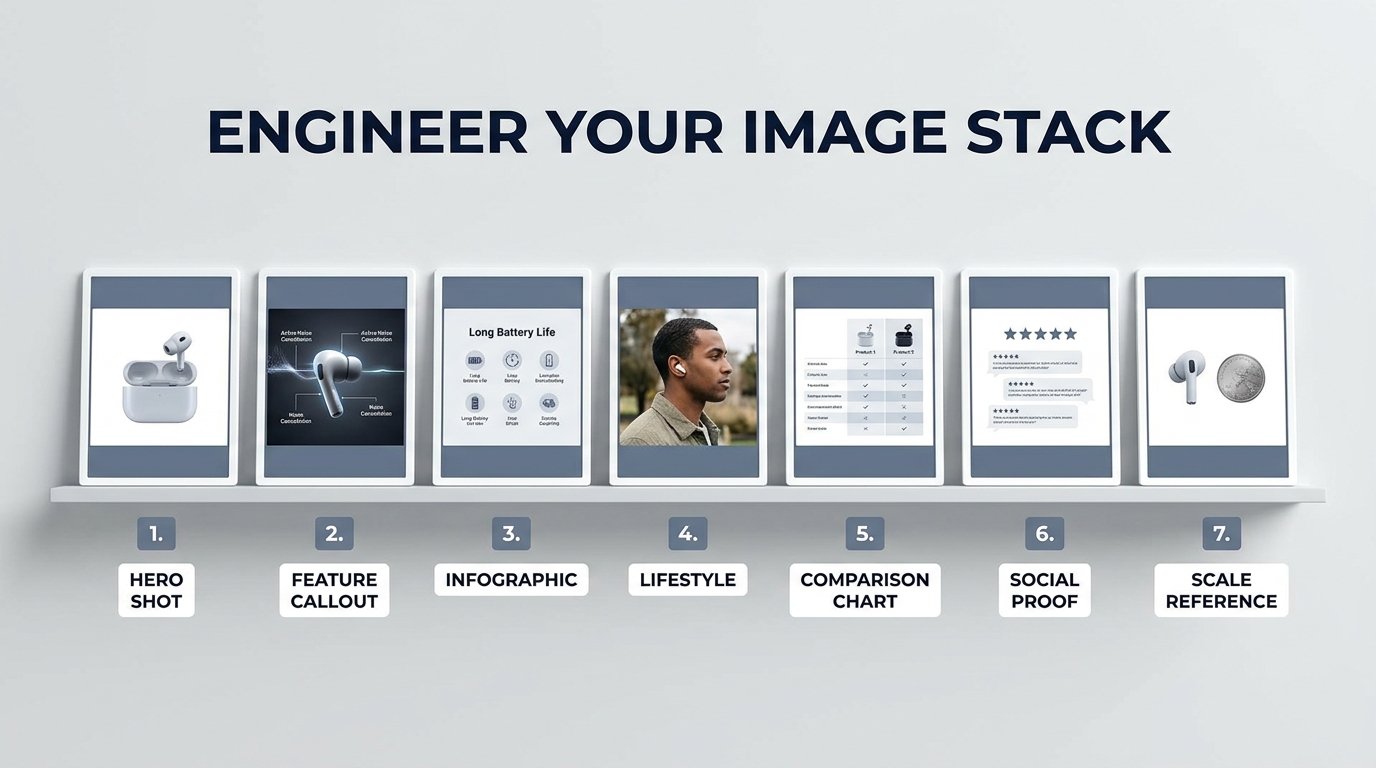
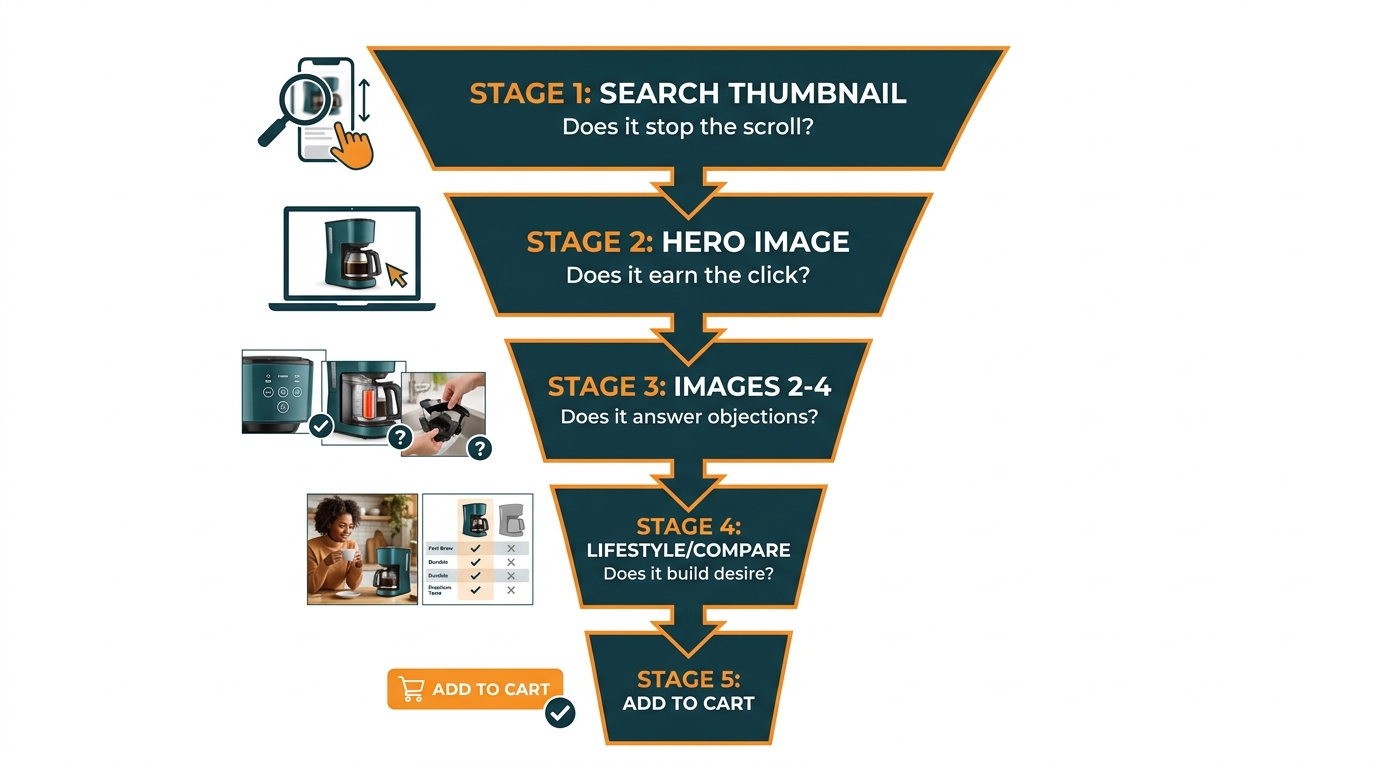
    One of the most useful frameworks for thinking about Amazon product imagery is the “image stack” — the idea that different images in your listing’s gallery serve different functions for shoppers at different stages of their decision process. A listing that treats all nine image slots as equivalent is leaving conversion on the table. A listing built with a deliberate stack converts at every stage.

    Amazon listing image stack: matching each image to a buyer stage from awareness through consideration to purchase decision

    Image 1 (Main Image): The click-driver

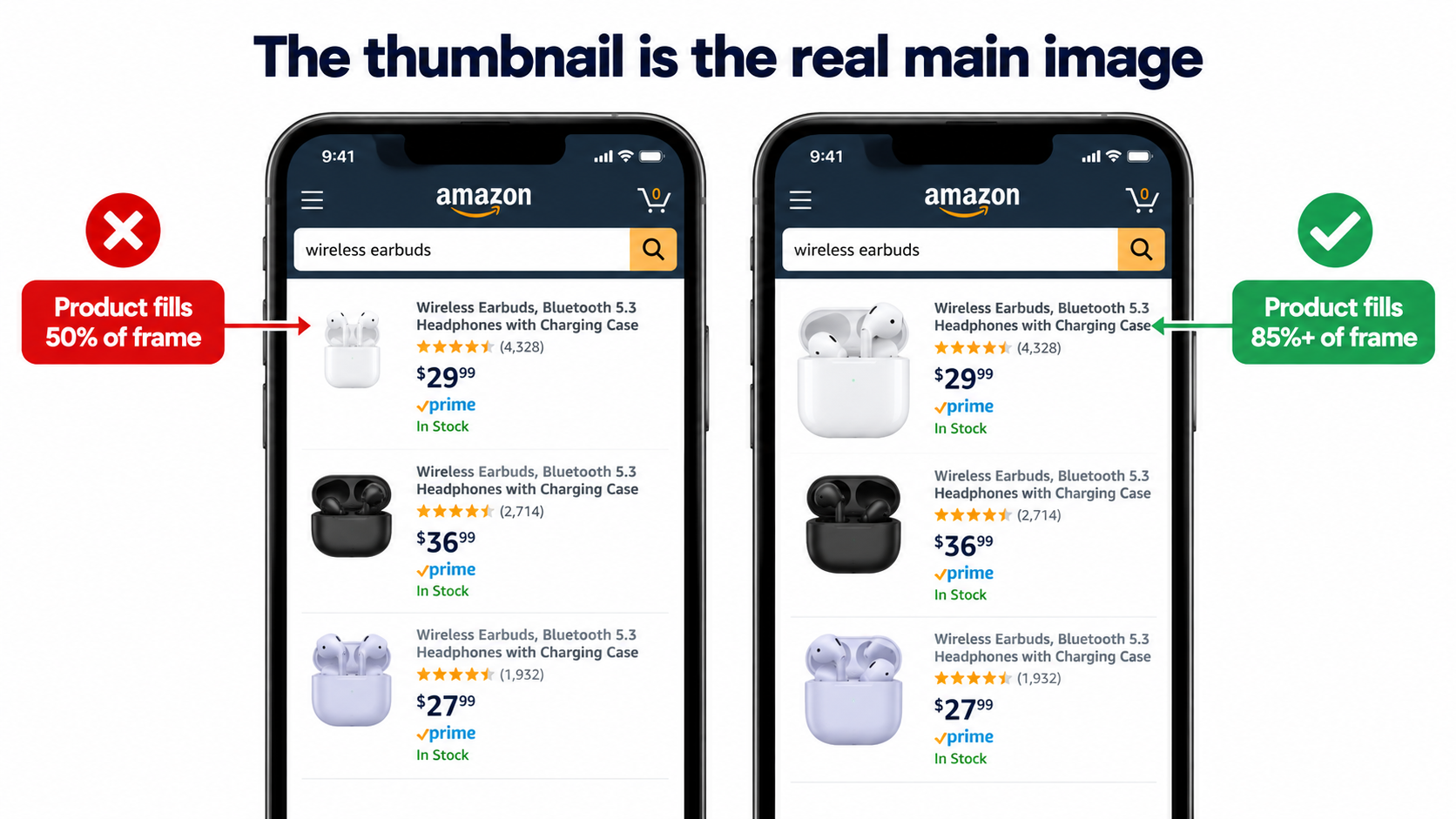
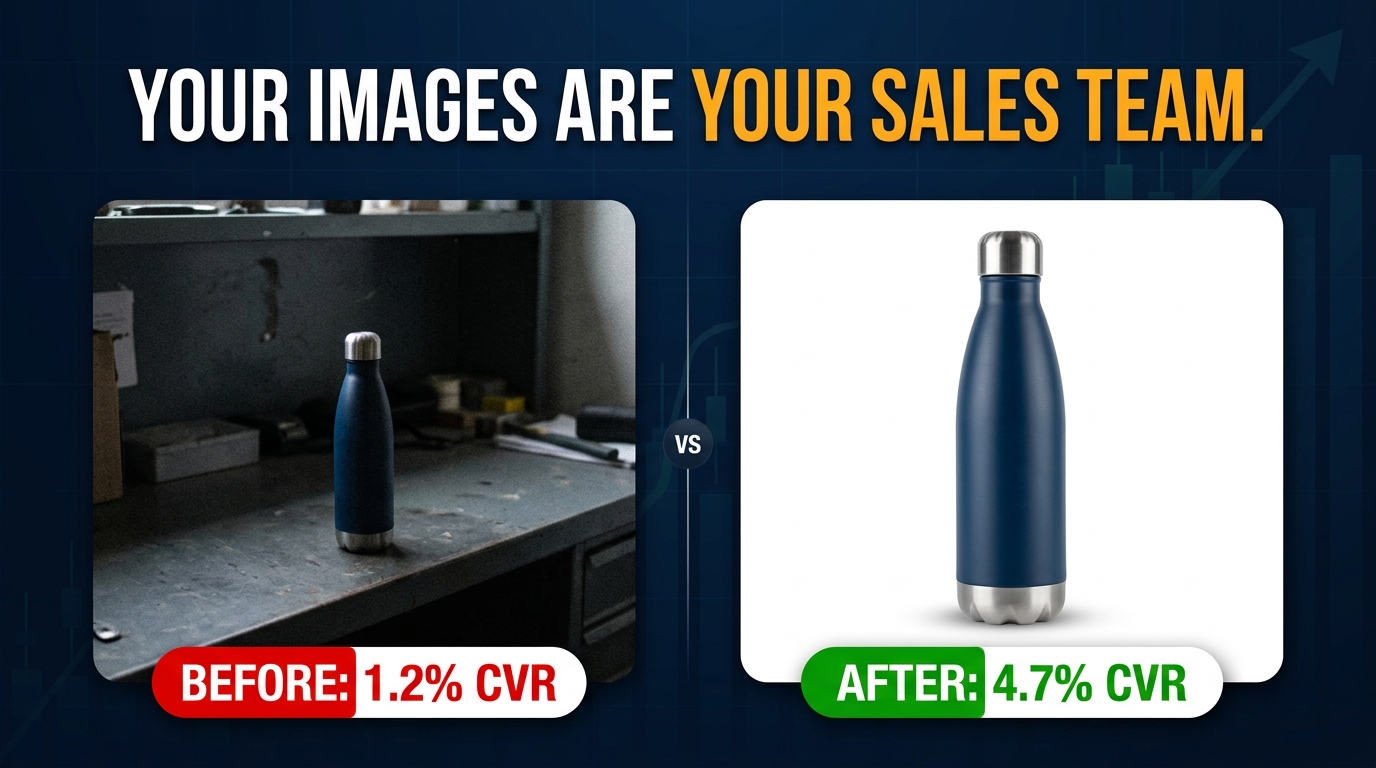
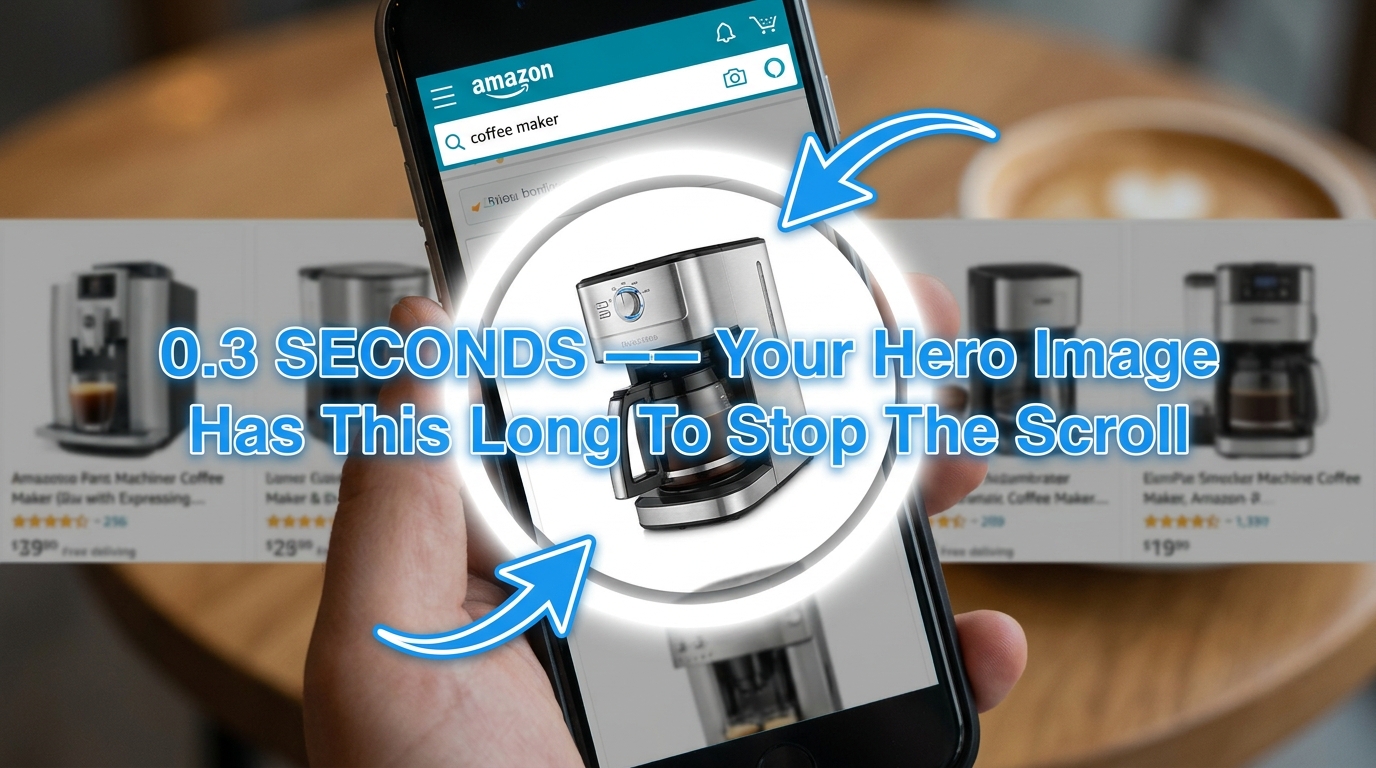
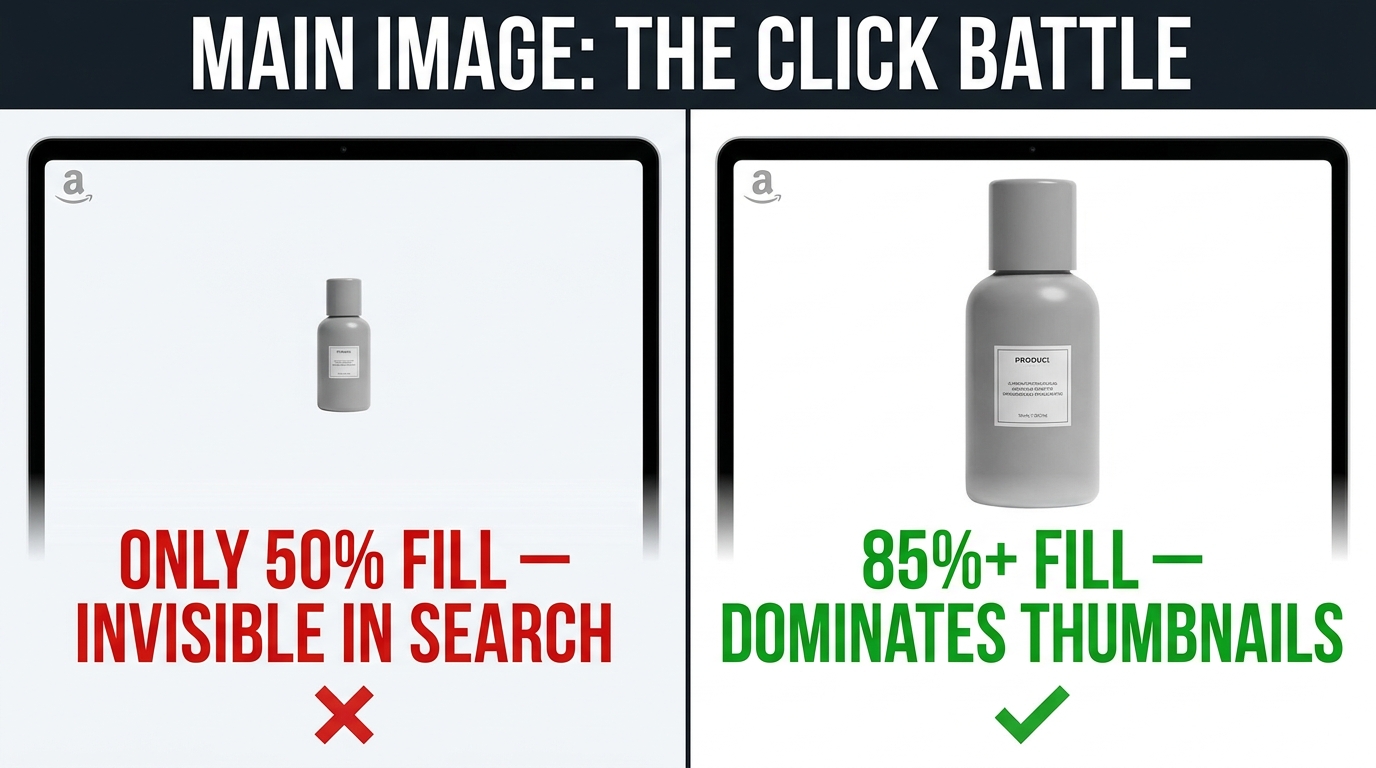
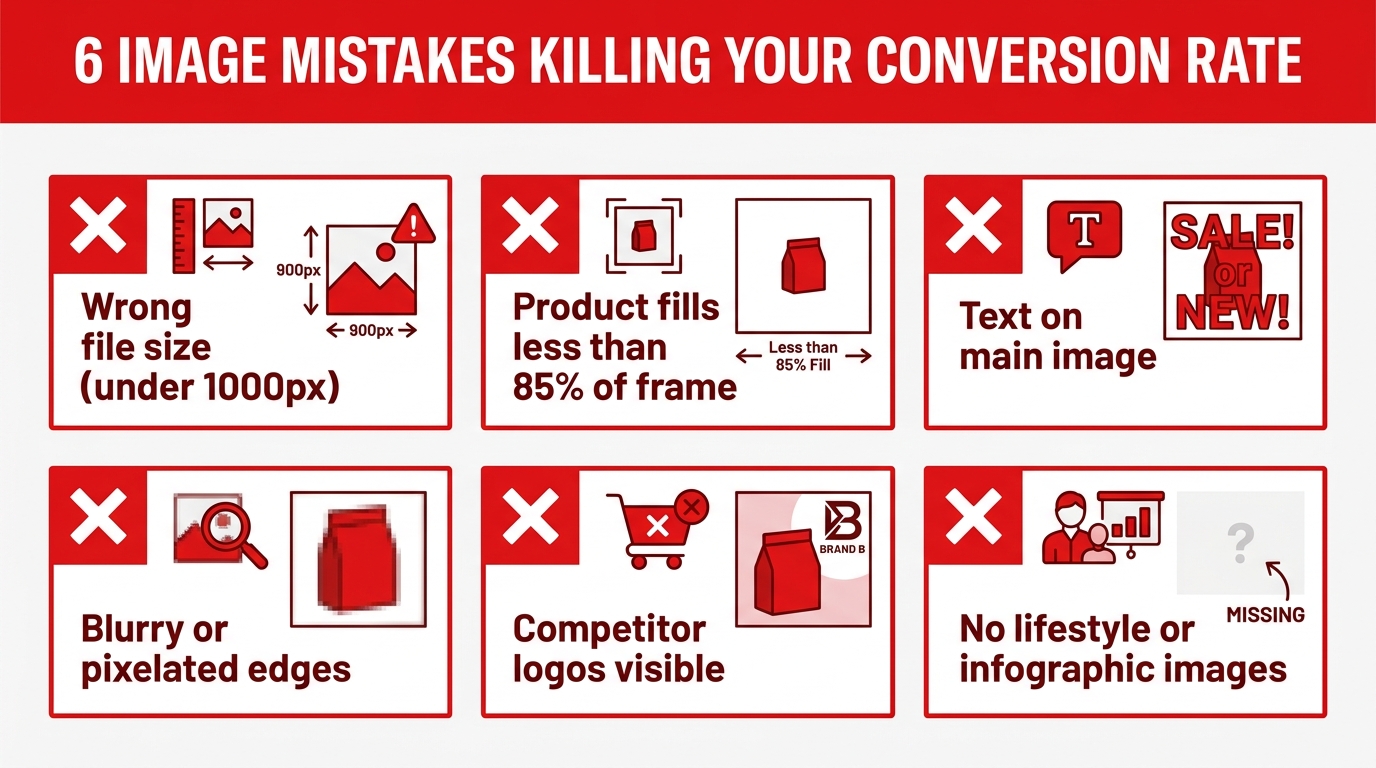
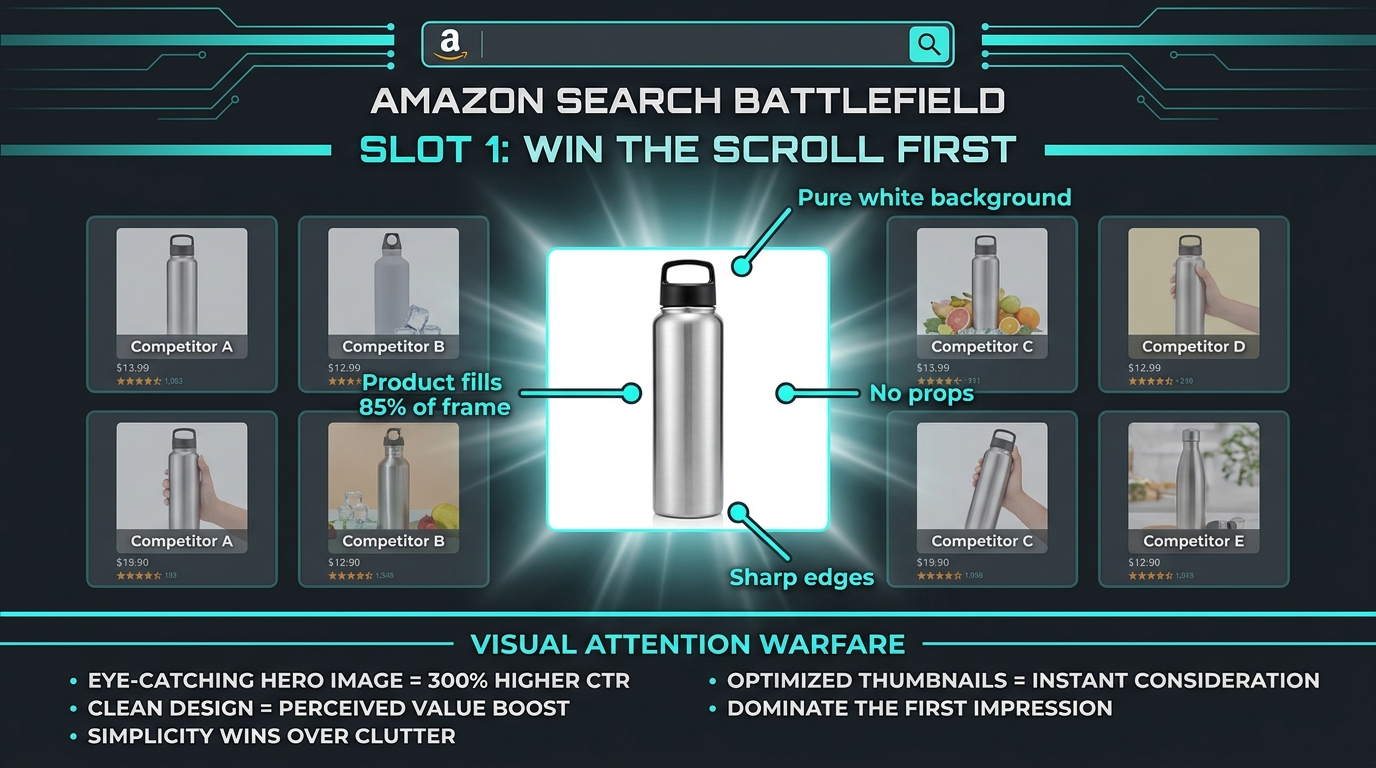
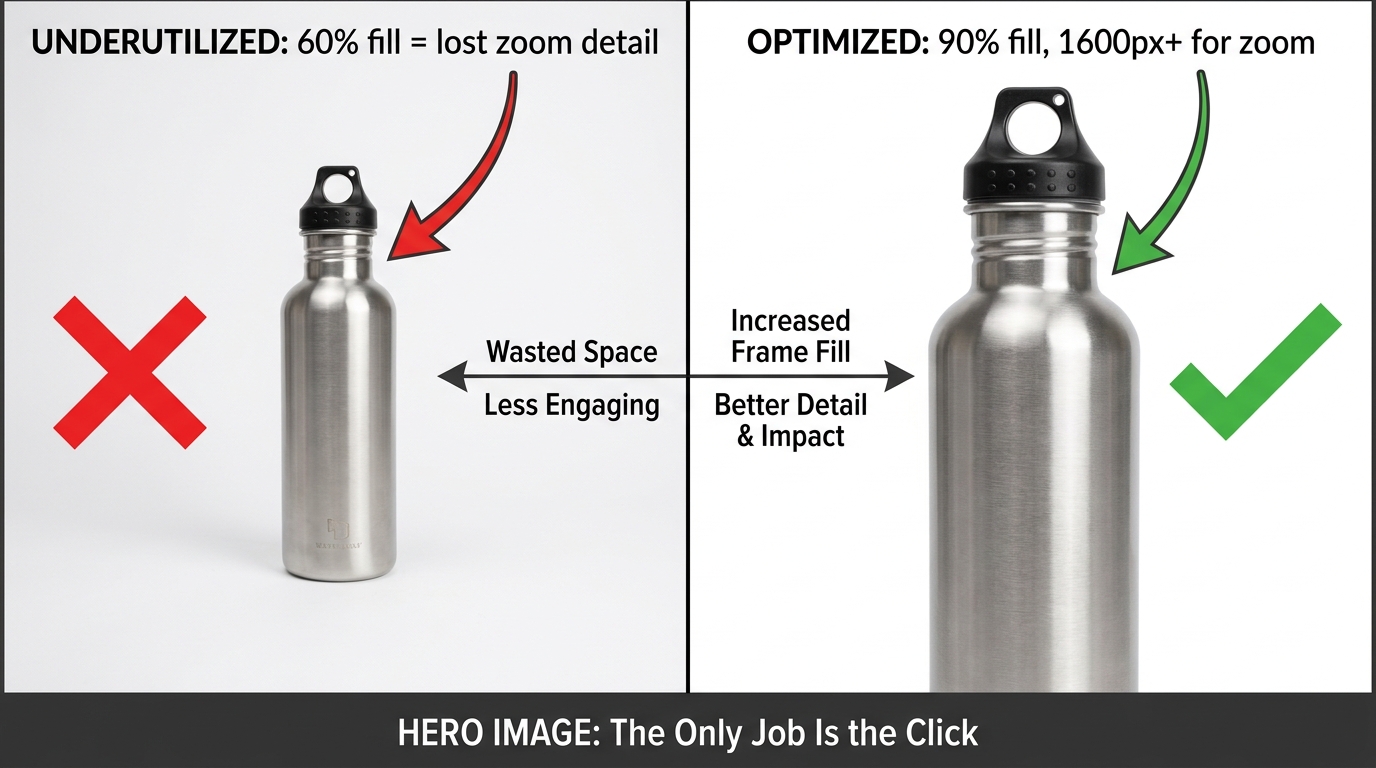
    This image has one job: stop the scroll and earn the click from a search results page. Amazon’s rules are strict — pure white background (RGB 255, 255, 255), no text, no graphics, no props, product occupying at least 85% of the frame. Within those constraints, the optimization levers are angle, lighting, and the visual hierarchy of the product itself. Professional lighting that creates depth and dimension consistently outperforms flat studio lighting. A 3/4 angle that shows depth and three-dimensionality typically outperforms a straight-on flat view. Research from eBay Labs found that listings with five to eight high-quality images see conversion lifts of up to 65% over listings with one or two images — and it starts with the main image earning the click.

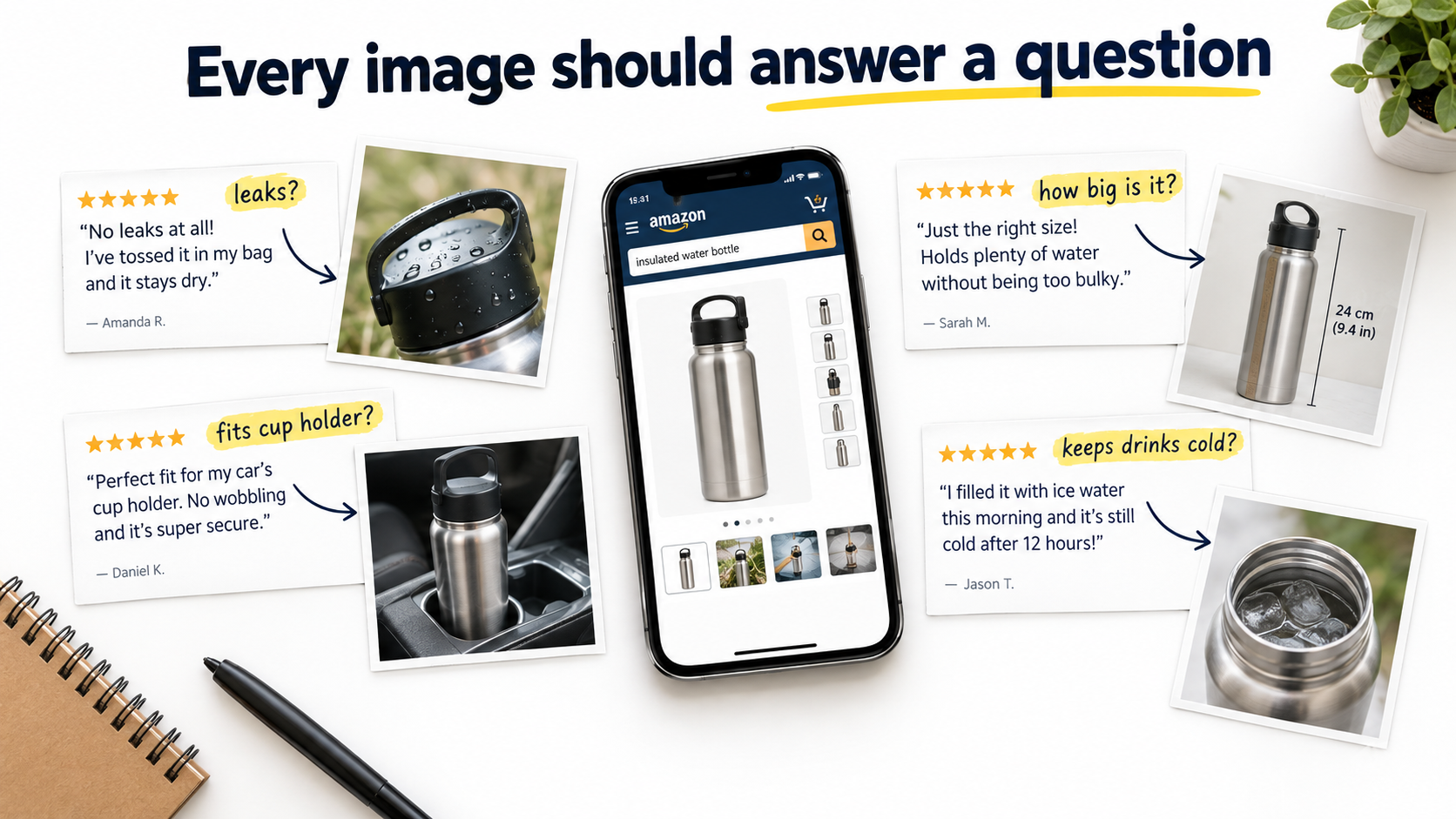
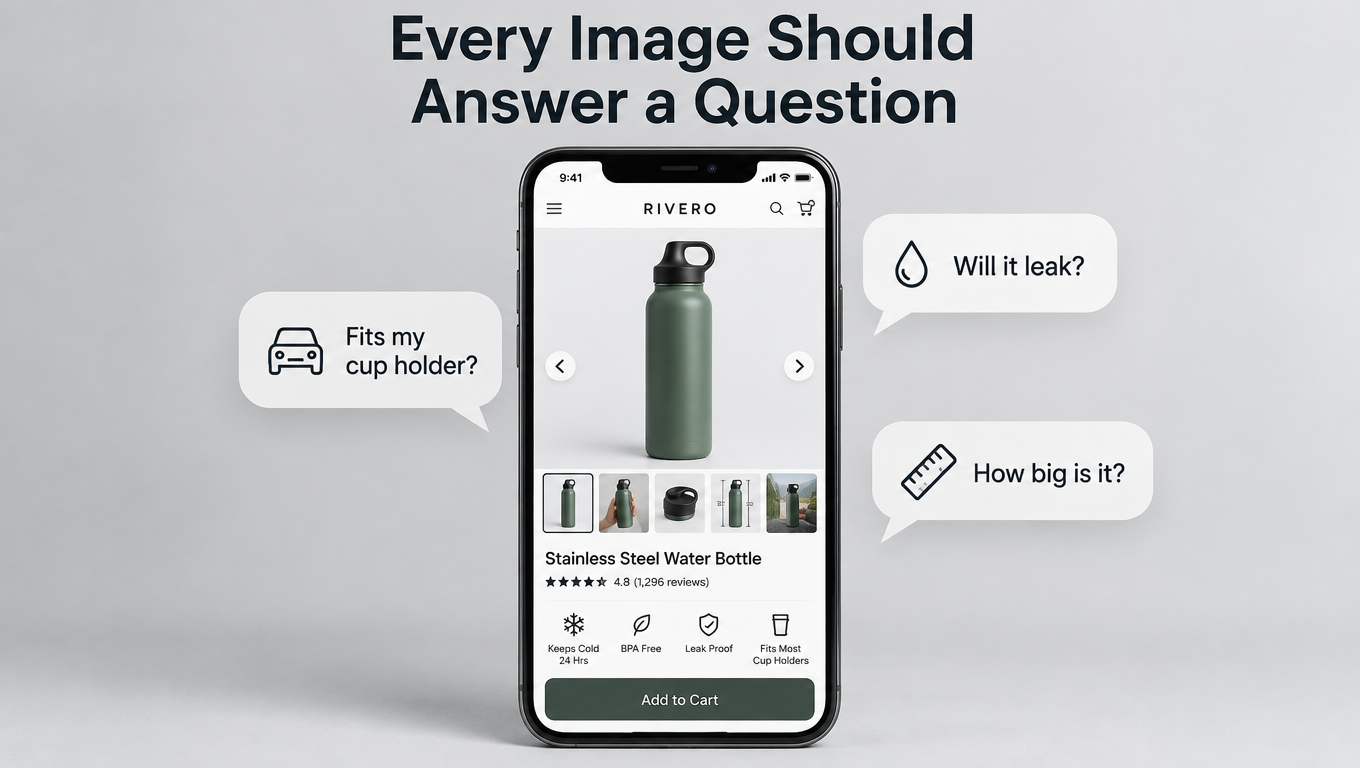
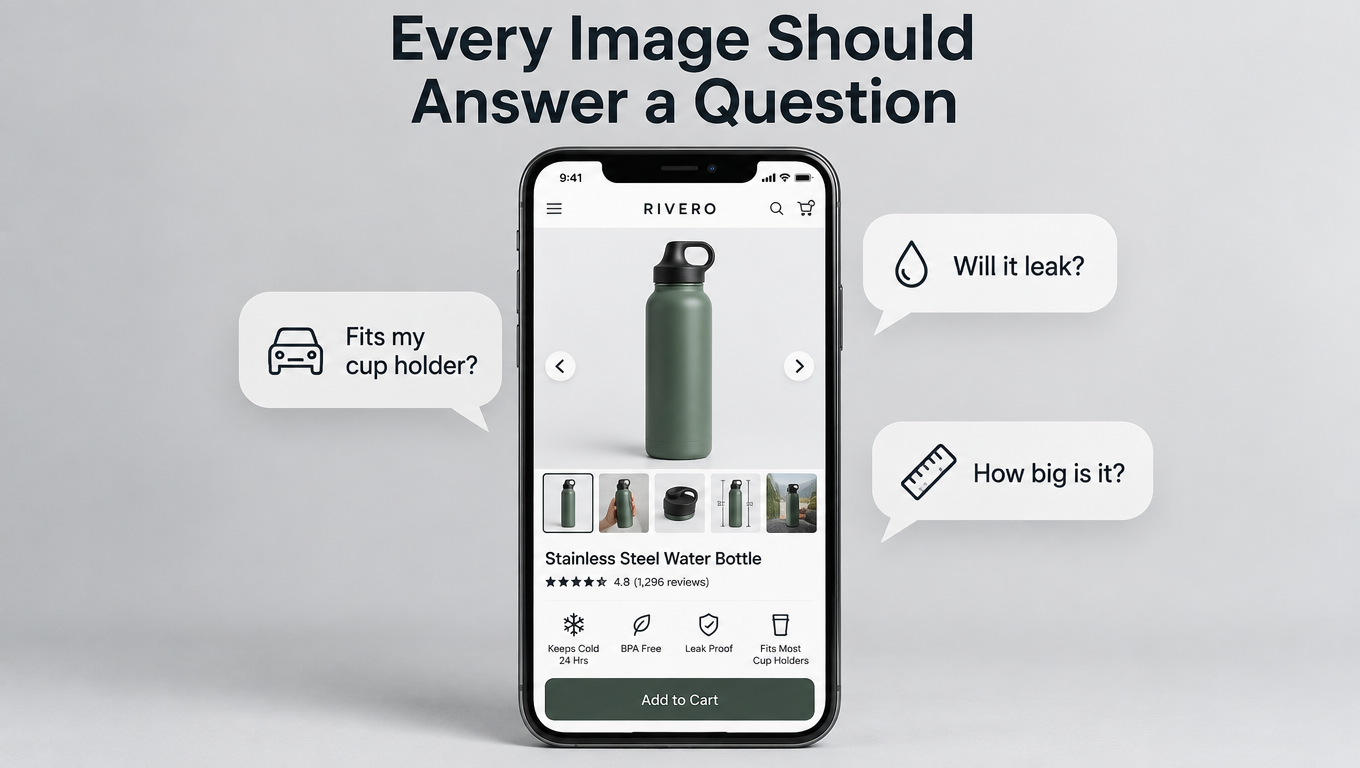
    Images 2–3: The orientation and detail images

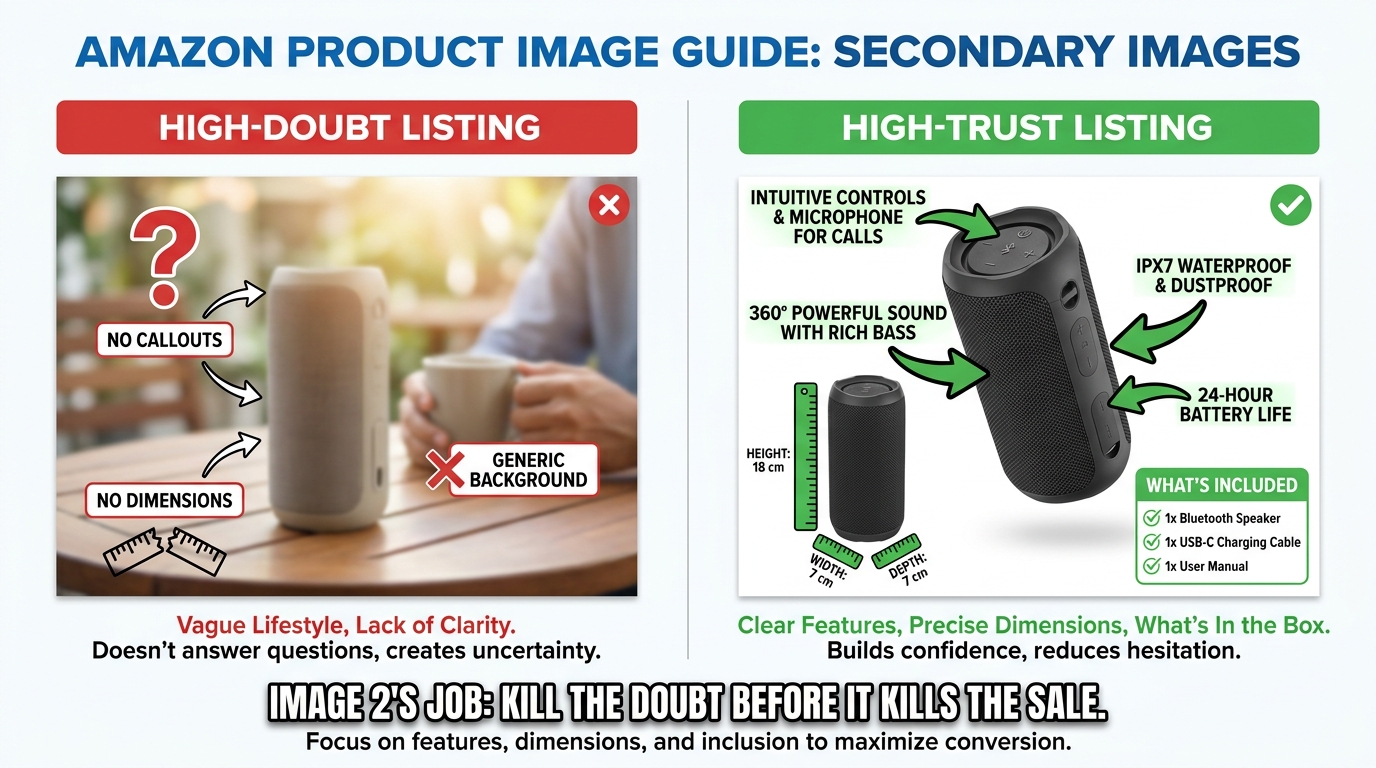
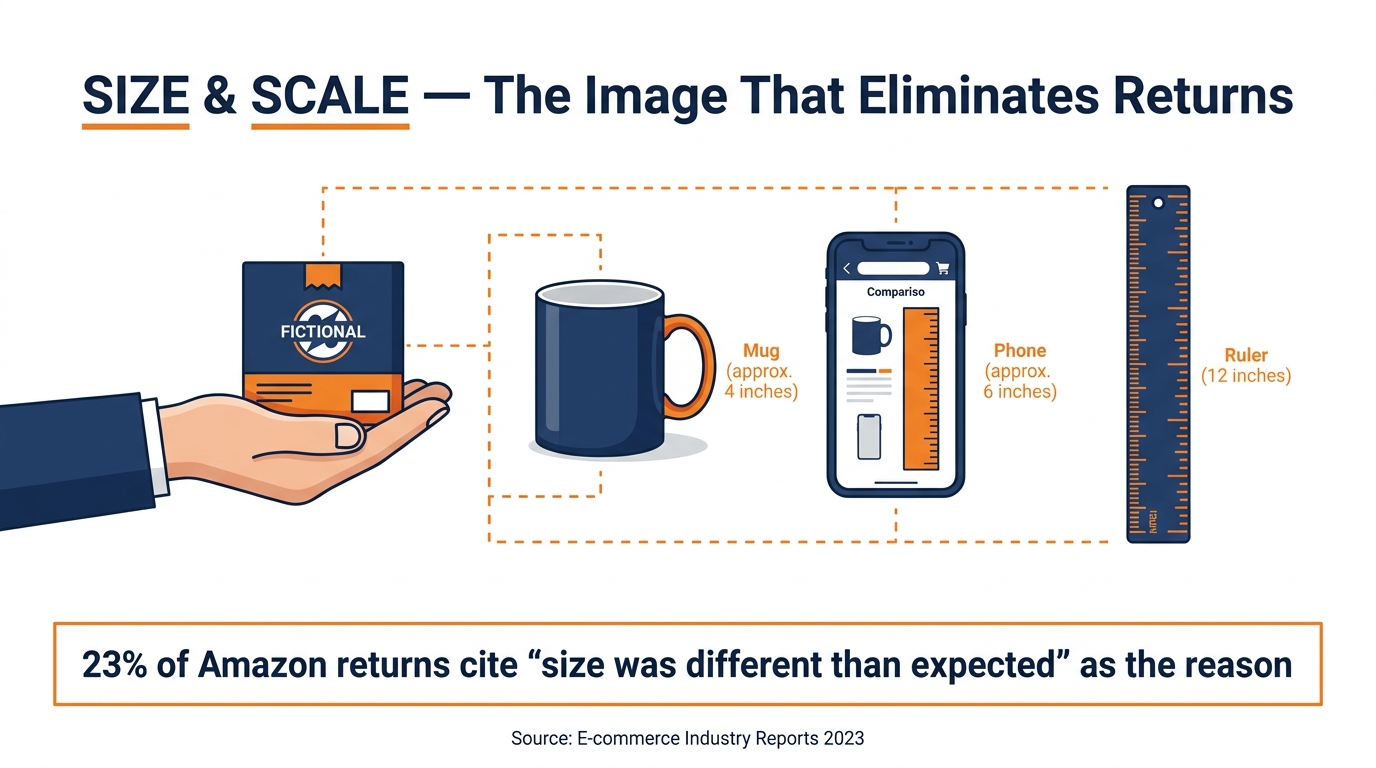
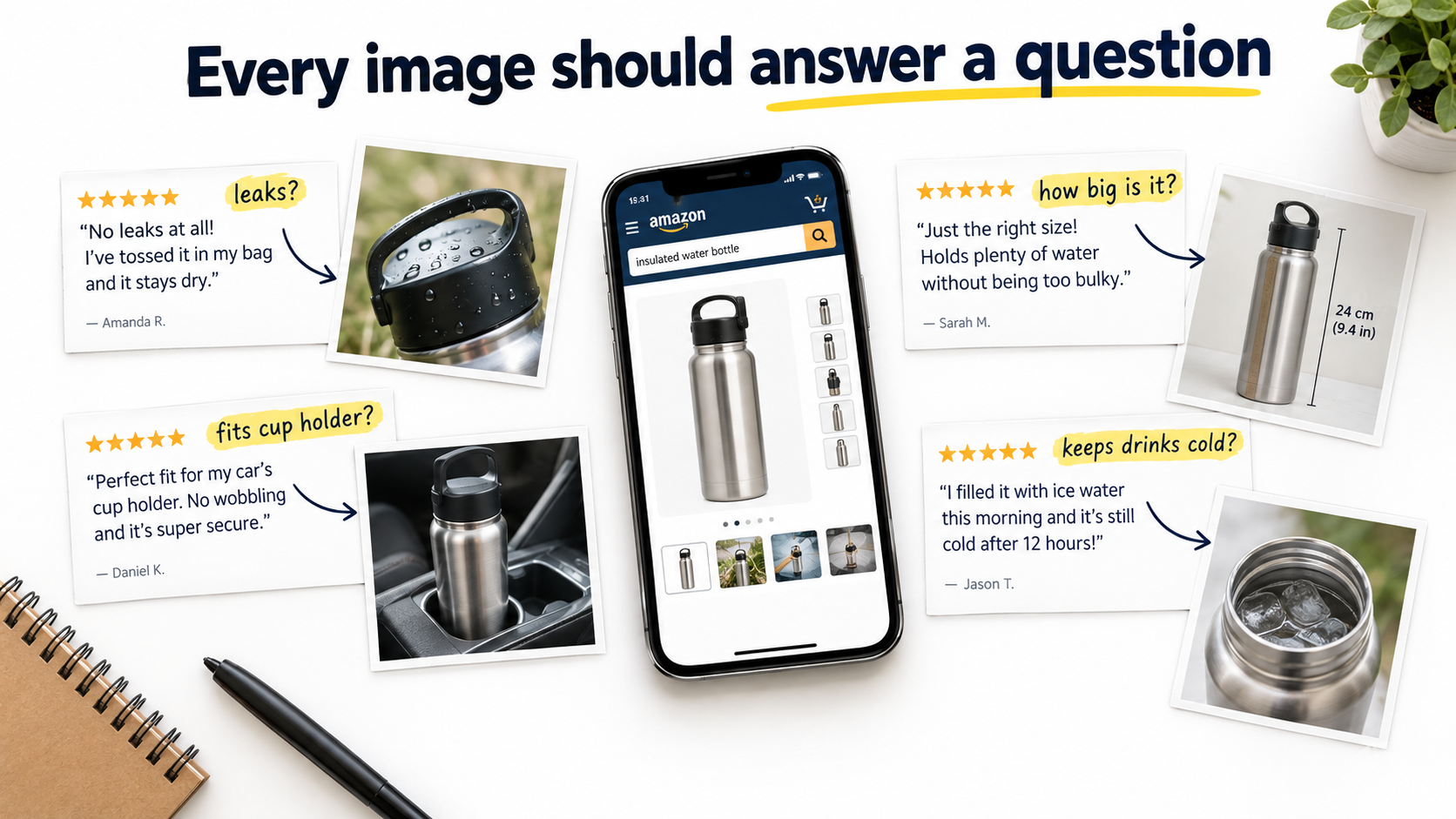
    Once a shopper clicks through to the listing, they need to build a comprehensive mental picture of the product. Images two and three should systematically cover angles and details that the main image could not. For most products, this means a back/side view, a close-up of the highest-value detail (a zipper, a connector port, a distinctive design element), or a scale reference shot that shows the product next to a hand, a common household object, or a labeled dimension overlay.

    Images 4–5: The lifestyle and context images

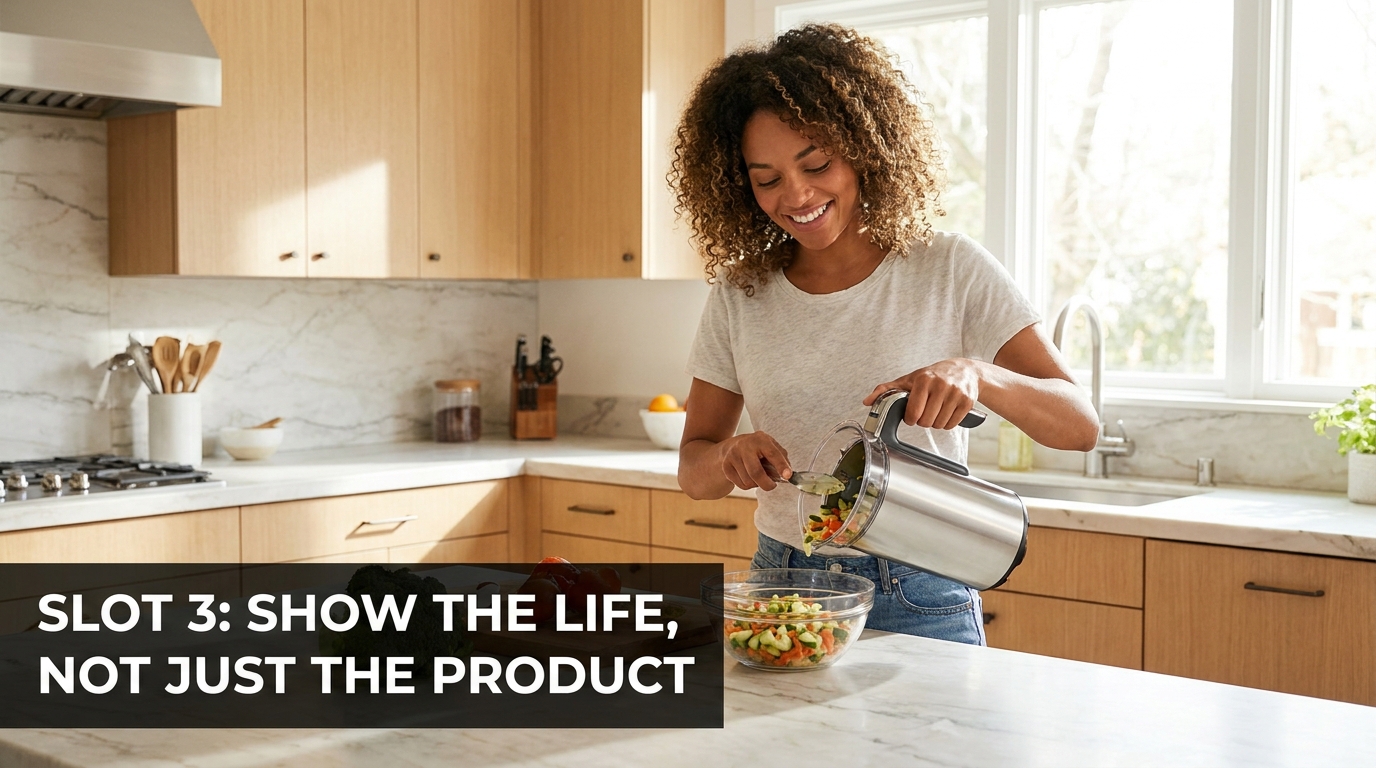
    Lifestyle images serve a different psychological function than product detail images. They don’t answer “what does this look like?” — they answer “can I picture this in my life?” Showing a product in a realistic, aspirational real-world setting gives shoppers permission to project themselves into ownership. A well-executed lifestyle image for a coffee mug is not a photograph of a coffee mug. It is a photograph of a morning — the mug is just in it. These images work particularly hard for home goods, apparel, fitness equipment, and any product with a strong lifestyle association.

    Images 6–7: The infographic images

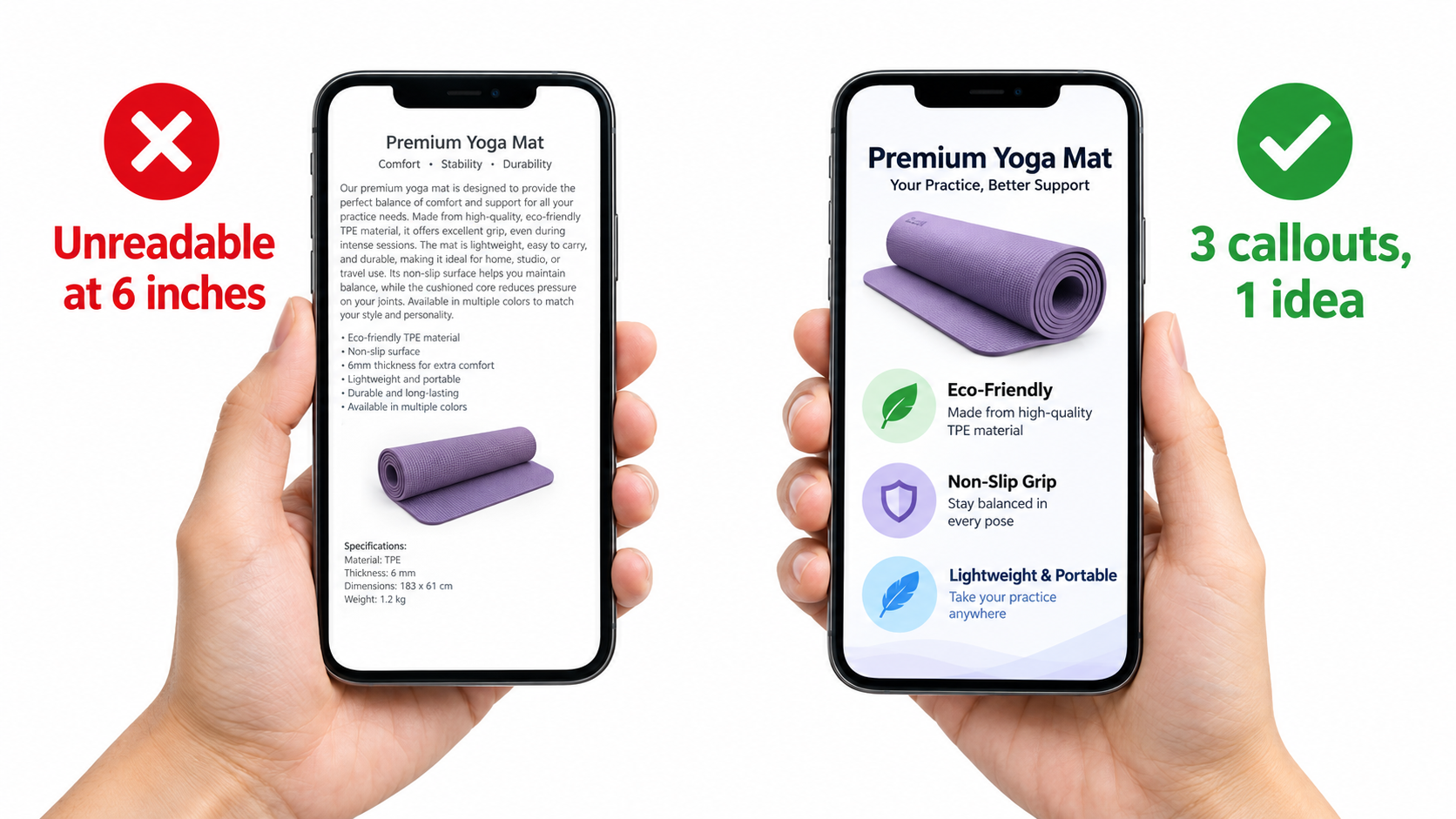
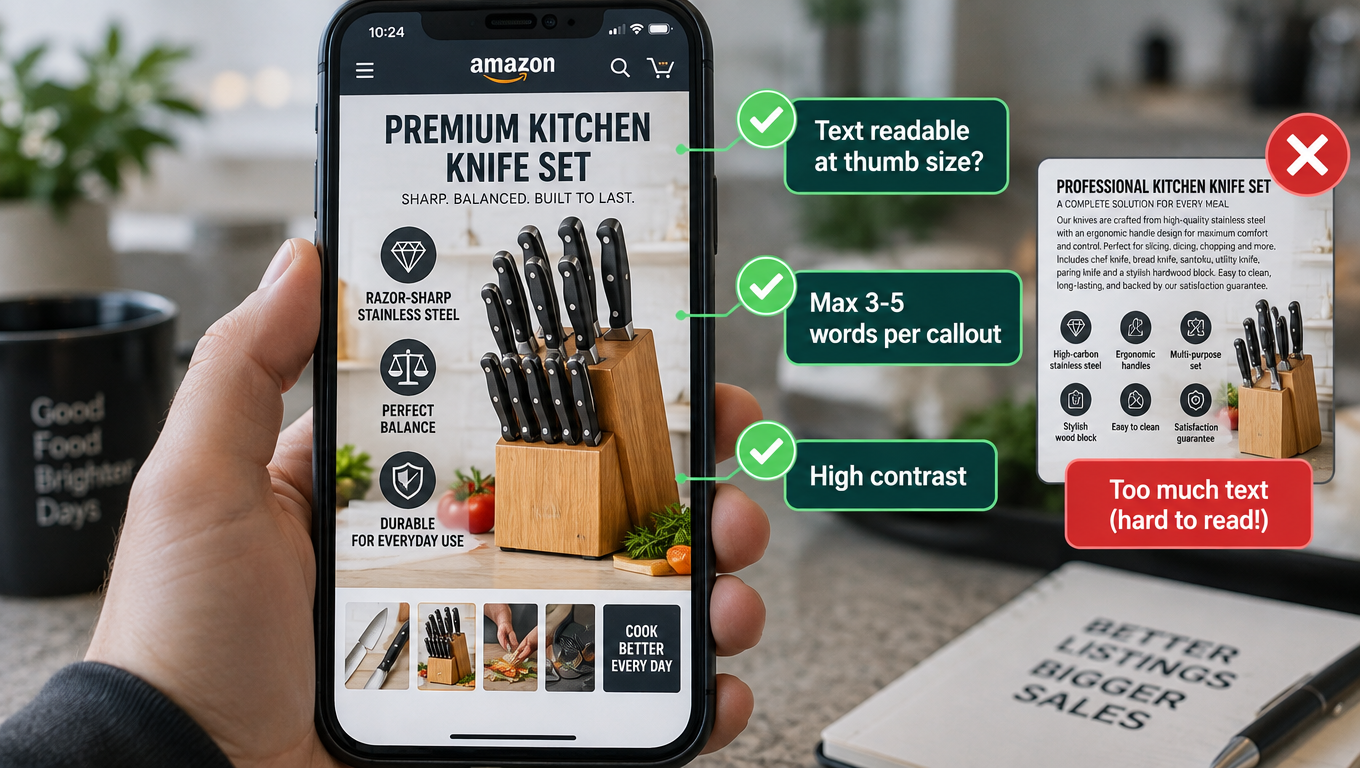
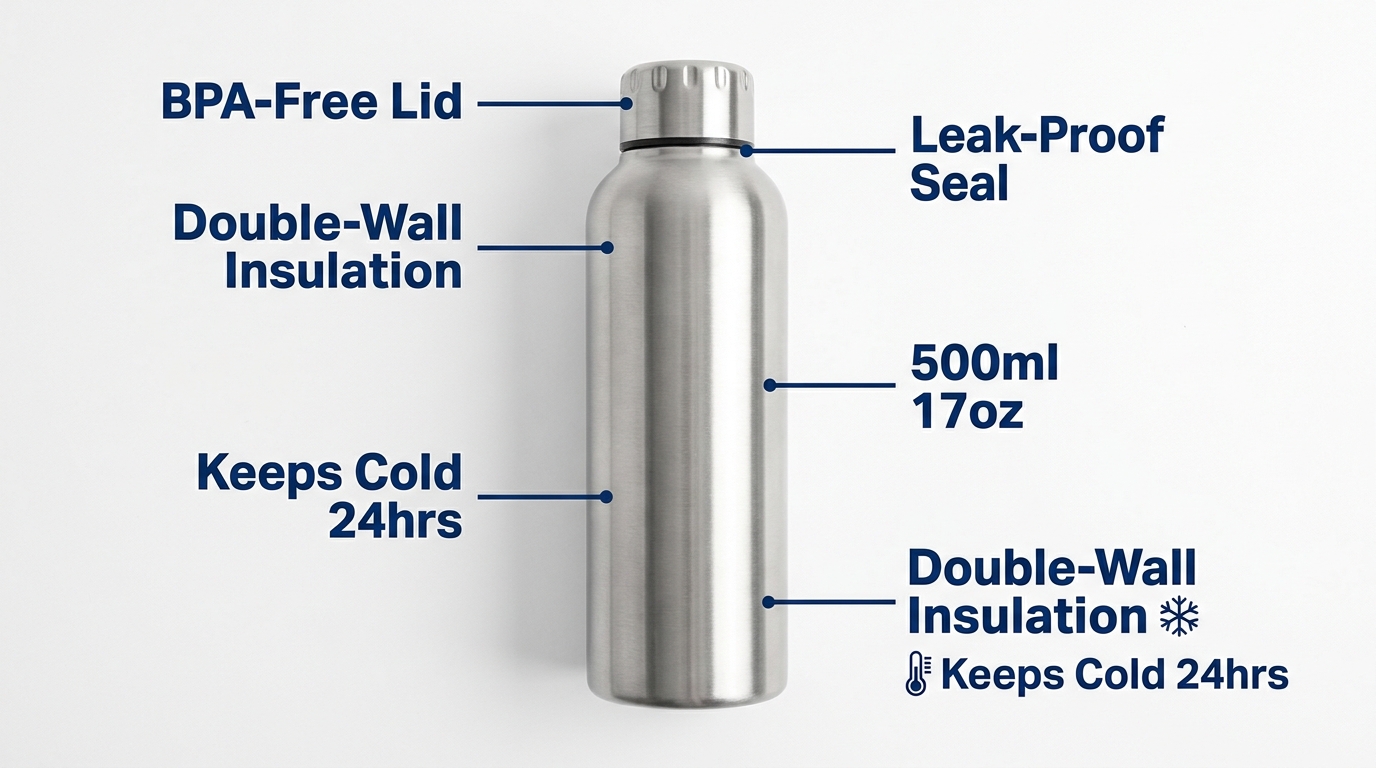
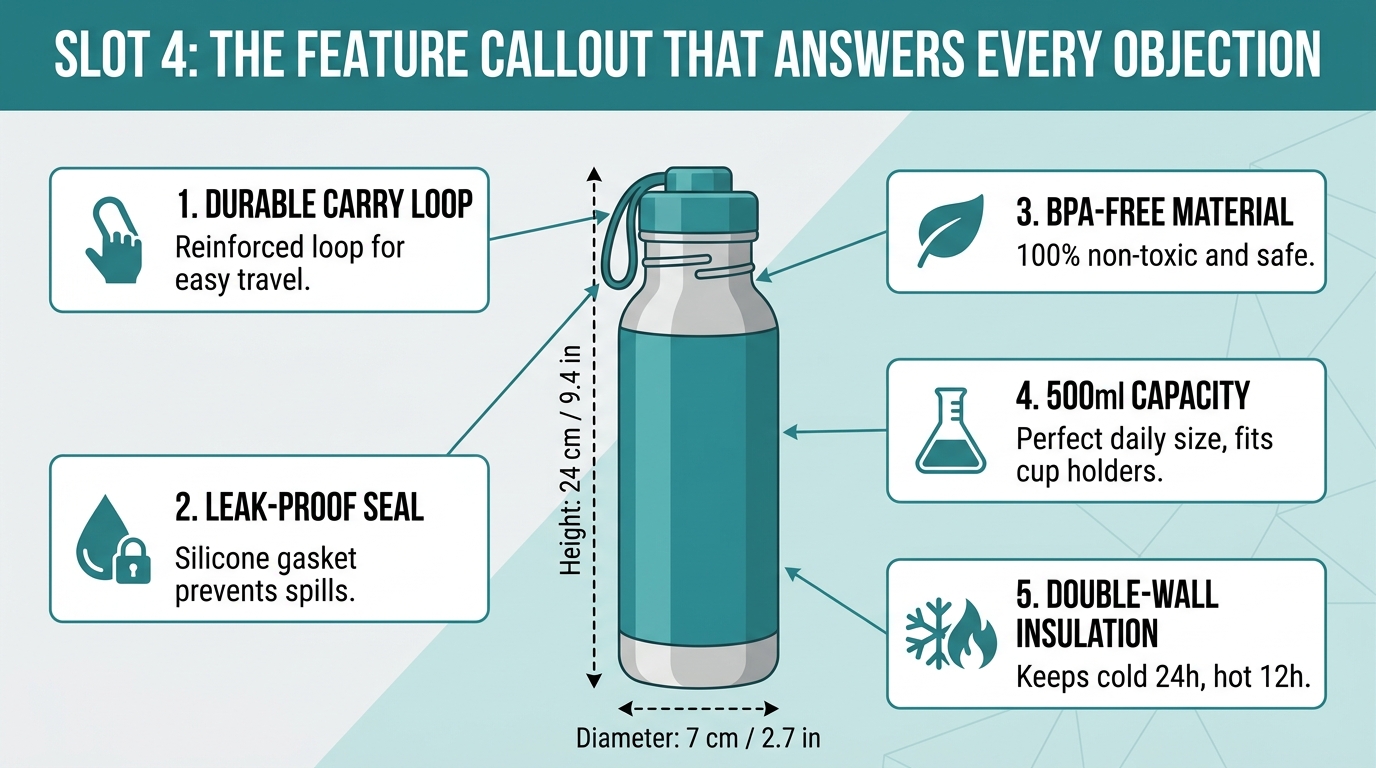
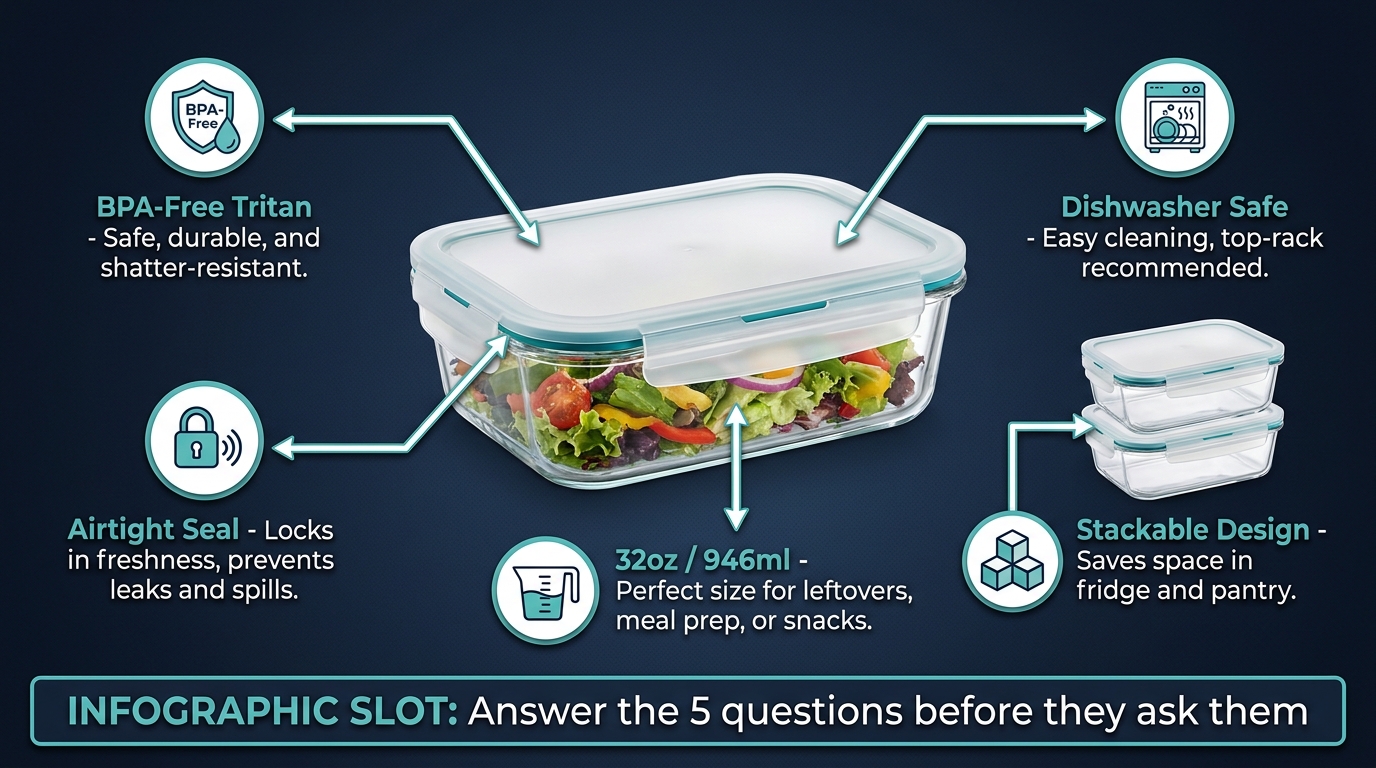
    Amazon allows text, callouts, comparison charts, and labeled diagrams in secondary images (not the main image). These slots are best used for information that is difficult to convey in bullet points alone — size charts, compatibility guides, material comparisons, before/after results, or feature callouts with measurements. Mobile shoppers who don’t scroll to read bullet points often do engage with well-designed infographic images. Keeping text mobile-readable (minimum 16pt equivalent when viewed on a phone) is critical.

    Images 8–9: The trust and social proof images

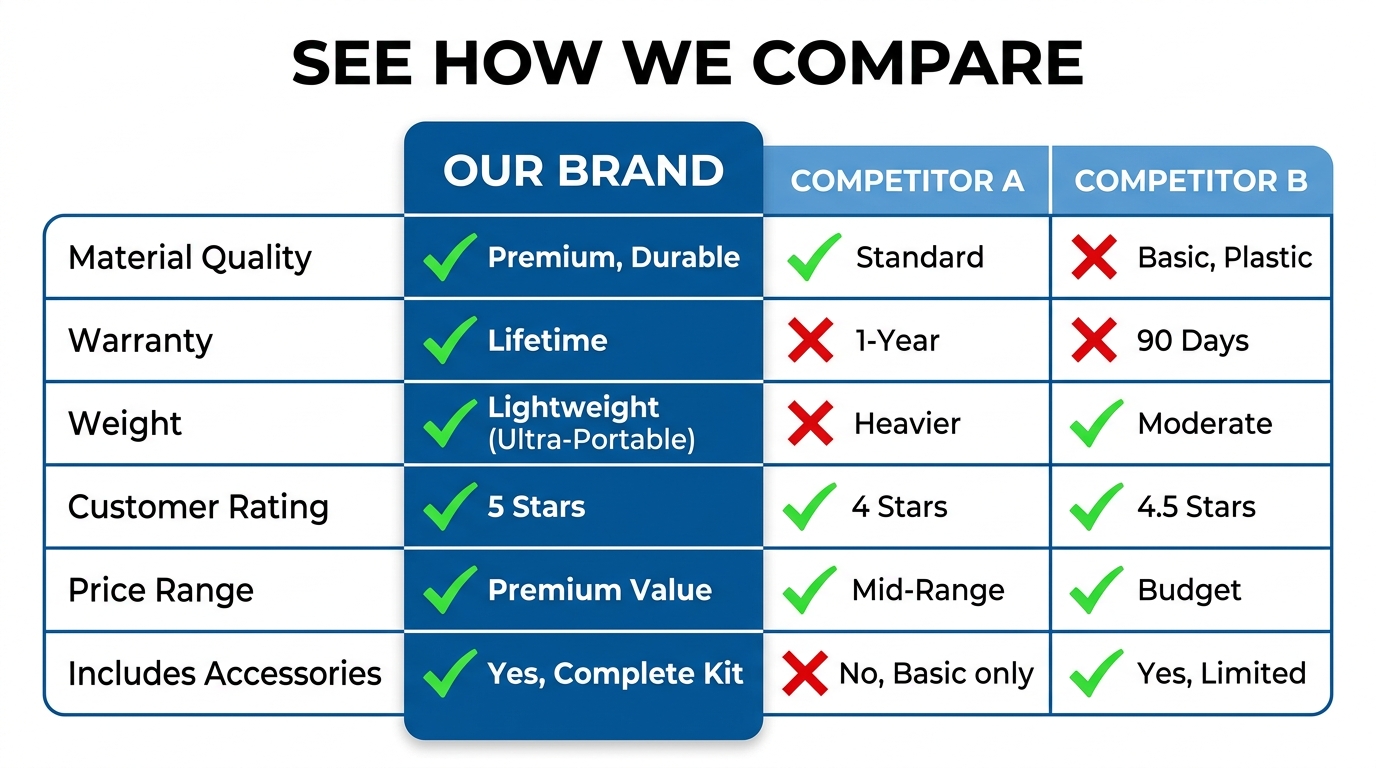
    The final images in the stack can carry review highlights, certifications, brand story elements, or comparison grids against competing products (where Amazon policies permit). For newer brands or products in a trust-sensitive category (supplements, baby products, safety equipment), images that communicate third-party testing, material sourcing, or manufacturing standards do real conversion work in this position.

    Where the spin view fits in the stack

    When a 3D model is approved, Amazon adds the interactive spin view as an additional option within the image gallery — typically surfaced as an overlay on the main image or as a separate tab. It doesn’t replace any of the nine standard image slots. Think of it as image 10: a bonus interactive layer that sits on top of the static gallery. Shoppers who engage with the spin view demonstrate significantly higher purchase intent, making the spin view most valuable for mid-funnel shoppers who are seriously considering the product but not yet committed.

    What’s Coming Next: Amazon Nova Canvas, AI Try-On, and the 2026 Visual Stack

    The landscape of product visualization on Amazon is moving faster in 2026 than at any point in the platform’s history. Understanding where the technology is heading allows sellers to make smarter decisions about where to invest now and what to build toward.

    Amazon's 2026 visual commerce stack: Nova Canvas AI, virtual try-on, 3D spin view, and View in Your Room AR features

    Amazon Nova Canvas and AI-generated product imagery

    Amazon’s Nova Canvas generative AI model is available through AWS and increasingly integrated into seller-facing tools. Its capabilities relevant to product sellers include generating lifestyle background images around existing product shots (placing a product into a kitchen scene, a bedroom, or an outdoor setting without a physical photoshoot), creating color and variant images from a single physical product photograph, and — in its most advanced application — generating virtual try-on composites that show apparel or accessories on a model without a live photoshoot.

    These AI-generated images are explicitly permitted in Amazon listings as secondary images and in A+ Content, as of 2026 guidelines. They are not permitted as the main product image, which must still represent the actual physical product accurately. For sellers managing large catalogs with many color variants, the ability to generate secondary lifestyle images at scale using Nova Canvas — rather than paying for individual photoshoots per variant — represents a significant operational cost reduction.

    The Rufus AI layer and visual search

    Amazon’s Rufus AI shopping assistant, which became a significant part of the Amazon shopping experience in 2025, introduces a new dimension to visual content strategy. Data from the holiday quarter of 2025 showed that Rufus-assisted shopping sessions converted at 3.5 times the rate of non-assisted sessions. What this means for visual content: Rufus can engage with product images, A+ Content, and 3D model information when generating responses to shopper queries. Listings with richer visual assets give Rufus more accurate and detailed information to draw from, which translates into more confident and specific recommendations to shoppers asking questions like “show me sofas under $500 that would work in a small living room.”

    The trajectory of AR in Amazon’s roadmap

    Amazon has been incrementally expanding AR feature eligibility since “View in Your Room” launched in 2017. The pace of that expansion is accelerating. Fashion categories began receiving category-specific virtual try-on features starting in 2022 and have continued to expand. The direction of travel is clear: Amazon intends for AR visualization to be a standard feature across most high-consideration product categories, not a specialty feature for furniture alone.

    Sellers who invest in building accurate 3D models today are positioning their catalogs for multiple future feature rollouts, not just the current set of AR capabilities. A 3D model created and approved today becomes the foundation for whatever Amazon’s AR feature set looks like in 2027 and beyond — including features that don’t exist yet.

    The competitive window is narrowing

    The adoption curve for 3D models on Amazon follows the same pattern as virtually every new seller capability: early adopters gain disproportionate benefits while the feature is underused, then those benefits compress as adoption becomes mainstream and the feature becomes a parity expectation rather than a differentiator. Right now, 3D models and interactive spin views are genuinely differentiating. A listing with a spin view badge in a category where competitors have none stands out visibly. A “View in Your Room” badge on a furniture listing is still unusual enough that shoppers notice and engage with it.

    That window will not stay open indefinitely. The sellers who build this capability into their listing infrastructure in 2026 will have the advantage of experience, established workflows, and catalog coverage before it becomes a standard baseline expectation.

    The Practical Roadmap: Prioritizing Your Visual Investment

    For sellers looking at their catalog and trying to figure out where to start, the decision framework is straightforward. Not every ASIN warrants the investment in a 3D model. The right sequence is to audit, prioritize, produce, and iterate.

    Step 1: Audit your current visual assets against the benchmark

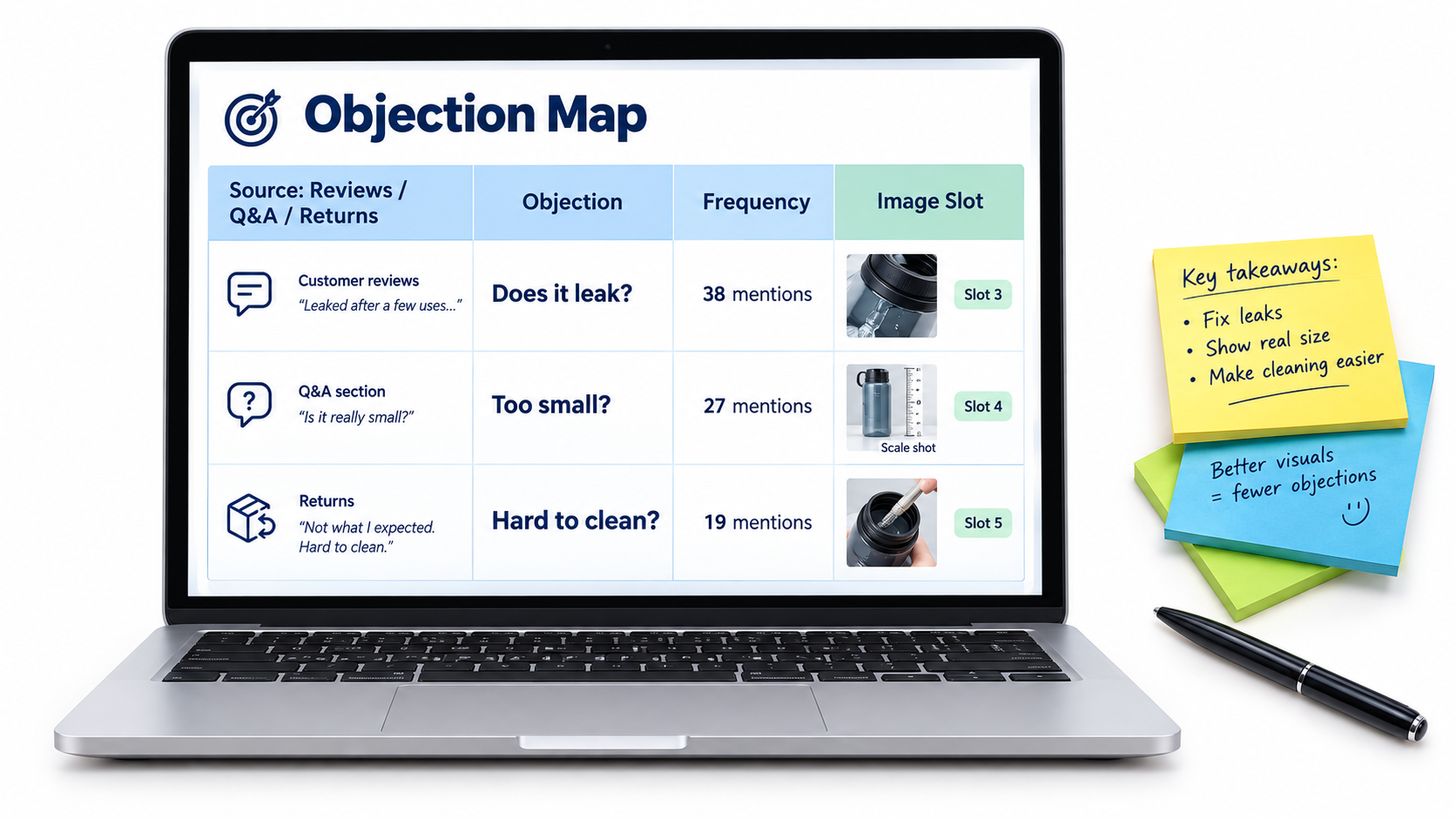
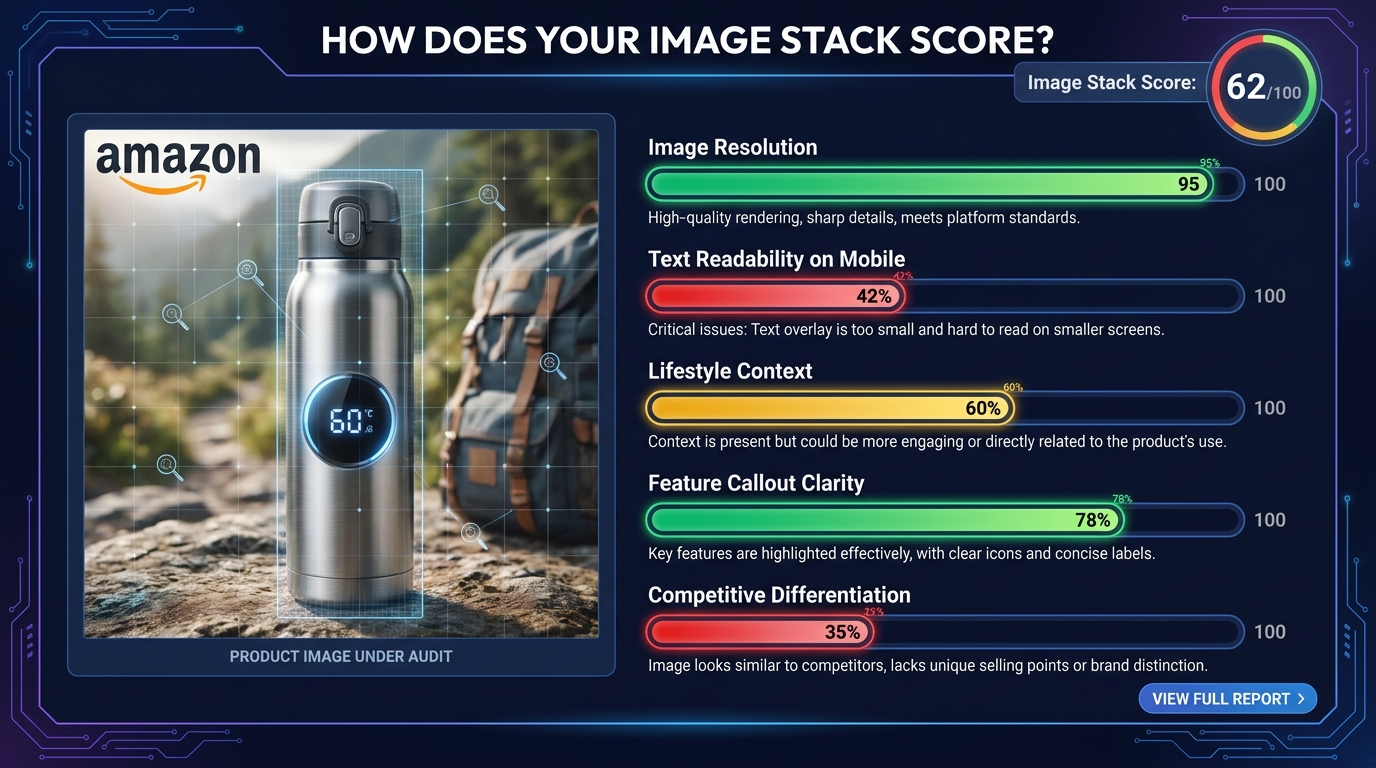
    Pull your unit session percentage (conversion rate) data from Seller Central for every ASIN in your catalog. Sort by traffic volume (highest-traffic listings first) and identify listings with conversion rates below your category benchmark. Amazon’s average conversion rate across categories runs 10–20%, with high performers exceeding 25%. Listings with significant traffic but below-average conversion are the highest-priority candidates for visual improvement.

    For each of those priority ASINs, answer three questions: Does this product have a spatial context problem (scale, fit, placement)? Is it in a category where interactive imagery is eligible? Does it currently have fewer than six substantive images? A “yes” to any two of those three flags an ASIN for immediate visual investment.

    Step 2: Fill the static image stack first

    Before investing in 3D model production, ensure every priority ASIN has a complete, high-quality static image stack. The data shows that moving from one or two images to six or more high-quality images delivers conversion improvements that rival or exceed the benefit of adding a spin view in isolation. The image stack is the foundation; interactive features are a multiplier on top of it.

    Step 3: Prioritize 3D models by category and revenue concentration

    Once the static stack is solid, prioritize 3D model production for your top revenue ASINs in categories where AR and spin views have the highest impact. Start with your two or three best-selling products in home goods, furniture, footwear, or electronics accessories — categories where the conversion data is clearest and the ROI is fastest. Use the learnings from those first submissions to refine your production workflow before scaling to a larger portion of your catalog.

    Step 4: Run controlled experiments and reinvest

    Use Manage Your Experiments to measure the actual conversion impact of new visual assets on each ASIN. Document the results — your unit session percentage before and after, your return rate, and your click-through rate from search. Use that data to build a business case for expanded 3D production across a wider set of ASINs, and to identify which categories and product types in your specific catalog respond most strongly to interactive imagery.

    Conclusion: The Sellers Who Win on Imagery Win on the Fundamentals

    It is easy to treat product photography as a cost of doing business — a box to check during listing setup, a budget line to minimize. The data tells a different story. In a marketplace where 92% of shoppers cite imagery as a top conversion factor, where a 22% conversion lift from interactive views is a documented and reproducible outcome, and where up to 40% of the return problem traces directly back to visual failures, imagery is not a cost. It is one of the most compounding investments a seller can make.

    The specific opportunity in 2026 is sharper than it has ever been. Amazon’s transition away from traditional 360° photography toward 3D models created a knowledge gap that filtered out many sellers who weren’t paying attention. The sellers who do understand how the system works today — the GLB file requirements, the Seller Central upload path, the category eligibility for “View in Your Room,” the A/B testing framework for measuring impact — are operating in a window where this capability is still genuinely differentiating rather than table stakes.

    That window will close. The sellers who build these capabilities into their standard listing workflow now will not only capture the conversion benefits today. They will also be positioned for whatever Amazon’s visual commerce infrastructure looks like next year, and the year after that — because the 3D models they create today are the foundation for every AR feature Amazon has not yet launched.

    The camera cannot replace the in-store experience entirely. But a well-built 3D model on an Amazon listing comes considerably closer than anything that came before it. The question is not whether your competitors will eventually figure this out. The question is whether you figure it out first.

    Key Takeaways

    • Amazon discontinued traditional 360° photography in January 2024. The interactive spin view now requires a 3D model in GLB/GLTF format.
    • 360°/interactive imagery lifts conversion rates 22–27% on average, with furniture seeing up to 250% in AR-specific studies.
    • 3D model and AR visualization reduce return rates by up to 40%, attacking one of the most significant hidden cost drivers for FBA sellers.
    • Brand Registry enrollment is required to upload 3D models. The file must be GLB or GLTF format, max 1 million triangles, with 2–10 reference photos submitted alongside.
    • “View in Your Room” is available for floor/table/wall-mounted products across major Amazon marketplaces, and averages a 9% sales improvement per Amazon’s own data.
    • Use Manage Your Experiments to measure conversion impact before rolling out 3D production across your full catalog.
    • AI tools including Amazon Nova Canvas now allow AI-generated lifestyle imagery in secondary slots and A+ Content — a significant catalog-scale cost reduction for variant-heavy listings.
    • The competitive window for 3D model differentiation is open now, and will narrow as adoption becomes mainstream.
  • Amazon’s 2026 Main Image Rules: What Changed, What’s Being Enforced, and What to Do About It

    Amazon’s 2026 Main Image Rules: What Changed, What’s Being Enforced, and What to Do About It

    Amazon 2026 Main Image Rules - AI enforcement scanning product photos for compliance

    Most sellers don’t lose rankings because of a bad keyword strategy or a price misstep. They lose them because of a single image that Amazon’s automated system decided, silently and without any email notification, no longer meets the rules.

    In 2026, Amazon’s enforcement of main image standards shifted from a reactive, complaint-based process to an active, machine-learning-driven audit system. The platform is now scanning millions of product images continuously — not just when a competitor flags your listing, but on its own, on a rolling basis. The result? Sellers who haven’t touched their listings in months are waking up to suppressed ASINs, dropped rankings, and paused advertising campaigns.

    And here’s the part that makes this especially frustrating: the technical requirements have tightened at the same time. Higher minimum resolution. Stricter white background standards. New rules around AI-generated images. Category-specific exceptions that don’t apply where you think they do. The gap between “was compliant last year” and “is compliant now” is wider than most sellers realize.

    This post is not a surface-level overview of the same rules everyone has been reposting since 2022. This is a detailed breakdown of what specifically changed in 2026, how Amazon’s enforcement engine actually works, which categories have the most gotchas, and exactly what to do if your listing gets suppressed — or before it does.

    Whether you manage five ASINs or five thousand, this is one of the few policy areas where a single non-compliant image can quietly crater an otherwise healthy listing. The cost of ignorance is not abstract — it shows up in your revenue report.


    What Actually Changed: The 2026 Technical Specification Shift

    Amazon main image technical requirements infographic — 2000px minimum, 85% product fill, RGB 255,255,255 white background, no text or watermarks

    It is worth being precise here because the internet is full of recycled summaries of Amazon’s image guidelines that haven’t been updated in years. Several things genuinely changed in 2026, and conflating the old rules with the new ones is a compliance risk in itself.

    Resolution: The Quiet but Significant Upgrade

    For years, Amazon’s stated minimum for the longest side of a main image was 1,000 pixels. That requirement enabled the zoom feature, which Amazon considers critical for the buyer experience. In 2026, that floor was raised. The new minimum for main images is 2,000 pixels on the longest side, with 2,000 x 2,000 pixels being the standard for a square image. Many industry sources and Amazon’s own enforcement behavior now reflect this updated threshold — images that technically met the old 1,000-pixel standard are increasingly being flagged or deprioritized.

    For secondary (non-main) images, the 1,000-pixel minimum remains in place. But for your hero image — the one that appears in search results, the one that determines whether a shopper clicks — the bar has risen significantly. The practical recommendation from professional Amazon photographers and listing specialists now sits at 2,000–3,000 pixels on the longest side to future-proof against further tightening and to ensure sharp rendering across all device sizes.

    The White Background Standard Has Zero Tolerance Now

    The requirement for a pure white background is not new, but the tolerance for deviation has effectively been eliminated by machine learning enforcement. Amazon specifies RGB 255, 255, 255 — pure white, not off-white, not light gray, not an ivory background that “looks white” in natural lighting.

    This matters more than sellers often appreciate. Many product images that appear white to the human eye are actually RGB values like 252/252/252 or 248/248/248 — values that are imperceptibly off-white to a person but are detected immediately by pixel-level automated scanning. The enforcement system introduced in 2026 uses enhanced edge detection algorithms that also check for soft shadows, gradient backgrounds, and imperfect product cutouts that bleed into the background. A slightly visible drop shadow, which was tolerated in previous years, now qualifies as a violation.

    The 85% Frame Fill Rule and How It’s Now Measured

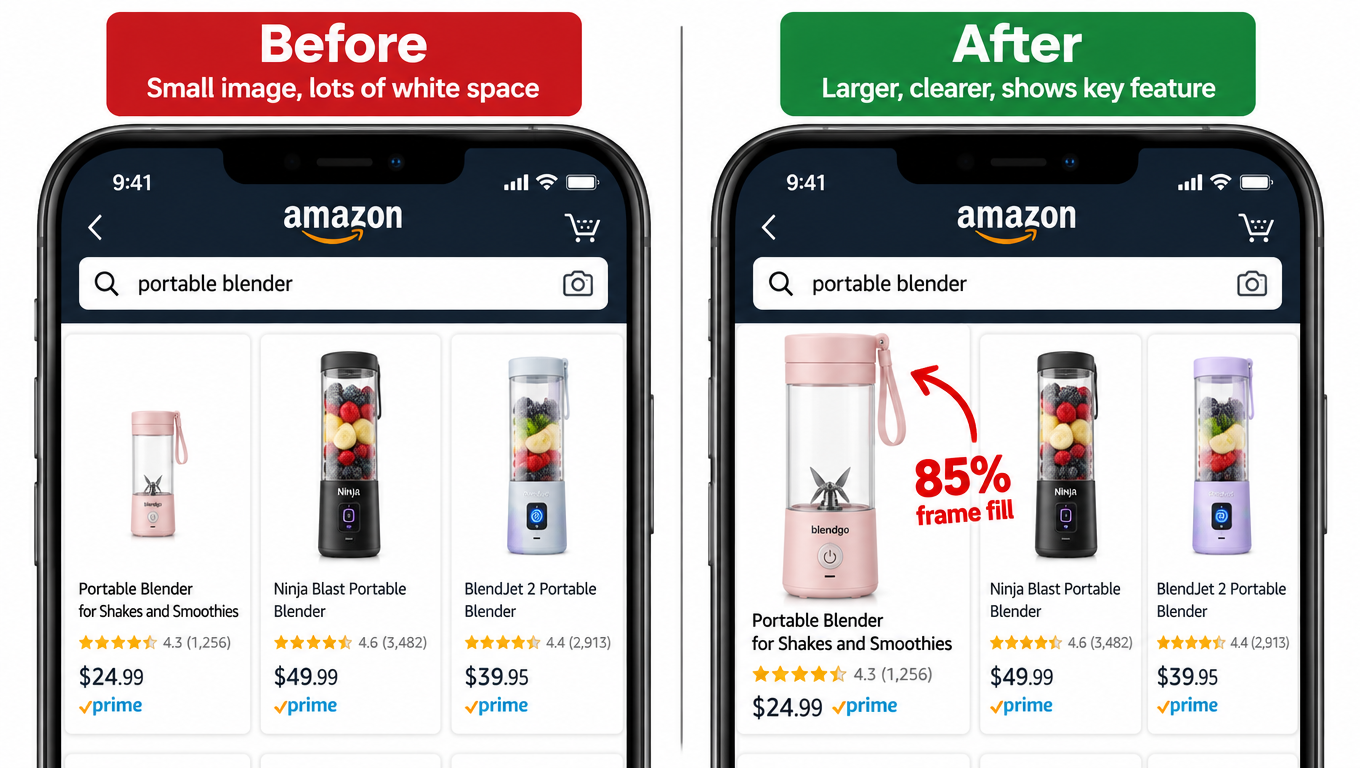
    The requirement that your product occupy at least 85% of the image frame has also been in place for some time, but the definition of “the product” has become stricter in application. Amazon’s automated system now measures this based on the actual product pixels — not including significant amounts of empty white space around a small item placed in the center of a large canvas.

    Sellers who photograph small products — jewelry, accessories, electronic components — often underestimate how much space the item actually takes up relative to the full frame. A ring centered in a 3,000 x 3,000 pixel image with lots of surrounding white space may technically be a beautiful, high-resolution photo, but it will fail the 85% fill requirement. Cropping closer and filling the frame is not optional; it’s enforced.

    What Is Still Absolutely Prohibited

    The following remain hard violations that will trigger suppression or deprioritization, without exception:

    • Text of any kind — product names, brand names, “new formula,” “limited edition,” “free shipping,” size callouts, promotional language
    • Logos and watermarks — including very small brand logos in corners
    • Props and accessories not included in the purchase — a blender photographed with fresh fruit, a yoga mat photographed with a water bottle that isn’t part of the listing
    • Inset images or collages — multiple images combined into one main image file
    • Borders, color blocks, or decorative frames
    • Mannequin or hanger use in the main image for adult apparel (category-specific rules covered below)
    • Lifestyle backgrounds — your product photographed in a kitchen or on a beach cannot be the main image, regardless of how professional it looks

    The file format requirements remain the same: JPEG (preferred), PNG, TIFF, or non-animated GIF. File size must stay under 10MB. The maximum pixel dimension on the longest side is capped at 10,000 pixels. Color profile should be sRGB.


    How Amazon’s Machine Learning Enforcement Engine Actually Works

    Before vs. After comparison showing what Amazon's AI enforcement now rejects versus what passes in 2026

    Understanding how Amazon finds non-compliant images — not just what the rules are — changes how you approach compliance. The enforcement model that Amazon deployed in 2026 is materially different from anything that came before it, and it explains why sellers who haven’t changed their listings are suddenly getting flagged for images they uploaded two years ago.

    Continuous Scanning, Not Reactive Enforcement

    The old model relied heavily on competitor reporting and periodic manual audits by Amazon’s compliance teams. The 2026 model adds a continuous, automated scanning layer that runs across the entire product catalog on a rolling basis. Amazon has not published the exact cadence, but sellers reporting suppression events describe being flagged for images that had been live for months or years with no previous issues.

    This shift is significant because it means compliance is not a one-time task. An image you uploaded when it met the 2023 standards may now be flagged because the scanning system interprets a faint shadow, an off-white pixel value, or a background gradient that wasn’t detectable by the older tooling. The system is not looking at whether you followed the rules when you uploaded — it’s checking whether the image meets current standards right now.

    Edge Detection and the Shadow Problem

    One of the most technically sophisticated additions to the enforcement system is enhanced edge detection. This refers to the system’s ability to identify where the product ends and the background begins — and to flag cases where that boundary is unclear, soft, or inconsistent.

    Drop shadows are the most common casualty of this upgrade. For years, many photographers and post-processing studios added subtle drop shadows to product images to create depth and a sense of dimension. These shadows were generally tolerated under the old enforcement model. Under the 2026 system, they represent a detectable deviation from the pure white background standard, and they’re being caught systematically.

    Similarly, products with complex edges — transparent items, products with fine hair or fabric textures, items with reflective surfaces — are more likely to have imperfect cutouts when processed even by professional image retouching tools. The edge detection system checks whether background pixels bleed through the product boundary, and images that fail this check are candidates for suppression.

    The 7-Day Suppression Timeline

    Based on seller-reported experiences in 2026, the typical timeline from violation detection to active suppression is approximately 7 days. During this window, Amazon’s system flags the ASIN internally. Sellers may or may not receive a notification in Seller Central — the communication is inconsistent, and many sellers only discover the issue when they check their listing health dashboard or notice a sudden traffic drop.

    Once suppressed, the listing is removed from search results. PPC campaigns linked to that ASIN are paused automatically. The Buy Box is removed. The product effectively goes dark for buyers. Recovery after uploading a compliant image typically takes 24–48 hours, though complex cases involving account-level flags can take longer.

    Selective vs. Universal Enforcement

    It is worth acknowledging a frustrating reality that sellers frequently raise: enforcement is not perfectly uniform across the catalog. High-volume ASINs from established brands with strong sales histories sometimes maintain non-compliant images longer than lower-volume listings before being acted upon. This is likely a function of how Amazon prioritizes enforcement resources and risk scoring — not a deliberate policy, but a real pattern.

    The practical implication is that if your competitors appear to be violating the rules without consequence, that doesn’t mean you will too. Your risk profile may differ from theirs, and the rolling scan may reach your listings on a different timeline. Building compliance around what competitors appear to be doing is a fragile strategy.


    Category-Specific Rules That Are Catching Sellers Off Guard

    Amazon’s main image rules are not uniform across all categories. Some categories have specific exceptions; others have stricter requirements than the baseline. Getting this wrong is particularly expensive because sellers often assume their general knowledge of the rules is sufficient, when in fact their specific category operates differently.

    Apparel and Clothing: The Model Requirements

    This is one of the most category-specific and most misunderstood areas of Amazon’s image policy. For adult men’s and women’s apparel in the main image slot, Amazon requires the use of a live, standing human model. This is not a recommendation — it is a requirement, and it distinguishes the main image from all supplemental images.

    The specific posture requirements matter here. The model must be standing. Sitting, leaning, kneeling, lying down, or casual poses are not permitted for the main image. Ghost mannequins — the technique where clothing is photographed on a mannequin and the mannequin is digitally removed to create the appearance of the clothing being worn — are explicitly not permitted in the main image slot, though they may be used in supplemental images.

    For children’s and baby apparel, the rule reverses entirely: flat-lay photography (laid flat on a surface) is required across all image slots, and child models are not permitted in the main image. This is a safety and ethics policy, not just an aesthetic one.

    For multi-pack and bundled apparel, the requirement shifts to flat-lay regardless of whether the items are adult or children’s sizing. The purpose is to show all included items clearly in a single image.

    Jewelry: The Cropping and Accessories Rules

    Jewelry has its own edge cases that trip up sellers. Amazon permits necklaces to extend slightly beyond the frame edges in the main image, which is a practical accommodation for long-chain items. However, non-included accessories are prohibited — a ring photographed on a hand styled with matching bracelets will be flagged if those bracelets aren’t part of the listing. The rule is about accurately representing the purchase, not styling for aesthetics.

    For jewelry, the 85% fill requirement interacts with the physical reality of small items, making this one of the highest-risk categories for fill violations. Photographing against a pure white surface at close range with appropriate macro capability is essentially mandatory for compliance.

    Electronics and Home Goods: The 360° and Video Standards

    For electronics and certain home goods categories, Amazon’s 2026 updates include enhanced requirements around 360-degree views and product videos as supplemental content. While these don’t directly affect the main image technical standards, they influence how the category expects listings to be built out overall. Amazon has increasingly signaled that listings in these categories without multiple supplemental images and video content will be deprioritized in search ranking — even if the main image is technically compliant.

    The practical guidance for electronics: the main image should show the product in its most recognizable form — typically the front face of the device — without any accessories or cables unless they are included in the purchase. Cables, adapters, and cases are common violation triggers in this category when photographed alongside a product as if they’re included.

    Food and Grocery: The Labeling Visibility Requirement

    Food products have an additional layer of complexity: the main image must show the product’s actual packaging with its labels clearly visible. For packaged food items, this means the product label must be legible in the image. This is the one category where text appearing in the image is acceptable — because it’s on the physical packaging, not overlaid by the seller. Deliberately obscuring label text or photographing the back of a package as the main image can trigger compliance flags.


    AI-Generated Images and Amazon’s New Disclosure Requirements

    The rise of AI image generation tools has added an entirely new dimension to Amazon’s image compliance landscape in 2026. This is a rapidly evolving area of policy, and sellers using tools like Midjourney, DALL-E, Adobe Firefly, or Amazon’s own AI image generation features need to understand exactly where the lines are drawn.

    What Amazon Now Permits with AI

    Amazon’s 2026 policy distinguishes between minimal AI-assisted enhancements and substantial AI generation. Permitted uses include:

    • AI-powered background removal (used by virtually every photo editing tool)
    • Color correction, lighting adjustments, and brightness/contrast improvements
    • Resizing and sharpening
    • Generating lifestyle backgrounds for supplemental images (not the main image), provided the product itself is accurately photographed
    • Using Amazon’s own AI background generation tool in Seller Central for supplemental images

    None of these require disclosure if the physical product is accurately represented and the image is not materially misleading.

    What Now Requires Disclosure

    When AI is used to substantially generate or significantly alter the product representation itself — creating new visual elements, changing the appearance of the physical item, or constructing an image that wouldn’t exist from a real photograph — Amazon’s 2026 policy requires explicit disclosure. The example statement provided: “This product image was created using AI technology.”

    The practical line is about whether the AI is enhancing a real photo or generating a synthetic representation of the product. A 3D render of a product that was built in software rather than photographed falls under this disclosure requirement. A product composite where AI has been used to alter the apparent color, texture, or features of the item also falls under this rule.

    Why Fully AI-Generated Main Images Are Problematic

    The enforcement system introduced in 2026 includes detection capabilities specifically aimed at identifying AI-generated images. Patterns in image texture, lighting physics, and edge characteristics that are common in AI-generated imagery trigger automated review flags. Sellers who use AI to generate entirely synthetic main images — without a real photograph of the actual physical product — face both suppression risk and a more serious potential account-level violation for misrepresentation.

    The practical guidance here is unambiguous: your main image must be based on a real photograph of the actual physical product. AI tools can be used in post-processing to enhance that photograph, but they cannot replace it. The product in the image must accurately represent what arrives at the buyer’s door in terms of color, size, materials, and contents.

    This is especially relevant for sellers who import private-label products and rely on manufacturer-supplied renders or AI-composite images rather than photographing their actual inventory. Amazon’s system is increasingly capable of detecting the difference.


    What Image Suppression Actually Does to Your Business

    Business impact of Amazon listing suppression — CTR drops, rank loss, PPC paused, Buy Box removed

    The word “suppression” sounds technical and recoverable. It sounds like a temporary administrative issue. The reality is that suppression events — even short ones — cause a cascade of damage that extends well beyond the days your listing is offline. Understanding the full scope of what suppression does to a listing is the best argument for getting proactive about compliance before it happens.

    Immediate Consequences: What Happens on Day One

    When an ASIN is suppressed, it is removed from Amazon search results. The listing still exists in Seller Central, and there is still a product detail page URL that may be discoverable via direct link — but the listing no longer appears for keyword searches. For a product that gets the majority of its traffic from organic search, this is effectively zero new traffic from the moment suppression is applied.

    PPC campaigns linked to the suppressed ASIN are paused automatically by Amazon’s system. This means not only do you lose organic visibility — you also lose the ability to run paid traffic to the listing while it’s suppressed. If you had active Sponsored Products, Sponsored Brands, or Sponsored Display campaigns promoting that ASIN, they stop generating impressions and clicks.

    The Buy Box is also removed from suppressed listings. Even if another seller has inventory of the same product and could technically win the Buy Box, the suppression status prevents any seller from holding it. This is relevant for resellers and vendors with shared ASINs.

    The Ranking Damage That Persists After Recovery

    This is the part that sellers underestimate most severely. When a listing goes dark for even a few days, it stops accumulating the behavioral signals — clicks, impressions, conversions — that Amazon’s A10 algorithm uses to maintain and improve organic rank.

    For a well-ranked ASIN with steady sales velocity, a suppression event can cause the product to slide down multiple pages in search results, even after the image issue is resolved and the listing is reinstated. Amazon’s algorithm interprets the sudden absence of engagement as a negative signal. Recovering that ranking is not automatic upon reinstatement — it requires rebuilding momentum through sales, and often, a period of increased PPC spend to compensate for the lost organic position.

    Sellers who manage their own data report CTR drops of up to 38% in the period immediately following reinstatement, as the listing re-enters search results at a lower rank with reduced visibility. The compound effect of lower rank, lower CTR, and lower conversion signal creates a rebuilding cycle that can take weeks or months to fully resolve for competitive keywords.

    The Advertising Efficiency Cost

    Organic ranking recovery typically requires a period of elevated PPC investment — which means increased ACoS during the recovery window. A suppression event for a high-performing ASIN can therefore translate into a weeks-long period of inflated advertising costs just to restore the baseline performance that existed before the suppression. For sellers operating on thin margins, this is a meaningful financial hit that doesn’t show up on the suppression event itself but in the subsequent ad spend and margin reports.

    The Account-Level Risk

    Individual ASIN suppression is frustrating but manageable. The more serious risk is when a pattern of non-compliant images triggers a broader account-level review. Amazon’s enforcement system tracks compliance history, and accounts with repeated or widespread violations across multiple ASINs can face escalated consequences, including temporary selling restrictions or requests for additional verification. Sellers with hundreds of ASINs — and who may have uploaded images under older standards — face the highest exposure here.


    The Mobile Thumbnail Factor: Why Resolution Matters More Than You Think

    Amazon mobile search results showing one high-quality product thumbnail standing out among competitors — winning the click with proper image quality and product fill

    One of the underlying reasons Amazon pushed for higher resolution minimums in 2026 has nothing to do with desktop display and everything to do with mobile. The majority of Amazon shopping now happens on mobile devices, and the search results page on a mobile screen is a fundamentally different visual environment from a desktop browser.

    How Search Thumbnails Are Rendered on Mobile

    On a standard mobile search results page, Amazon displays product images as thumbnails at approximately 90 x 90 pixels — sometimes as large as 160 x 160 pixels depending on the layout and device. At these sizes, the difference between a 1,000-pixel source image and a 2,500-pixel source image might seem irrelevant — both are being compressed down to a thumbnail anyway.

    But the mechanics of compression matter. When a high-resolution source image is scaled down to a small thumbnail, the downsampling algorithm preserves edge sharpness, color accuracy, and contrast in a way that a lower-resolution source simply cannot replicate. A 2,500-pixel image compressed to a 90-pixel thumbnail will render sharper edges, more accurate color, and better contrast than a 1,000-pixel image compressed to the same size.

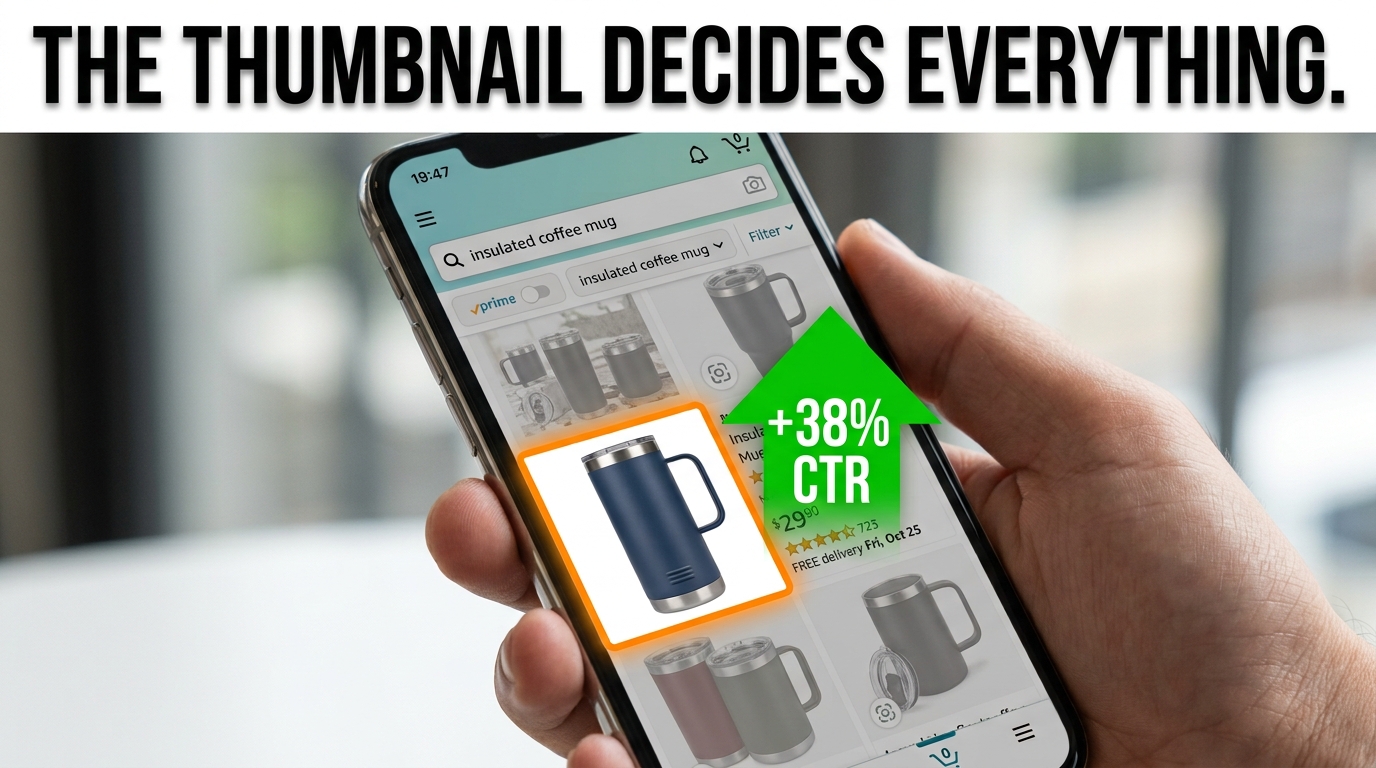
    At thumbnail scale, these differences directly affect whether your product looks clean and professional versus blurry and indistinct. In a search results row where five or six products are displayed side by side, thumbnail quality is a primary differentiator for earning the click — often more important than title text, which most shoppers don’t read before deciding which image to tap.

    The Connection Between Image Quality and CTR

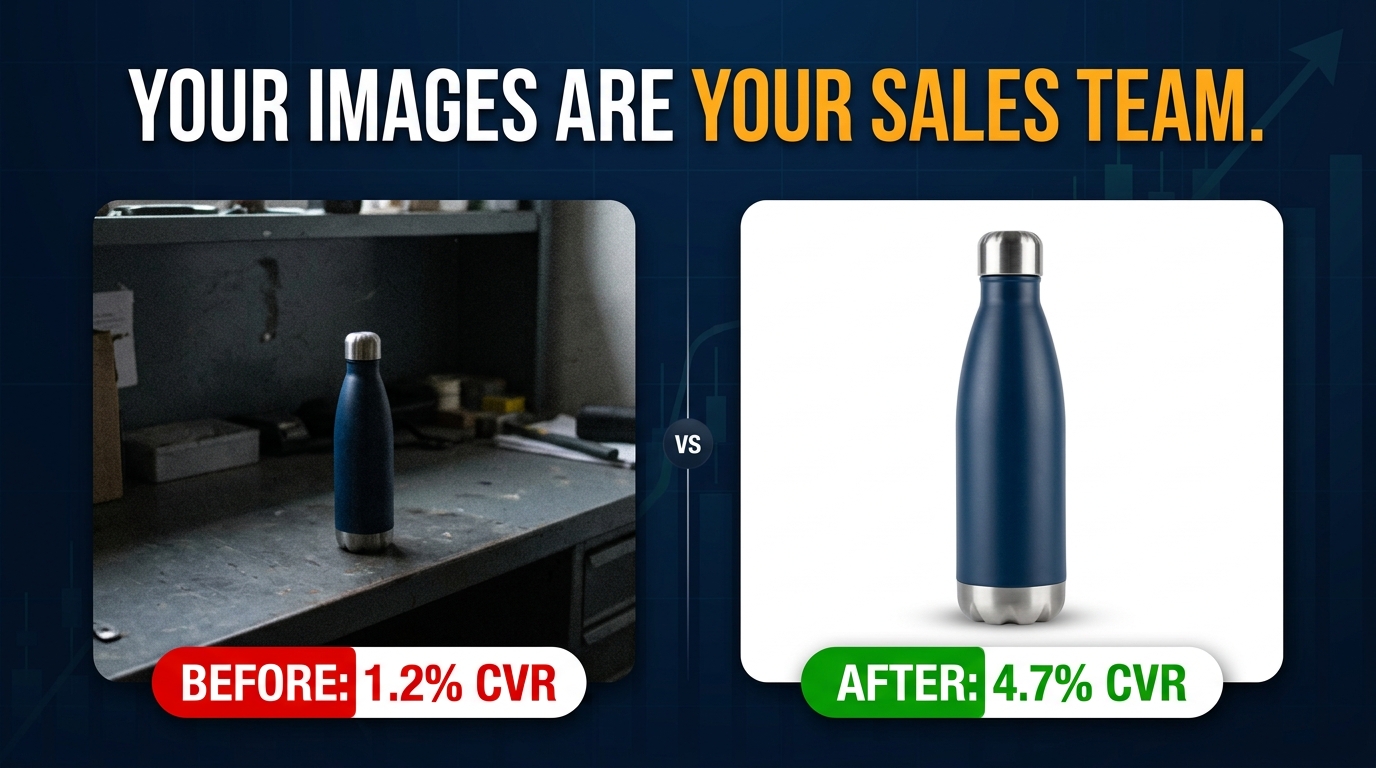
    Products with professional, high-resolution main images consistently outperform comparable listings with lower-quality images in click-through rate. Professional photography is associated with a 33% higher conversion rate compared to lower-quality product images, and listings with multiple high-quality images convert 20% better than those with fewer or lower-quality images.

    Average organic product listing CTR on Amazon ranges from 2–5% for strong performers. The difference between a 2% CTR and a 3% CTR on a competitive keyword may sound small, but it compounds through the entire funnel: more clicks mean more conversions, which generate more sales velocity signals, which improve organic rank, which generate more impressions and thus more clicks. The virtuous cycle that drives successful Amazon ASINs is initiated by that first click — and the first click is earned primarily by the main image.

    What “Clarity at Thumbnail Scale” Means in Practice

    Amazon’s 2026 guidance specifically references the requirement that main images “maintain clarity at thumbnail sizes on mobile devices.” This is a functional requirement, not just an aesthetic one. Images that look acceptable at full size but blur or lose legibility at thumbnail scale will perform worse in search — and may be flagged by the compliance system as insufficiently clear even if they technically meet the resolution minimum.

    The practical implication: photograph your product against a true white background at the highest resolution your equipment allows, fill the frame as much as possible, and ensure the product itself has good edge definition. A product that “floats” in a sea of white with lots of empty space is not only at risk of the 85% fill violation — it’s also sacrificing thumbnail clarity because more of the thumbnail is occupied by empty white and less by the actual product.


    How to Audit Your Entire Catalog Before You Get Hit

    Given that enforcement is continuous and rolling — not triggered by seller action — the practical question for anyone managing more than a handful of ASINs is: how do you know which of your images are currently at risk, and how do you find out before Amazon’s system does?

    Starting with Seller Central’s Listing Quality Dashboard

    Amazon provides a Listing Quality Dashboard within Seller Central that flags quality issues across your catalog. This is your first stop for an audit. The dashboard surfaces issues including image-related suppression risks, missing required images, and categories with quality improvement opportunities.

    Navigate to: Inventory → Manage Inventory → Listing Quality

    Look specifically for the Search Suppressed filter, which will show you any ASINs that are already suppressed or at risk of suppression. Download this report if you have a large catalog — working through the issues systematically is much more efficient from a spreadsheet than from the dashboard interface.

    The Manual Image Audit Checklist

    For ASINs that aren’t currently flagged, a manual audit is still valuable — especially given that suppression can occur with a short delay after the automated scan identifies an issue. Check each main image against the following criteria:

    1. Background color: Open the image in photo editing software and sample the background pixels. The RGB value should read 255/255/255. Anything off — even by a few points — is a risk.
    2. Resolution: Check the image dimensions. The longer side should be at least 2,000 pixels. If it’s below 2,000, flag it for reshoot or retouch.
    3. Product fill: Estimate visually whether the product occupies approximately 85% or more of the frame. If there’s significant empty space around the product, it needs to be recropped or reshot.
    4. Edge quality: Zoom in to 100% on the product edges. Are they clean and sharp, or is there fringing, haloing, or soft blending into the background? Any edge artifacts are suppression risks.
    5. Text and overlays: Does any text appear in the image? Any brand name, product feature callout, badge, or promotional text? If yes, remove it from the main image.
    6. Shadows: Does the product cast a visible shadow on the background? Even subtle shadows can be detected and flagged.
    7. File format and size: Confirm the file is JPEG or PNG, under 10MB, and using sRGB color profile.

    Prioritizing the Audit by Risk Level

    If you have a large catalog, prioritize your audit by revenue impact. Start with your top 20% of ASINs by monthly revenue — these are the listings where a suppression event does the most financial damage and where recovery costs the most in advertising spend.

    Then focus on ASINs that were uploaded more than two years ago, as these are most likely to have been uploaded under older standards that are now stricter. Finally, pay special attention to any ASINs in high-risk categories — apparel, jewelry, food/grocery, and electronics — where category-specific rules increase the number of potential violation points.


    Fixing a Suppressed Listing: The Step-by-Step Recovery Process

    Suppression recovery checklist — five-step process from running a listing health report to monitoring reinstatement within 24 to 48 hours

    If you’ve already received a suppression event or discovered a suppressed ASIN in your dashboard, the recovery process is relatively straightforward — but the order of operations matters. Moving quickly is important, but moving incorrectly (for example, re-uploading the same non-compliant image) wastes time and extends the suppression period.

    Step 1: Confirm the Exact Violation

    Before touching anything, confirm what Amazon’s system has flagged. In Seller Central, navigate to Inventory → Fix Your Products or the Listing Quality Dashboard and find the suppressed ASIN. Amazon will typically provide a violation category — “Main image background not white,” “Product does not fill required percentage of frame,” “Prohibited text detected,” etc.

    If the notification is vague (which it sometimes is), review the image against all of the compliance criteria listed above. Don’t assume the stated reason is the only issue — a single image may have multiple violations, and uploading a “fix” that addresses one problem while missing another will result in continued suppression.

    Step 2: Source or Create the Compliant Replacement

    Your options for a compliant replacement image depend on your situation:

    • If you have original photography assets: Send the raw files to a professional retoucher with explicit instructions — pure white background (RGB 255/255/255), no shadows, minimum 2,000px on the longest side, product fills 85%+ of frame, no text or logos.
    • If you need to reshoot: A proper product photography session with a light tent and a calibrated white background is the most reliable approach. Many professional photography studios offer Amazon-specific product photography services with compliance guarantees.
    • If you’re working with manufacturer-supplied images: Check the resolution and background specs before uploading. Manufacturer images are a frequent source of off-white backgrounds and embedded watermarks.

    Do not attempt to use AI to generate a replacement main image from scratch. As covered above, fully AI-generated main images that don’t represent a real photograph of the physical product are themselves a policy violation and will trigger a different type of flag.

    Step 3: Upload the Corrected Image

    Upload the new main image through Seller Central via Inventory → Manage Images for the specific ASIN. Ensure the image is uploaded to the correct slot — the main image position — and not accidentally replacing a supplemental image.

    If you’re uploading through a flat file or inventory feed rather than the Seller Central interface, double-check that the image URL or file reference is pointing to the new image and not a cached version of the old one. This is a common mistake that leads to confusion when the suppression doesn’t resolve as expected.

    Step 4: Monitor for Reinstatement

    Once the compliant image is uploaded, Amazon’s processing and review takes approximately 24–48 hours for standard cases. The ASIN should transition from suppressed status back to active during this window. Check the Listing Quality Dashboard after 48 hours to confirm reinstatement. If the ASIN remains suppressed after 48 hours, consider opening a Seller Support case with documentation of the violation and the corrective action taken.

    Step 5: Rebuild Ranking and Traffic

    Immediately upon reinstatement, reactivate any PPC campaigns that were paused due to the suppression. Consider temporarily increasing your campaign budgets and bids to accelerate traffic recovery during the rebuilding window. Monitor your organic rank for key search terms — if the listing has fallen multiple pages during the suppression period, sustained advertising investment will be required to restore the pre-suppression rank.

    Some sellers find that running a brief lightning deal or coupon in the week following reinstatement helps accelerate the sales velocity recovery that pushes the algorithm to restore rankings. This isn’t always necessary, but for high-competition categories where ranking is closely correlated with recent sales history, it can shorten the recovery window.


    What a Fully Compliant Main Image Actually Looks Like — Done Right

    It’s one thing to enumerate what’s prohibited; it’s another to describe what an excellent, fully compliant main image looks like in practice. There’s a significant difference between “technically compliant but mediocre” and “compliant and compelling” — and both matter for your business outcomes.

    The Technical Foundation

    The physical setup that produces the most reliable, compliance-ready main images is a professional light tent or infinity curve setup with studio-calibrated daylight-balanced lighting. The background should be a true photographic white sweep — not a white paper sheet or a white wall — and it should be lit to achieve an even RGB 255/255/255 value across the entire background area without relying on post-processing to achieve whiteness.

    The camera (or high-quality smartphone with appropriate lens) should be positioned to capture the product at its most recognizable and recognizable angle — typically front-facing for most products, front-and-side for products where dimensionality matters. The product should be styled to appear exactly as it would arrive for the buyer: nothing added, nothing removed, every included component visible and properly arranged.

    Post-Processing: What to Do and What to Avoid

    Post-processing should focus on: precise background removal and replacement with verified RGB 255/255/255, removal of any dust, fingerprints, or minor surface blemishes on the physical product, cropping to achieve 85%+ fill with minimal empty white space, sharpening for maximum edge clarity, and exporting at 2,000–3,000 pixels on the longest side as a JPEG at high quality settings.

    What to avoid in post-processing: adding any drop shadows or artificial depth effects, color-shifting the product to appear different from the physical item, applying beauty filters or texture enhancements that alter the product’s appearance, and adding any text, badges, or graphic elements regardless of how small.

    The Competitive Difference

    A main image that checks every compliance box and is photographed and processed to a high standard will consistently outperform images that are merely “not flagged.” The compliance floor is the minimum — the quality ceiling is the competitive advantage. A crisp, properly lit, well-composed main image at 2,500 pixels with perfect edge definition and maximum product fill will earn more clicks than a technically compliant image that was shot in mediocre conditions.

    Consider A/B testing your main image using Amazon’s Manage Your Experiments tool if you have brand registry. This allows you to run a statistically valid test comparing two versions of a main image to measure the direct CTR and conversion impact. Even a 0.5–1% improvement in CTR on a high-traffic ASIN compounds significantly over time through the rank-velocity-rank flywheel.

    Building an Image Refresh Schedule

    Given that Amazon’s compliance standards are an evolving target — as the 2026 resolution increase demonstrates — the wisest operational approach is to treat product photography not as a one-time launch task but as an ongoing maintenance function. A practical schedule:

    • Monthly: Check the Listing Quality Dashboard and Manage Your Experiments for any new flags or quality improvement suggestions on top ASINs.
    • Quarterly: Run a full manual audit of all main images against current technical standards.
    • Annually: Review Amazon’s image policy documentation for any published updates and assess whether your photography workflow and standards still meet current requirements.
    • On any catalog expansion: Build compliant image production into the product launch checklist — not as an afterthought, but as a prerequisite for going live.

    The Real Cost of Treating Image Compliance as Optional

    There’s a tempting mental model that treats image compliance as an edge case — something that happens to careless sellers, not to people running professional operations. The 2026 enforcement data suggests this model is no longer accurate, if it ever was.

    More than 2.3 million third-party sellers are operating on Amazon in 2026. Amazon’s machine learning enforcement system is scanning across this entire catalog continuously, and the scope of what it checks has expanded significantly. The compliance window that allowed older, borderline images to persist without consequence is closing — not because Amazon issued a single dramatic policy announcement, but because the enforcement capability has simply become more thorough.

    The financial case for staying ahead of this is straightforward. A suppression event on a mid-tier ASIN generating $20,000 per month in revenue — even if resolved within three days — can cost $2,000–$3,000 in direct sales loss, plus an additional 4–8 weeks of elevated advertising spend to restore organic rank. That’s potentially $5,000–$8,000 in total economic impact from a single compliance failure. Professional photography for one product costs a fraction of that.

    The sellers who treat image compliance as a serious operational discipline — with structured audits, clear production standards, and regular quality reviews — are the ones who maintain ranking stability through enforcement waves. The sellers who treat it as a checkbox item on a launch template are the ones filing Seller Support cases and wondering why their traffic disappeared.

    The competitive insight here is genuine: in a marketplace where your product and your price are often similar to dozens of competitors, a superior main image is one of the few differentiators entirely within your control. Getting it right isn’t just compliance — it’s one of the highest-ROI investments you can make in a listing.


    Key Takeaways: Your 2026 Amazon Main Image Action Plan

    Given everything covered in this post, here is the practical summary for sellers who want to act immediately:

    1. Audit your main images now. Don’t wait for suppression to discover compliance issues. Use the Seller Central Listing Quality Dashboard and run a manual pixel-level check on your top-revenue ASINs this week.
    2. Upgrade resolution to 2,000px minimum. If any main images are under 2,000 pixels on the longest side, they need to be replaced. This is the most widespread compliance gap for sellers operating on older catalog standards.
    3. Verify true RGB 255/255/255 backgrounds. Use a color picker in photo editing software to confirm your backgrounds — don’t trust what looks white on screen without checking the actual RGB values.
    4. Fix edge quality and shadows. Any product with a soft cutout, feathered edges, or a visible drop shadow should be re-processed. These are the triggers most sellers don’t anticipate.
    5. Know your category-specific rules. Apparel, jewelry, food, and electronics each have rules that go beyond the standard baseline. Review the specific requirements for every category you sell in.
    6. Understand the AI image rules before using them. AI-assisted post-processing is fine for supplemental images and for enhancement work. AI-generated main images that don’t originate from a real photograph of the physical product are a policy violation and a suppression risk.
    7. Build a recovery playbook before you need it. Know where to find suppressed ASINs, know how long reinstatement takes, and have a relationship with a photographer or retoucher who can turn around compliant replacements quickly.
    8. Treat photography as an ongoing discipline. Amazon’s standards are moving, not static. Build quarterly image audits into your operational calendar and review Amazon’s published policy documentation at least once per year.

    The main image is not a secondary concern in your listing strategy. It is the first thing every potential buyer sees — before the title, before the price, before the reviews. In 2026, it is also the first thing Amazon’s enforcement system checks. Getting it right protects both your visibility and your revenue, and the cost of doing so has never been lower relative to the cost of getting it wrong.
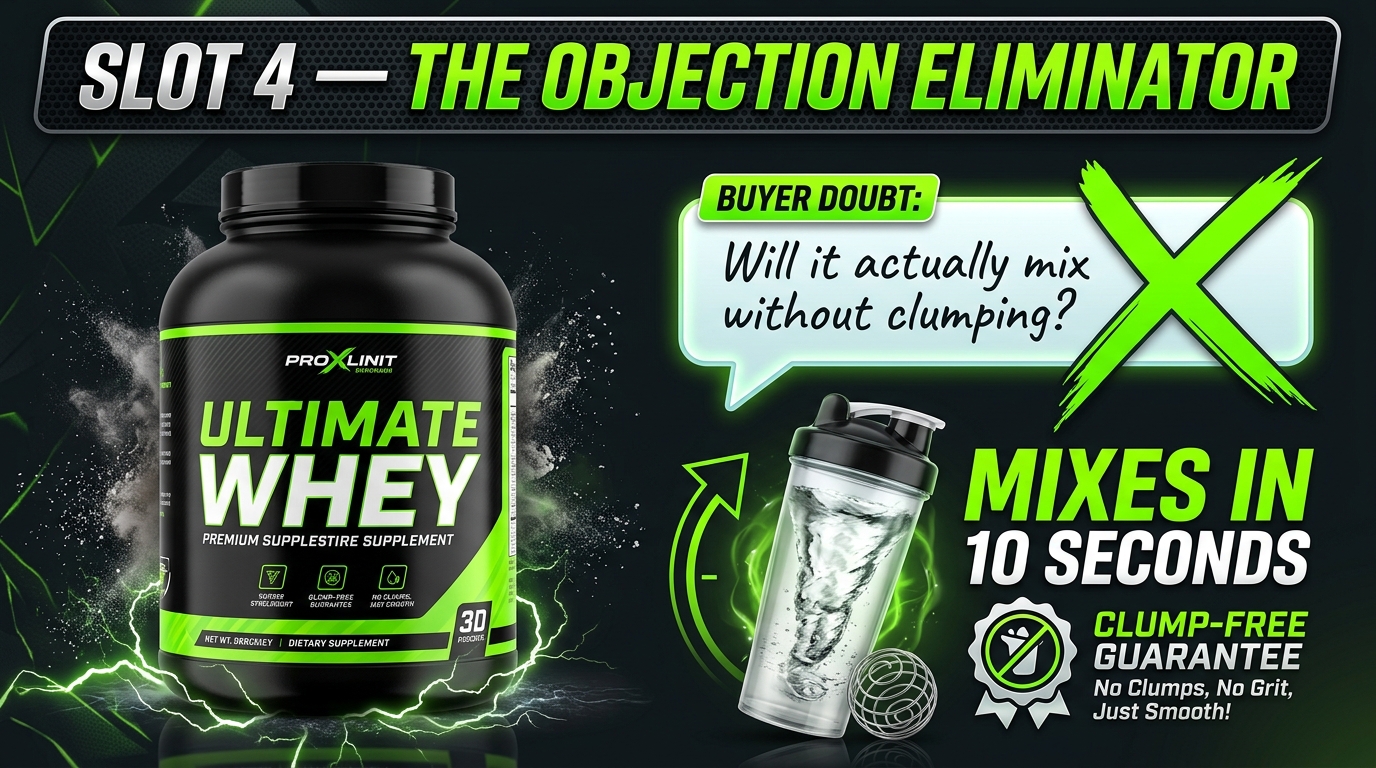
  • What Rufus Actually Sees: The Image Optimization Tactics Amazon Sellers Are Sleeping On

    What Rufus Actually Sees: The Image Optimization Tactics Amazon Sellers Are Sleeping On

    Amazon Rufus AI scanning product listing images as data sources — hero image showing AI vision lines reading main images, infographics, and lifestyle photos

    Most Amazon sellers treat product images as a design problem. Hire a photographer. Get clean shots on white. Maybe add an infographic or two. Done.

    That worked fine when search was keyword-driven and humans were doing all the evaluating. But Amazon’s AI shopping assistant, Rufus, has fundamentally changed the relationship between your visual assets and your discoverability — and the majority of sellers haven’t caught up to it yet.
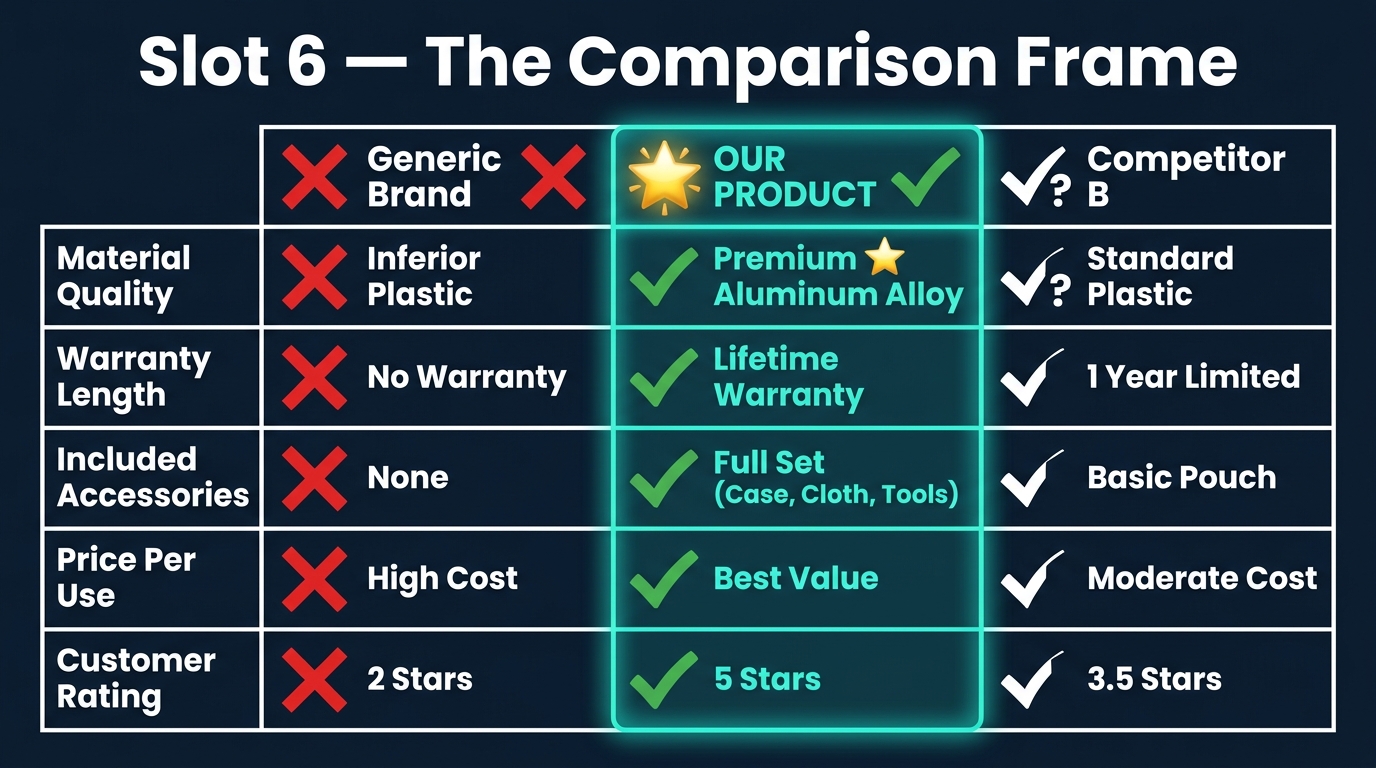
    Here’s the shift that matters: Rufus doesn’t look at your images the way a shopper does. It processes them as structured data sources. Every pixel, every text overlay, every scene in a lifestyle shot, every alt text field in your A+ Content module — Rufus is extracting meaning from all of it, cross-referencing it against its semantic knowledge graph, and deciding whether your product deserves to appear in a recommendation when someone asks a natural-language question like “What’s a good protein shaker that actually fits in a car cup holder and won’t leak?”

    As of early 2026, Rufus is handling more than 13% of all Amazon search queries, mediating an estimated 15–20% of mobile shopper sessions per quarter, and driving what analysts project to be over $10 billion in annualized incremental sales. Shoppers who interact with Rufus are reportedly 60% more likely to purchase than those who don’t. The assistant has 250 million active users and interaction growth running at 210% year-over-year.

    This isn’t a feature preview anymore. Rufus is a primary discovery mechanism — and it sees your images differently than you think it does.

    This article breaks down exactly how Rufus processes visual content, what it extracts from each image type, where most sellers are leaving discovery on the table, and a slot-by-slot framework for building a Rufus-optimized image stack from scratch.

    How Rufus Actually Processes Product Images: The Multimodal Stack

    Three-layer Rufus ranking system diagram showing A10 algorithm, COSMO semantic knowledge graph, and Rufus multimodal AI with OCR and computer vision

    To optimize for Rufus, you first need to understand what kind of system you’re actually dealing with. Rufus is not a simple image ranker. It’s a multimodal AI assistant built on three interconnected layers, each of which processes your listing differently and feeds data to the next.

    Layer 1: The A10 Foundation

    Amazon’s A10 algorithm operates at the base of the stack. It handles the traditional signals you already know — sales velocity, click-through rates, keyword relevance from titles and backend fields, conversion history, return rates, and fulfillment performance. A10 creates your baseline discoverability, determining whether your product is even eligible to surface for a given search.

    Images play an indirect role here. A poorly optimized image gallery hurts click-through rate and conversion, which feed back into A10 as negative signals. A highly optimized gallery improves both metrics, compounding A10 performance over time. But A10 is primarily a text and behavioral signal engine — it doesn’t evaluate image content directly.

    Layer 2: The COSMO Semantic Knowledge Graph

    Above A10 sits COSMO, Amazon’s proprietary semantic knowledge graph — and this is where image optimization starts to directly matter in a new way. COSMO isn’t a keyword index. It’s a knowledge structure built from millions of behavioral assertions about what customers actually want when they use different phrases.

    COSMO connects product attributes, use cases, customer intents, and product categories into a web of semantic relationships. When a shopper says “best water bottle for hiking,” COSMO isn’t matching the phrase “hiking” to your keyword list. It’s checking whether the knowledge graph contains a strong connection between your product and the node cluster representing hiking intent — which includes attributes like capacity, material, durability, weight, and insulation.

    Visual Label Tagging is the mechanism through which your images feed COSMO. Amazon’s computer vision system scans your listing’s image gallery and applies semantic labels to what it finds: product type, setting, use context, visible features, scale indicators, and user demographics. These labels become data points in COSMO’s graph, strengthening (or failing to strengthen) the connections between your product and relevant intent clusters.

    A camping water bottle photographed only on a white background gets labeled as “water bottle — product isolated.” The same bottle photographed at a trailhead in a hiker’s backpack side pocket gets labeled with setting: outdoor, context: hiking, use-scenario: active-trail, format: portable. That’s a fundamentally richer set of graph connections — and Rufus draws on all of them when generating responses to natural-language shopping queries.

    Layer 3: Rufus Multimodal Synthesis

    Rufus sits at the top of the stack, and it’s where your images, alt text, reviews, Q&A, listing copy, and A+ content all converge into a single, synthesized understanding of your product. Rufus uses a vision-language model to process images holistically — not just extracting text from overlays, but understanding scenes, inferring product use cases, identifying product components, and even reading packaging details.

    OCR (Optical Character Recognition) is Rufus’s tool for reading embedded text. When a shopper uploads a photo of a product they saw in a store and asks Rufus to find it or suggest alternatives, Rufus can read the brand name, product specs, and model numbers directly from label text in the photo. The same capability applies to your listing images — Rufus reads every text overlay on your infographics and incorporates that data into its product understanding model.

    The result is a system where your images are not decorations. They are data inputs — and they either enrich Rufus’s model of your product or they don’t.

    Visual Label Tagging: What COSMO Learns From Your Photos

    Visual Label Tagging is the bridge between your image gallery and COSMO’s knowledge graph, and understanding it gives sellers a concrete framework for thinking about image strategy beyond aesthetics.

    What Gets Tagged and What Doesn’t

    Amazon’s computer vision system is applying semantic labels across 18 documented product categories, and those labels span several dimensions of product understanding. Here’s what the system is looking for in your images:
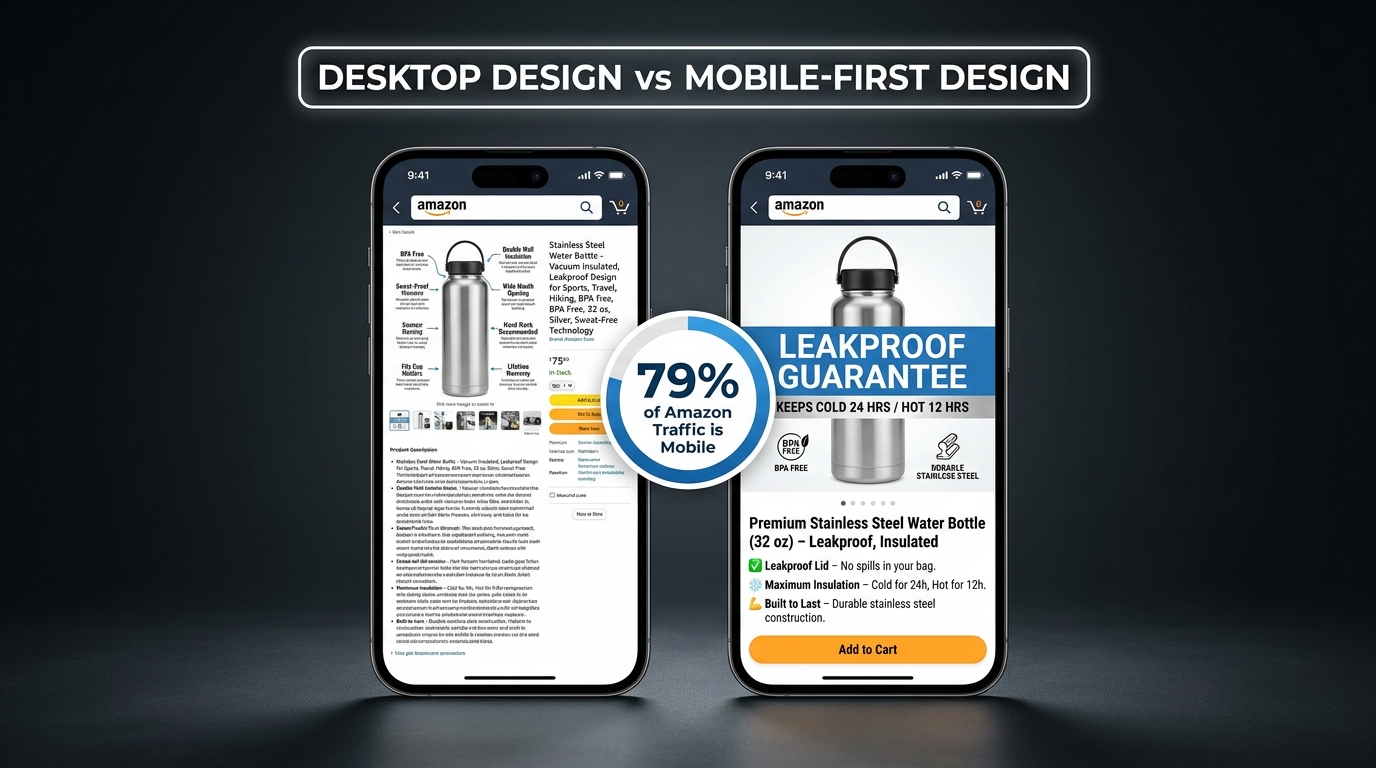
    • Product identity: What the item is, clearly and unambiguously. If your product is misclassified at this stage — if, for example, your kitchen tool gets tagged as something in a different category — your downstream visibility collapses. AI misclassification is a real, documented problem for sellers with ambiguous or cluttered primary images.
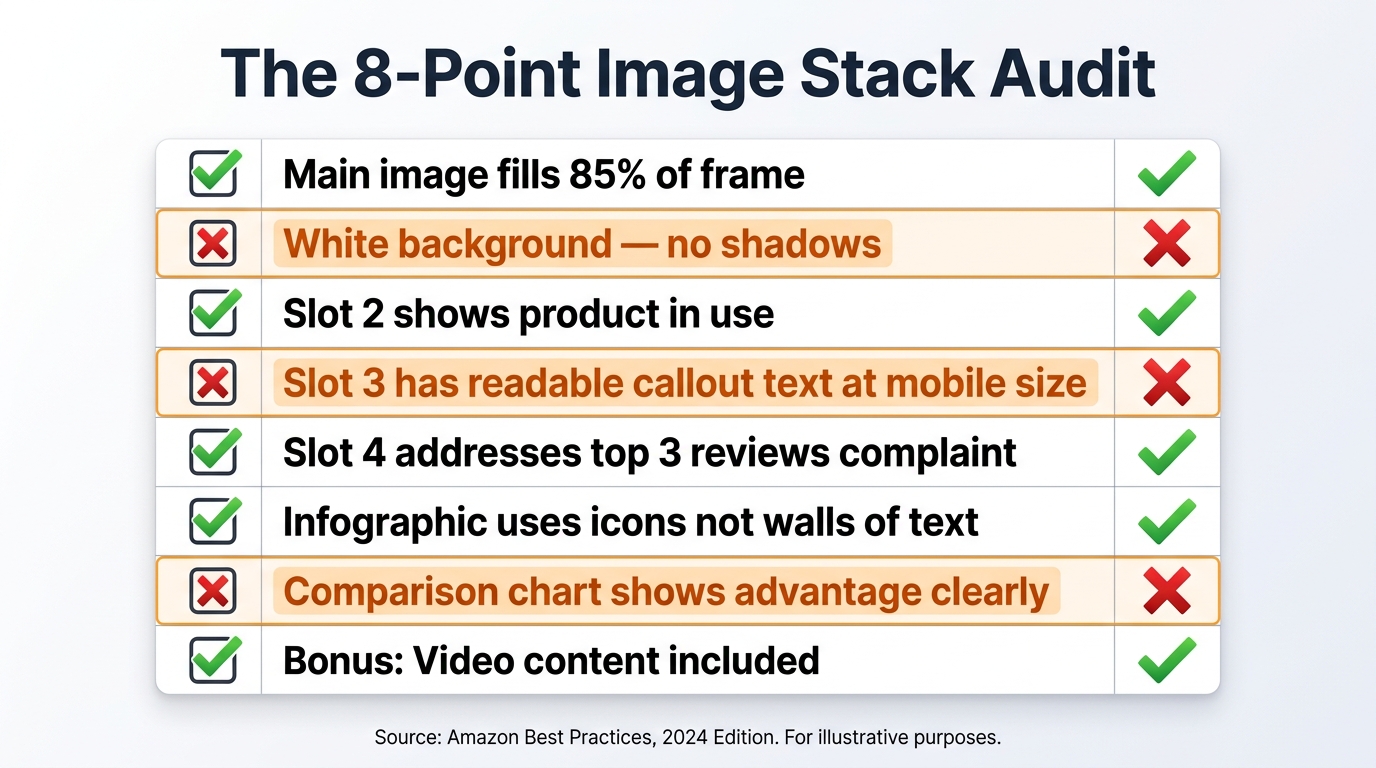
    • Setting and context: Where is the product being used? An image of a blender in a gym bag reads differently to COSMO than the same blender on a kitchen counter. Setting tags include: home, office, outdoor, gym, travel, camping, kitchen, office, and dozens of sub-contexts.
    • User demographics: Who is using the product? Images that show a specific user — a parent with a child, an athlete, an older adult, a professional — generate demographic tags that connect your product to relevant intent clusters like “gifts for mom” or “office supplies for professionals.”
    • Feature visibility: What product features are visually apparent? Visible handles, zippers, lids, buttons, ports, and components all generate feature tags. If your product has a key differentiating feature that isn’t visible in any image, it may not be tagged at all — even if it’s described in your bullet points.
    • Scale and size indicators: Products shown next to common reference objects (a hand, a coin, a standard cup) generate size-context tags that allow Rufus to answer size-related shopper questions accurately.

    The Knowledge Graph Connection

    Once COSMO has your Visual Label Tags, it runs them through its web of semantic intent connections. Every tag is a potential match point for a shopper query. A product tagged with setting: camping, feature: insulation visible, use-context: outdoor hydration, and material: stainless steel inferred is going to show up in far more Rufus recommendation sets than the same product tagged only as water bottle: product isolated.

    The practical implication is significant: each lifestyle image you add to your gallery is not just a conversion aid for human shoppers. It’s a tag-generation event for COSMO. Every new scene you photograph your product in adds a new cluster of intent connections to the knowledge graph. That’s compounding discoverability, and it’s entirely within your control.

    Main Image Tactics: There’s More at Stake Than Compliance

    Before and after comparison of Amazon product main image optimization for Rufus AI — generic white background versus Rufus-optimized version with callout text overlays

    Your main image is the first thing both human shoppers and Rufus’s computer vision system process. Amazon’s compliance requirements are firm: pure white background (RGB 255, 255, 255), product filling at least 85% of the frame, no props or text overlays. Those rules aren’t going away.

    But within those constraints, there are meaningful choices that dramatically affect how well Rufus understands — and therefore surfaces — your product.

    Precision Beats Minimalism

    The “cleaner is better” aesthetic that dominated Amazon photography for the past decade is no longer the whole story. Rufus’s computer vision model needs enough visual information to accurately categorize your product. That means your main image should be photographed to maximize feature clarity, not minimalism.

    Consider what a vision model needs to correctly classify a multi-tool pocket knife versus a standard pocket knife versus a Swiss Army-style multi-tool. The differences are subtle — blade count, tool arrangement, handle shape. If your main image is a tight overhead shot showing only one side of the product, you may be giving the AI insufficient information to classify your item correctly. The same product photographed at a 45-degree angle showing the tool array, the clip, and the scale relative to a hand generates more classifiable information.

    Practical rule: photograph your main image from the angle that makes your product most distinctively identifiable within its subcategory. Don’t just show the product — show what makes it that specific type of product.

    Resolution Requirements in a Multimodal World

    Amazon’s minimum image size is 1000×1000 pixels for zoom functionality to activate. For Rufus optimization, treat 2000×2000 pixels as your practical floor, and 3000×3000 or higher as ideal. Higher resolution means finer detail extraction from the computer vision model — visible texture, stitching, port sizes, label text on packaging — all of which becomes richer data input for Visual Label Tagging.

    A sharp, 2500×2500 pixel main image of a travel bag will allow the AI to tag the zipper material, the external pocket structure, the handle type, and the approximate proportions — generating a far richer initial product classification than a 1000×1000 pixel shot of the same bag.

    The “What Is This?” Test

    Before finalizing your main image, run what practitioners have started calling the “What Is This?” test. Show your main image to someone unfamiliar with the product for three seconds, then take it away. If they can’t immediately answer what the product is, what it does, and roughly who it’s for — your main image is underperforming for both humans and AI. Rufus’s vision model is making the same rapid classification judgment, and an ambiguous main image is the single most damaging image problem a listing can have.

    The Infographic Layer: OCR and the Text Rufus Is Already Extracting

    Rufus OCR scanning an Amazon product infographic water bottle image, extracting text overlays like Holds 64 oz, BPA-Free Stainless Steel, Fits Cup Holders as data tags

    Infographic images are the single highest-leverage image type for Rufus optimization — and the one where the gap between sellers who understand what’s happening and those who don’t is most pronounced.

    Rufus’s OCR capability means the text embedded in your infographic images is being read, indexed, and incorporated into its product understanding model. This isn’t a theoretical capability — it’s active, documented through Amazon’s patent filings, and confirmed by practitioner testing across categories. Every word that appears in your infographic images is a potential data point that Rufus can reference when answering shopper questions.

    Writing for OCR, Not Just for Eyes

    Most Amazon infographics are designed with human readability as the primary constraint. Clean fonts, balanced layouts, branded color schemes. That’s still important. But layered on top of that should be a second design constraint: is this text OCR-readable in a way that serves Rufus’s data extraction needs?

    OCR performance degrades with decorative fonts, very small text, low contrast text on busy backgrounds, and stylized lettering. Amazon’s OCR layer is sophisticated, but it performs best on:

    • High-contrast text (dark on light or light on dark, not mid-tone on mid-tone)
    • Clean sans-serif or serif fonts at legible sizes (minimum 18–20pt equivalent at image resolution)
    • Text that is horizontal, not rotated or curved
    • Specific, noun-phrase driven language rather than vague marketing copy

    That last point deserves more attention. “Premium Quality Construction” tells Rufus almost nothing useful. “Aircraft-grade 6061 Aluminum, 2mm Wall Thickness” tells it a great deal — material, grade, specification, and a size parameter, all in one phrase. Rufus can use the second phrase to answer questions like “what’s the most durable aluminum water bottle” or “are there aluminum bottles with thick walls.” It cannot use the first phrase for anything.

    Noun Phrases That Actually Feed COSMO

    The most effective text overlays for Rufus optimization follow a simple structure: measurable attribute + product-specific noun. Examples that generate strong COSMO connections:

    • “Holds 64 oz — Fits Standard Car Cup Holders” (capacity + compatibility)
    • “BPA-Free 18/8 Stainless Steel Construction” (material + safety attribute)
    • “Fits Wrists 6.5″–8.5″ — Adjustable Clasp” (size range + feature)
    • “1200W Motor — Crushes Ice in Under 10 Seconds” (power + performance claim)
    • “Waterproof to IPX7 — Submersible Up to 1 Meter” (certification + specification)

    Each of these phrases maps to answerable shopper questions. “What water bottle fits in a car cup holder?” — COSMO has a direct data point. “Are there stainless steel bottles that are BPA-free?” — COSMO has a direct data point. Generic phrases like “Superior Hydration” or “Built for Champions” map to nothing in COSMO’s intent graph.

    Infographic Coverage: What to Include Across Your Slots

    Sellers often dedicate one image slot to an infographic and consider it done. The more effective approach is to plan multiple infographic images covering different categories of product information:

    • Dimension/size infographic: Show actual measurements with a scale reference. Include the measurements in text (not just arrows), because OCR reads text, not line lengths.
    • Material/composition infographic: List materials, certifications, and construction details with specific, verifiable language.
    • Feature breakdown infographic: Highlight each key feature with labeled callouts, using OCR-readable noun phrases rather than category headers.
    • Compatibility/fit infographic: If your product fits, pairs with, or requires something specific, show and label it. “Compatible with AirPods Pro 2nd Gen” is the kind of text Rufus uses to surface your product for compatibility queries.

    Lifestyle Images Done Right: Intent Matching Through Scene Context

    If infographics are about feeding data to Rufus through OCR, lifestyle images are about feeding data through computer vision and Visual Label Tagging. The distinction matters, because the optimization approach is different.

    Lifestyle images generate the contextual tags that connect your product to shopper intent clusters. A product photographed in ten different settings generates ten different sets of intent-connection tags in COSMO. Each tag cluster is a pool of potential shopper queries that your product can surface in.

    Choosing Scenes Strategically, Not Aesthetically

    Most brands choose lifestyle scenes based on what looks aspirational or on-brand. A premium kitchen appliance in a beautiful minimalist kitchen. A fitness supplement in a gym. A skincare product in a spa-inspired bathroom. Those aesthetic choices are fine — but they’re not strategic choices for Rufus optimization.

    The strategic approach starts with your actual search intent data. Pull your Search Term Report from Seller Central and look at the long-tail queries that are generating impressions but low conversion. Many of those queries represent intent clusters your product could serve — but isn’t being tagged for because your images don’t show those scenarios.

    Example: A portable blender’s search term report shows queries like “blender for travel,” “mini blender dorm room,” “blender that works in hotel room,” and “blender for camping.” These are distinct intent clusters. A single lifestyle shot in a kitchen doesn’t address any of them. Shooting the same blender in a hotel room, at a campsite, and in a dorm setting — and including those as separate image slots — generates distinct Visual Label Tag clusters for each context, making the product eligible to surface in Rufus responses to all four query types.

    The User Demographic Signal

    Lifestyle images that include people generate additional demographic tagging that pure product shots cannot. COSMO’s knowledge graph includes demographic-intent connections — shoppers searching for “gifts for teenage girls” or “office accessories for working moms” are triggering intent clusters that include demographic tags.

    Include people in your lifestyle images when your product has meaningful demographic targeting. Show the actual user your product is built for. This isn’t just good marketing psychology — it’s a direct input into COSMO’s demographic tagging system, which determines whether your product surfaces for gift-giving and user-specific queries.

    Text Overlays in Lifestyle Images

    Here’s a tactic that most sellers miss entirely: lifestyle images can carry text overlays too. Unlike main images, secondary images have no restriction on overlaid text. A lifestyle image of a water bottle at a hiking trailhead can also include a small, clean callout that reads “Triple-Wall Vacuum Insulation — Stays Cold 24 Hours.” The computer vision model reads the scene and generates context tags. Rufus’s OCR reads the overlay and generates spec data. One image provides two types of data input simultaneously.

    This dual-input approach is one of the highest-ROI tactics in Rufus image optimization — it requires no additional photography, just thoughtful graphic design on images you’re already producing.

    The 9-Slot Narrative Sequence: Treating Your Gallery Like a Presentation

    Amazon 9-slot image gallery narrative sequence strategy showing story arc from Hero Identity through Key Specs, Scale Comparison, Lifestyle Use Cases, Feature Close-Up, Social Proof, FAQ, and Brand Story

    Amazon allows up to 9 product image slots, plus a video. The average seller uses 4–5. According to practitioner data, roughly 65% of sellers leave image slots empty — which means they’re leaving COSMO tag-generation opportunities on the table with every unfilled slot.

    But filling all 9 slots randomly is not better than filling 5 slots strategically. The sequence of your images matters — both for human shoppers who view them left to right and for Rufus’s processing model, which tends to weight earlier images more heavily in initial product classification.

    Here’s a framework for building a 9-slot gallery that serves both humans and Rufus’s multimodal AI simultaneously:

    Slot 1 — Hero Identity

    This is your mandatory white-background main image. Its job for Rufus is unambiguous product classification. Its job for shoppers is immediate recognition and interest. Optimize for resolution (2000px+), product angle (most distinctive and identifiable), and clarity. Pass the “What Is This?” test.

    Slot 2 — Key Specs Infographic

    Place your most OCR-rich infographic in slot 2. This is the highest-priority non-main image for Rufus data extraction. Include your most critical specifications — the ones that differentiate your product and answer the most common shopper comparison questions. Measurable attributes, certifications, compatibility notes. High-contrast text, clean font, specific noun phrases.

    Slot 3 — Scale and Size Reference

    A dedicated size-context image. Show the product next to a common reference object (a human hand, a standard mug, a 12-inch ruler) and label the key dimensions in text. This answers a consistent category of shopper questions (“How big is it actually?”) and generates size-intent tags that allow Rufus to match your product to size-specific queries.

    Slot 4 — Primary Lifestyle / Use Case 1

    Your most commercially important use-case scenario, photographed in its natural setting. Include at least one person if your product has a defined user profile. Add a subtle text callout highlighting the key benefit relevant to this scenario. This slot generates your primary COSMO intent connections.

    Slot 5 — Use Case 2 (Different Context)

    A second lifestyle scenario targeting a different intent cluster. If Slot 4 shows your product in a home kitchen, Slot 5 might show it at a campsite or in a hotel room. Every new setting is a new cluster of COSMO intent connections. Don’t repeat the same context — expand your tag coverage.

    Slot 6 — Feature Close-Up

    A high-resolution detail shot of your product’s most differentiating feature — the zipper mechanism, the lid seal, the texture of the grip, the precision of the measurements on the side. Include a labeled callout with specific language. This image addresses the “zoom-and-inspect” behavior of engaged shoppers while generating feature-specific tags for COSMO.

    Slot 7 — Social Proof or Review Callout

    An image incorporating a verified customer quote or review excerpt, combined with a lifestyle or product visual. Rufus synthesizes reviews and Q&A as part of its product understanding — placing a powerful review excerpt in your image gallery reinforces the same sentiment data Rufus is already pulling from your review set. It also addresses purchase hesitation for human shoppers at the consideration stage.

    Slot 8 — FAQ / Objection Buster

    Identify the top purchase objection or question your product receives in reviews and Q&A, and address it directly in a dedicated image. “Yes, it fits in a standard cup holder.” “Yes, the lid is dishwasher-safe.” “No, you don’t need any tools to assemble it.” This image type directly feeds Rufus’s ability to answer common shopper questions about your product — because when a shopper asks Rufus “does [product] fit in a cup holder?”, Rufus is synthesizing your listing’s entire content to generate that answer, including your image text overlays.

    Slot 9 — Brand Story / Materials / Sustainability

    Your final slot should serve long-tail search intent around brand trust, materials sourcing, ethical production, or product origin. For many categories, shoppers ask Rufus questions like “is this brand sustainable?” or “what is this made from?” A dedicated image with clear, OCR-readable text about your materials, country of manufacture, certifications (FDA, CE, organic, Fair Trade), or sustainability commitments provides Rufus with direct data to answer those queries.

    The Video Slot

    Add a product video. Rufus’s multimodal processing extends to video content in your listing gallery. A short, tight demonstration video (60–90 seconds) showing your product in use across two or three scenarios provides the richest possible context data — moving-image analysis combined with spoken or captioned content. If video is not currently part of your listing stack, it should be the next addition after filling all 9 image slots.

    A+ Content Alt Text: The Hidden Data Field Most Sellers Ignore

    Amazon A+ Content editor mockup showing a highlighted alt text input field with a detailed Rufus-optimized description, with a callout bubble reading THIS IS WHAT RUFUS READS

    Alt text in A+ Content modules is, without question, the most underutilized high-leverage input in the entire Amazon listing ecosystem. Historically, sellers ignored it because it had minimal measurable impact on traditional search ranking. The field existed primarily for accessibility — screen readers. Most sellers either left it blank or filled it with something like “Product image 1.”

    That era is over. Rufus reads alt text as a primary data source.

    Why Alt Text Now Matters for Rufus

    Rufus is a multimodal system — it processes both the visual content of images and the textual metadata associated with them. Alt text is part of that metadata layer. When you write descriptive, context-rich alt text for an A+ Content image, you’re providing Rufus with a pre-processed semantic description of what that image contains — one that it can incorporate into its product understanding model without having to rely solely on computer vision inference.

    This is particularly valuable for visual content that’s challenging for computer vision to interpret accurately — complex multi-product scene images, before-and-after comparisons, infographics with dense visual information, or product shots where the key differentiating detail is subtle (like a specific stitching pattern or locking mechanism).

    The Alt Text Formula That Works

    Effective Rufus-optimized alt text follows a specific structure: [Who] + [action/context] + [product] + [key product feature] + [relevant circumstance or outcome].

    Compare these two alt text examples for the same blender image:

    Underperforming: “Blender product lifestyle image”

    Rufus-optimized: “Woman making green smoothie with 1200-watt portable blender on kitchen countertop, using tamper to blend frozen fruit and ice, blender fits standard cup holder”

    The second version contains: a user demographic (woman), an action (making smoothie), a product name with key spec (1200-watt portable blender), a setting (kitchen countertop), a use-case detail (using tamper, frozen fruit, ice), and a compatibility attribute (fits cup holder). Rufus can reference every one of those data points when answering shopper queries.

    The first version contains: nothing useful.

    Auditing and Rewriting Your A+ Alt Text

    Open every A+ Content module you’ve published. Click into each image block and check the alt text field. For the majority of listings — especially older ones — you’ll find blank fields or placeholder text. This is one of the most time-efficient optimization tasks available to Amazon sellers in 2026, because it requires no photography, no design work, and no new content creation. It’s a text field you already have access to, and filling it correctly has a direct, documented impact on Rufus’s ability to understand and surface your product.

    Work through each image systematically. Write alt text that describes the actual content of the image — who is in it, what they’re doing, what the product is doing, what setting they’re in, and what specific product attributes are visible or implied. Keep it under 250 characters for most platforms, though Amazon’s A+ text field accepts longer inputs. Use natural language, not keyword-stuffed fragments.

    Common Image Mistakes That Suppress Rufus Visibility

    Warning infographic showing 5 image mistakes that make Rufus ignore your Amazon listing — blurry images, missing alt text, no readable text overlays, cluttered backgrounds, unfilled image slots

    Understanding what to do is only half the picture. The other half is knowing what’s actively working against you. These are the most common image problems that suppress Rufus visibility in 2026 — many of which sellers don’t recognize as optimization failures at all.

    Mistake 1: Product Misclassification at the Main Image Level

    If Rufus’s computer vision model misidentifies your product at the primary image level, every downstream recommendation and response it generates will be based on a wrong classification. This happens most often with multifunctional products, products in unusual categories, or products with ambiguous primary use cases.

    Signs your product may be misclassified: it surfaces for irrelevant queries but not relevant ones; Rufus describes it inaccurately in chat responses; your listing has normal keyword rank but poor Rufus recommendation inclusion. The fix is almost always to adjust your main image to make product identity unmistakable — cleaner angle, better crop, more identifiable composition.

    Mistake 2: Lifestyle Images With No Semantic Anchoring

    A beautiful lifestyle image that shows your product in a stunning setting but provides no additional data input — no text overlay, no specific user context, no identifiable setting — is a missed opportunity. It looks great to human shoppers but adds minimal new information to Rufus’s product model. Each image slot should be doing double duty: serving human shoppers and feeding the AI. If a lifestyle image isn’t doing both, revise it.

    Mistake 3: Inconsistent Data Between Image Text and Listing Copy

    Rufus cross-references data across your entire listing. If your infographic says “Holds 64 oz” and your bullet points say “58 oz capacity,” Rufus has a data conflict — and when data conflicts occur, the AI is likely to suppress or reduce confidence in the conflicting claims, or worse, surface the wrong information to shoppers who ask capacity questions.

    Audit your infographic text against your listing copy regularly. Spec discrepancies are extremely common — especially when listings have been updated over time without corresponding image updates. Every discrepancy is a trust signal failure for Rufus.

    Mistake 4: Unreadable Text Overlays

    Decorative fonts, low-contrast color combinations, very small text, and curved or rotated lettering all degrade OCR accuracy. A beautiful branded infographic with elegant script text may be generating zero useful data for Rufus because the OCR layer can’t parse the lettering reliably. Test your infographics by attempting to read them on a phone screen at arm’s length. If you can’t read them instantly, neither can OCR with high confidence.

    Mistake 5: Ignoring the Alt Text Fields Entirely

    We’ve covered this in detail, but it bears repeating in the context of mistakes: blank or placeholder A+ alt text is the most common and most preventable image optimization failure on Amazon today. It requires zero budget, zero photography, and minimal time. It’s a pure knowledge gap problem — sellers who know about it fix it immediately, and those who don’t continue leaving meaningful Rufus data inputs blank across every product they sell.

    Mistake 6: Low Resolution Images

    Images below 1000×1000 pixels lose zoom functionality for human shoppers, but the impact on Rufus is equally significant. Low-resolution images provide less detail for computer vision to extract, resulting in thinner Visual Label Tag sets and reduced COSMO connectivity. There is no situation in 2026 where a low-resolution image is serving your listing better than a high-resolution one. Replace them.

    How to Audit Your Current Images Against Rufus Criteria

    Knowing the optimization framework is one thing. Applying it systematically to an existing catalog is another. Here’s a practical audit process that sellers can run on any listing — new or established — to evaluate Rufus readiness and prioritize improvements.

    Step 1: The Slot Count Check

    Open each listing and count your image slots. Are all 9 filled? Is there a video? Empty slots are your first priority — they’re literally unused data input opportunities. If you’re running fewer than 7 image slots on any listing, filling the remaining slots should be your highest-leverage immediate action.

    Step 2: The Resolution Audit

    Download your current listing images and check their pixel dimensions. Anything under 1500×1500 pixels should be queued for replacement. Prioritize the main image first, then infographics (since both OCR quality and COSMO tag richness degrade with lower resolution).

    Step 3: The OCR Text Inventory

    Print or screenshot each of your infographic images. Go through them and list every piece of text that appears. Then ask: is this text specific, measurable, and noun-phrase-driven? Or is it vague marketing language? Categorize each text element as “COSMO-useful” or “COSMO-useless.” Any “COSMO-useless” text should be replaced with specific, attribute-driven language in your next image revision.

    Step 4: The Intent Coverage Map

    Pull your Search Term Report. List the top 15–20 long-tail queries that are generating impressions. Map each query to the lifestyle image in your gallery that addresses that intent. If there are high-impression queries with no corresponding lifestyle image, you’ve identified a COSMO coverage gap. Plan a lifestyle shoot or use AI image editing tools to generate images addressing those missing intent clusters.

    Step 5: The Alt Text Review

    Go into every A+ Content module. Read each alt text field. Apply the formula: [Who] + [action/context] + [product] + [key feature] + [relevant detail]. Rewrite any field that doesn’t meet that standard. This step takes an afternoon and has immediate impact — it’s the single fastest-to-implement, lowest-cost optimization available in Rufus readiness work.

    Step 6: The Consistency Cross-Check

    Compare all specifications mentioned in your infographic images against your bullet points and product description. Note every discrepancy. Resolve all of them. In cases where the correct value is unclear (product has been updated, measurement methods differ), default to the most accurate current specification and update both the image and the copy to match.

    Prioritizing Your Fixes

    Not every listing needs the same depth of attention. Prioritize your audit and fix sequence based on revenue impact: start with your highest-volume, highest-revenue ASINs first. A 10% improvement in Rufus recommendation inclusion on a $50k/month ASIN has far more impact than a complete overhaul of a $2k/month listing. Work your way down the revenue stack systematically.

    The Bigger Picture: Visual Optimization as a Discovery Channel

    Stepping back from the tactical detail, there’s a strategic shift worth naming clearly: visual optimization is no longer just a conversion tool. It has become a discovery channel in its own right.

    When Amazon launched its AI visual search feature — allowing shoppers to upload a photo and find matching or similar products — Rufus’s image processing became directly tied to product discovery in a way that had no equivalent in the keyword-only era. A shopper who photographs a competitor’s product and asks Rufus to find alternatives is triggering a visual search that Rufus answers by matching visual attributes across its product catalog. Products whose images provide rich visual data — clear feature visibility, high resolution, detailed contextual shooting — are more likely to surface in those visual search matches.

    Similarly, when Rufus generates a response to a conversational query like “What’s the best lightweight laptop bag for daily commuting under $80?”, it’s not just running a keyword match. It’s querying COSMO’s intent graph, pulling products whose tags include context: commuting, category: laptop bag, attribute: lightweight, and price-tier: budget — and those tags come substantially from your images. The seller who has shot their laptop bag in a commuting context (a person on a subway platform, entering an office building) with an infographic overlay reading “Fits 15.6" Laptops — Weighs Only 1.2 lbs” has a significant discovery advantage over the seller whose identical product sits in a white-background photo with no additional visual data.

    This is the real magnitude of Rufus image optimization: it’s not a listing tweak. It’s expanding the total surface area of queries your product can appear in — and for a discovery-first platform like Amazon, that’s the most direct path to incremental revenue growth available.

    Conclusion: Your Images Are Your Newest Ranking Signal

    The keyword optimization era taught Amazon sellers to think about discoverability in terms of text. Title keywords, bullet phrase strategy, backend search terms — the mental model was: write the right words, show up in the right searches.

    Rufus hasn’t eliminated that model, but it has added a parallel system that operates on an entirely different type of input: visual data. Computer vision is now reading your scenes. OCR is now indexing your infographic text. Alt text fields are now primary data inputs, not afterthoughts. And the Visual Label Tags that COSMO assigns to your listing are substantially determined by what you put — and how you shoot — across your 9 image slots and A+ modules.

    The sellers who understand this will use their image galleries as active optimization levers. They’ll treat each image slot as a data input opportunity. They’ll write infographic text for OCR accuracy alongside human readability. They’ll choose lifestyle scenes based on intent cluster strategy, not just aesthetic appeal. They’ll fill their alt text fields with specific, context-rich descriptions instead of leaving them blank.

    The sellers who don’t will continue treating images as a design expense — and they’ll wonder why their identical (or superior) product keeps losing out to competitors in Rufus recommendation sets.

    Here are the concrete starting points if you’re ready to close that gap:

    1. Audit your slot count today. Fill any empty image slots within the next 30 days, prioritizing highest-revenue ASINs first.
    2. Rewrite your A+ alt text. Apply the [Who + action + product + feature + detail] formula to every image in every A+ module you’ve published. This is a same-week action with no budget requirement.
    3. Replace vague infographic copy with noun-phrase-driven specifications. Every “superior quality” phrase should become a measurable specification. Every lifestyle image should carry at least one OCR-readable text callout.
    4. Map your lifestyle images to intent clusters. Use your Search Term Report to identify intent gaps in your current lifestyle coverage, and plan shoots or AI image tools to address them.
    5. Resolve every spec inconsistency between images and copy. Data conflicts undermine Rufus’s confidence in your listing. There should be zero discrepancies between what your images say and what your copy says.
    6. Add a video. If you have none, this is your next major visual asset investment. A tight, multi-context demonstration video generates richer multimodal data than any static image.

    Rufus is processing your images right now — every time a shopper opens your listing, every time a natural-language query triggers a recommendation, every time a visual search surfaces products in your category. The question isn’t whether this is happening. It’s whether you’ve given Rufus the data it needs to work in your favor.

  • 2026 Image Suppression: The Seller’s Diagnostic and Fix Manual

    2026 Image Suppression: The Seller’s Diagnostic and Fix Manual

    2026 image suppression diagnostic guide — split screen showing a suppressed listing versus a visible ranking listing with RGB scanner overlays

    Your product is live. Your listing looks fine in the backend. Your price is competitive. And yet — sales have flatlined, impressions have cratered, and your listing is generating exactly zero organic traffic. You check your inventory. Nothing’s wrong. You check your ads. They’re running. Then, buried in a notification you almost missed, you spot it: Search Suppressed.

    Image suppression is one of the most financially damaging and least understood problems facing ecommerce sellers in 2026. It’s not just an Amazon issue. It’s showing up across Shopify stores, WooCommerce catalogs, Google image search, and even social media feeds where product images quietly disappear from algorithmic reach without any warning. The seller never knows. The customer never finds the product. Revenue evaporates.

    What makes 2026 categorically different from prior years is the technological depth at which suppression now operates. Platforms aren’t just checking image dimensions and file types anymore. Amazon’s updated A9 algorithm now reads hidden C2PA content credentials embedded in your JPEG metadata. Instagram is suppressing posts with third-party watermarks. Google is quietly deindexing images on pages that don’t meet quality thresholds. And Shopify stores are silently hiding products because a catalog visibility toggle flipped wrong during a migration.

    This guide doesn’t take a single-platform view. It treats image suppression the way an engineer treats a system failure — as a diagnostic problem that has specific triggers, testable causes, and repeatable fixes. Whether you’re an Amazon FBA seller with a suppressed hero image, a DTC brand watching its Google Shopping images vanish, or a Shopify merchant whose products disappeared from search after an update, this manual walks you through every layer — what’s actually happening, why, and exactly how to fix it.

    Understanding How Platform Algorithms Suppress Images in 2026

    The first thing sellers need to accept is that image suppression is rarely accidental. Platforms suppress images because their systems — increasingly powered by machine learning — have detected something that violates a policy, a technical standard, or a quality threshold. The suppression is intentional, even when the violation was not.

    The Shift to Automated, AI-Powered Enforcement

    Two years ago, listing reviews were largely reactive. A human moderator would flag something following a complaint, or a seller could stay under the radar for months with minor compliance failures. In 2026, that era is effectively over. Every major ecommerce and social platform has deployed automated compliance engines that scan images at scale — in real time, or near real time — against a layered set of rules.

    Amazon’s A9 algorithm update represents the most aggressive example of this shift. The system now processes not just pixel-level image data, but embedded file metadata — including the increasingly widespread C2PA (Coalition for Content Provenance and Authenticity) tags written into images by Adobe Creative Cloud, Photoshop, and other mainstream editing tools. If your image was touched by a generative AI tool, there is likely a metadata trail that Amazon’s systems can now read. That trail is enough to trigger an automated suppression.

    Google operates differently, suppressing images through indexing decisions rather than explicit “suppressed” labels. An image that lives on a low-quality page, lacks descriptive alt text, or is blocked by a robots.txt directive simply doesn’t get indexed — meaning it never appears in Google Image Search or Google Shopping. It’s not flagged; it’s just absent.

    Why 2026 Is a Turning Point

    Three converging trends have made image suppression a much bigger problem this year than it was even eighteen months ago. First, the explosion of AI-generated and AI-edited imagery has forced platforms to implement detection systems that cast a wide net — and those nets catch legitimate sellers along with bad actors. Second, platform monetization pressures have created incentives to push organic content into paid channels, and image quality enforcement is one lever for doing that. Third, ecommerce competition has intensified to the point where a suppressed listing isn’t just an inconvenience — it’s a revenue emergency, because competitors in the same category are getting the impressions you’re not.

    Understanding this context matters because it changes how you approach the problem. Suppression isn’t a bug. It’s a feature — one designed to enforce specific standards that you need to meet precisely if you want visibility.

    Amazon Main Image Suppression: The Pure White Problem and Beyond

    Amazon main image compliance infographic for 2026 showing 85% frame fill requirement, pure white RGB 255,255,255 background, and 2000px minimum resolution with compliant vs suppressed comparison

    Amazon’s main image — the one that appears in search results, on the product detail page, and in ads — carries more compliance weight than any other element of your listing. When it fails, the entire listing goes dark. Not just the image. The listing. Understanding exactly what “failure” means in 2026 is the first step toward prevention and recovery.

    The Background Rule Is More Precise Than You Think

    Amazon requires a pure white background on all main images. Most sellers know this. What they don’t know is how precise “pure white” actually is. The specification is RGB 255, 255, 255 — all three color channels at maximum value simultaneously. A background reading RGB 254, 255, 255 is technically off-white. So is 253, 253, 253, which is a common output from auto-white-balance tools and AI background removal apps. Amazon’s 2026 scanning systems detect these deviations at the pixel level.

    The problem is compounded by JPEG compression. Even if your image starts at perfect RGB 255, 255, 255, saving it as a JPEG can introduce compression artifacts that push background pixels slightly off-white. This is why professional Amazon photographers either save at maximum JPEG quality (quality 100 in Photoshop) or use PNG files, which are lossless and preserve exact pixel values. If you’re using an AI background removal tool and saving the output as a JPEG at standard quality settings, you may be introducing the very artifacts that are triggering suppression.

    The 85% Frame Fill Requirement

    Amazon requires the product to occupy at least 85% of the image frame. This isn’t aesthetic guidance — it’s enforced algorithmically. A product that’s too small in the frame will trigger suppression. Common causes include:

    • Canvas expansion during editing: When you use a generative AI tool to extend the background, you often inadvertently shrink the product’s proportional footprint in the frame.
    • Incorrect cropping: Sellers who resize from lifestyle images sometimes preserve too much negative space around the product.
    • Multi-product shots: If you’re showing a product with accessories or packaging, the primary product may be undersized relative to the total composition.
    • Tall or wide products on square canvases: A long, narrow product shot on a 1:1 canvas may naturally fall under the 85% threshold if framing isn’t tightly considered.

    You can check this manually by overlaying a crop guide in Photoshop that represents 85% of the canvas area — the product should fill it. There are also third-party Amazon compliance checkers (SellerSprite, Pixelcut Pro) that measure this automatically.

    Resolution Requirements for Zoom Eligibility

    The minimum resolution for Amazon listing images is 1,000 pixels on the longest side. But that minimum is essentially a baseline for publication — not for performance. To enable the product zoom feature that’s proven to increase conversion, you need at minimum 2,000 pixels on the longest side. Amazon’s own published guidance recommends 2,000–3,000 pixels. Listings with images below 1,600 pixels on the longest side are increasingly flagged by the platform’s quality scoring systems, even if they aren’t technically suppressed.

    Other Main Image Triggers

    Beyond background and resolution, the following elements will also trigger suppression in 2026:

    • Text, logos, or watermarks anywhere in the image — including brand logos, “bestseller” badges, or social media handles
    • Props, accessories, or additional items not included in the product and not essential to demonstrate its use
    • Packaging shown without the product visible (for non-food categories)
    • Models or mannequins in adult apparel — certain clothing categories have model requirements, others have model prohibitions
    • Shadows that bleed to the image edge — a shadow reaching the frame boundary is interpreted as a non-compliant background element
    • Borders, frames, or colored backgrounds of any kind, including pale gray “studio” backgrounds

    C2PA Metadata — The Hidden AI Trigger Most Sellers Have Never Heard Of

    C2PA metadata detection visualization showing Amazon A9 algorithm scanning image file metadata for AI-generated content tags including Photoshop Generative Fill markers

    This is the issue that caught the most sellers off guard in early 2026, and it’s still not widely understood. C2PA stands for Coalition for Content Provenance and Authenticity — an industry standard for embedding information about how an image was created and modified directly into its file metadata. Major adopters include Adobe (across its entire Creative Cloud suite), Google, Microsoft, and dozens of camera manufacturers.

    How C2PA Tagging Works

    When you open an image in Photoshop and use any generative AI feature — including Generative Fill, Generative Expand, or even the Neural Filters — Photoshop writes C2PA credentials into the image metadata. These credentials describe what tools were used and what modifications were made. They’re invisible to the naked eye but readable by any software that knows to look for them. In 2026, Amazon’s scanning system now looks for them.

    The practical consequence is this: a seller who hires a photographer, gets a clean product shot on white seamless paper, then uses Photoshop’s Generative Fill to extend the background slightly — a genuinely minor edit — may now have that image flagged as containing synthetic AI alterations. The metadata says the AI touched it. Amazon’s system reads the metadata. The listing gets suppressed.

    Which Tools Write C2PA Tags

    As of 2026, C2PA credentials are written by the following commonly used tools:

    • Adobe Photoshop — any use of Generative Fill, Generative Expand, or Content-Aware Fill with generative options enabled
    • Adobe Firefly — all image generation outputs
    • Microsoft Designer and Bing Image Creator
    • Some Canon, Nikon, and Sony cameras — hardware-level C2PA signing for authentication (this does not indicate AI alteration; these camera-signed images should be safe)
    • Stable Diffusion implementations with C2PA-enabled wrappers

    Importantly, C2PA tagging is not universal. Many AI background removal tools (remove.bg, Photoroom, ClipDrop) do not write C2PA tags. The issue is specifically tied to tools that write provenance credentials as part of an industry transparency initiative.

    How to Detect and Strip C2PA Metadata

    You can check whether an image contains C2PA credentials using the free tool at contentcredentials.org/verify — simply upload your image and it will tell you whether provenance data is present and what it contains.

    To remove C2PA metadata before uploading to Amazon:

    1. In Photoshop, go to File → Export → Export As (not Save As). In the Export As dialog, there is a “Metadata” dropdown — set it to “None.”
    2. Alternatively, use a dedicated metadata stripping tool like ExifTool (command line: exiftool -all= yourimage.jpg) which removes all metadata including C2PA credentials.
    3. In Lightroom Classic, export with “Include” set to “Copyright Only” or “None” under the metadata settings.

    Once metadata is stripped, re-check the image at contentcredentials.org to confirm it’s clean before uploading. This single step has resolved suppression for many sellers who couldn’t understand why their otherwise-compliant images were being flagged.

    Amazon Secondary Images: Lifestyle, Infographics, and Slot-Specific Rules

    Sellers often fixate on the main image when troubleshooting suppression, but secondary images (image slots 2 through 7) carry their own compliance requirements — and violations in these slots can affect listing quality scores even when they don’t trigger hard suppression.

    What’s Allowed in Secondary Slots

    Secondary images have considerably more creative freedom than main images. Lifestyle photography, dimension infographics, feature callout graphics, comparison charts, and instructional use-case images are all permitted and actively encouraged. These slots are where you build conversion — the main image gets the click, and secondary images do the selling.

    That said, certain rules still apply in 2026:

    • Text density in infographics: Amazon hasn’t published an exact threshold, but enforcement patterns suggest that images where text occupies more than roughly 20% of the image area by pixel count are more likely to be flagged as “text-heavy” and potentially suppressed. Keep callouts concise and use white space strategically.
    • Lifestyle image content: Models and contexts must accurately represent the product and its use. Lifestyle scenes that imply product capabilities the item doesn’t have, or that include sexually suggestive content, are suppressed.
    • Slot-specific placement: Certain category-specific rules govern which image types belong in which slots. For some categories, size guides are required in a specific slot. Check your category style guide in Seller Central for slot-by-slot requirements.
    • Image quality minimums: Secondary images must meet the same resolution minimums as main images (1,000 pixels on the longest side, recommended 2,000+). Blurry, pixelated, or low-resolution infographics will be removed.

    The Competitive Intelligence Play

    One thing most sellers overlook: Amazon may replace your secondary images with images sourced from other sellers or brand submissions if it determines your secondary content is low quality. This is especially common on shared ASINs where multiple sellers list against the same product. If another seller submits higher-quality images under the same ASIN, their images may take precedence across the listing. The fix is to use Brand Registry to lock control of your content — registered brand owners have considerably more authority over which images display.

    Shopify and WooCommerce: Technical Image Failures and Catalog Visibility

    Platform comparison infographic showing image suppression triggers across Amazon, Instagram, Shopify, and Google in 2026 with specific error examples and suppression indicators

    Shopify and WooCommerce image suppression operates very differently from Amazon’s algorithmic enforcement. On these self-hosted or SaaS platforms, suppression is almost always a technical misconfiguration rather than a policy violation. The result is the same — invisible products — but the causes and fixes are entirely different.

    Shopify Product Images Not Displaying

    When Shopify product images fail to appear, the cause usually falls into one of these categories:

    Product status set to Draft or Unlisted. This is the single most common cause of invisible Shopify products. A product in “Draft” status is not published to any sales channel. Navigate to Products → All Products, find the product, and check the “Status” field in the top right. Change from Draft to Active, and ensure the “Online Store” sales channel is checked under the “Sales channels” section.

    Online Store sales channel not enabled. Even with an active product, if the Online Store sales channel hasn’t been enabled for that specific product, it won’t appear on your storefront. This is a common consequence of bulk imports where channel assignment settings weren’t configured correctly.

    Image file type or size issues. Shopify supports JPEG, PNG, GIF, and WebP files up to 20MB. Images above this threshold fail silently — they show as uploaded in the admin but don’t actually display on the frontend. This catches sellers who are uploading high-resolution RAW conversions or oversized TIFFs converted to JPEGs without compression.

    CDN caching delays. Shopify serves images through its CDN (Content Delivery Network). After uploading or replacing an image, there can be a delay of up to several hours before the new image propagates through the CDN globally. If you’re testing from the same browser or device repeatedly, hard refresh with Ctrl+Shift+R (or Cmd+Shift+R on Mac) to bypass your local cache.

    Theme-level CSS conflicts. Some custom theme modifications or third-party app injections can accidentally hide image containers via CSS. Open your browser developer tools (F12), inspect the image element, and check for display: none, visibility: hidden, or opacity: 0 CSS rules being applied by your theme or apps.

    WooCommerce Image Suppression Causes

    WooCommerce stores have a different set of common culprits:

    Catalog visibility set to “Hidden.” In WooCommerce, every product has a “Catalog Visibility” setting found under Products → Edit Product → Product Data → Advanced. Options include “Shop and search results,” “Shop only,” “Search results only,” and “Hidden.” A product set to “Hidden” won’t appear in any automatic listing or search. This setting is easy to accidentally set during imports or bulk edits.

    Image regeneration needed after theme switch. When you switch themes in WordPress, the theme may use different image sizes than your previous theme. Products that had images uploaded under the old theme may display broken or missing images until you regenerate image thumbnails. Use the Regenerate Thumbnails plugin (or WP-CLI command wp media regenerate) to rebuild image sizes for all your products.

    Featured image not set. WooCommerce uses the “featured image” (set in the product editor’s sidebar) as the primary product image. If a product was imported with gallery images but no featured image designation, it may show a placeholder or nothing at all on the shop page. Always verify the featured image is set for every product.

    Plugin conflicts. Image display issues in WooCommerce are frequently caused by incompatibilities between plugins — particularly image optimization plugins, page builder plugins (Elementor, Beaver Builder), or lazy loading plugins that interfere with WooCommerce’s image rendering. Systematically deactivate plugins one at a time to isolate the conflict, then update or replace the offending plugin.

    Permissions and server-level file access issues. On self-hosted WordPress, image files need correct file permissions (typically 644 for files, 755 for directories) and must be accessible by the web server. Misconfigured permissions following a server migration or security hardening can cause images to display as broken links even though the files exist in the uploads folder.

    Social Media Image Reach Suppression: Meta, TikTok, and Platform Rules

    Social media image suppression differs from ecommerce suppression in a fundamental way: the image isn’t removed or flagged with an error. Instead, the platform’s algorithm simply stops distributing it. Your post exists. You can see it. Your followers can find it if they come to your profile. But it’s not being served in feeds, explore pages, or recommendation engines — which is where discovery actually happens. This is reach suppression, and in 2026 it’s more systematic than ever.

    Instagram and Facebook in 2026

    Meta has implemented several changes in 2026 that significantly affect how image posts are distributed:

    Third-party watermarks and platform logos. Posts containing watermarks from other platforms — notably the TikTok logo, YouTube branding, or even visible Canva or Adobe Express watermarks — are systematically deprioritized by Meta’s algorithm. The platform treats these as reposted content from competitors and reduces distribution accordingly. Instagram’s average organic reach already sits at approximately 7.6% of followers per post in 2026; posts with detected cross-platform watermarks may receive significantly less than that baseline.

    External link indicators in images. Meta has become increasingly aggressive about suppressing content it perceives as driving traffic off-platform. Images with visible URLs, “link in bio” callouts, or QR codes pointing to external sites are experiencing reduced algorithmic distribution. This is part of a broader Meta strategy that restricts clickable external links on business pages unless the account is subscribed to Meta Verified.

    Non-original and reposted content. Meta’s 2026 content originality systems can identify duplicate or near-duplicate image content. If you’re posting the same image across multiple accounts, reposting images originally published elsewhere, or sharing stock imagery used widely across the platform, you’ll experience compressed reach. Original photography, especially content that was generated or captured for that specific account, consistently outperforms.

    TikTok Image and Product Image Rules

    TikTok Shop product images have their own suppression mechanisms. Product listings with low-quality main images — blurry, text-heavy, or featuring competitor branding — are deprioritized in TikTok Shop’s browse and search features. TikTok’s product image guidelines are broadly similar to Amazon’s (clean backgrounds, product prominence, no misleading imagery) but are enforced with different consistency and different speed. TikTok’s enforcement tends to be more inconsistent but can result in product removal from the Shop entirely when violations are severe.

    For standard TikTok video thumbnails (not Shop product images), images featuring excessive text, inflammatory content, or misleading clickbait framing are algorithmically suppressed before a video even gets its initial distribution push — meaning suppression happens at upload, not after performance data is collected.

    Google Image Indexing Issues: What’s Really Blocking Your Product Images

    Google doesn’t suppress images in the way Amazon does. There’s no “search suppressed” flag, no notification, and no appeal process. When Google stops indexing your product images, the only evidence is the absence of traffic from Google Image Search and Google Shopping — both of which can be significant sources of discovery for physical products.

    Why Google Stops Indexing Images

    Low page quality. Google evaluates images in the context of the page they’re on. If a product page has thin content — minimal description, no reviews, no structured data — Google may index the page itself but decline to index the images on it. This is increasingly common on DTC Shopify stores with auto-generated product pages that contain only a product title, price, and one-line description.

    Technical crawl blocks. Images served from a subdomain or CDN URL that’s blocked in robots.txt will not be indexed regardless of how strong the surrounding page content is. Check your robots.txt for any rules that disallow Googlebot from crawling your image CDN paths. This is surprisingly common on Shopify stores where older robots.txt configurations blocked CDN subdomains.

    Missing or weak alt text. Alt text is the primary signal Google uses to understand what an image depicts. An image with no alt text, or with generic alt text like “product-image-1,” gives Google nothing to work with. In competitive niches, images with strong descriptive alt text — including the product name, key features, and relevant modifiers — consistently outperform in Google image search rankings.

    Image file format and size issues. Google strongly prefers WebP format for image indexing in 2026, citing faster loading and better Core Web Vitals scores. JPEG and PNG are still indexed, but oversized images (above 3–5MB) on pages that load slowly may be deprioritized in indexing queues. Modern image CDNs and Shopify’s built-in image optimization already handle WebP conversion — but self-hosted WooCommerce stores often need to implement this manually via plugins like Imagify or ShortPixel.

    Structured data not implemented. Product schema markup with an image property significantly increases the likelihood of your product images appearing in Google Shopping and rich results. Pages without structured data are less likely to have their images surfaced in visual search. In 2026, with Google’s March Core Update tightening rich result eligibility, properly implemented JSON-LD Product schema with image URLs is essentially table stakes for product image visibility.

    Your Image Audit Framework: A Platform-by-Platform Checklist

    Step-by-step workflow flowchart for diagnosing and fixing suppressed Amazon listings in 2026, from finding the suppressed listing through reinstatement

    Before you touch a single image, you need to know exactly what you’re dealing with and on which platform. The audit phase is where sellers usually cut corners, and it costs them — they fix one thing, upload new images, and get suppressed again for a different violation they didn’t catch the first time. A systematic audit catches all violations at once.

    Amazon Image Audit Checklist

    For every product on Amazon, work through the following before touching any images:

    1. Go to Seller Central → Inventory → Manage Inventory → Suppressed. This filtered view shows you every listing currently in suppressed status. Note the suppression reason listed for each — this tells you which specific policy is being violated.
    2. Download all images for the affected listing via the listing editor or your image hosting source.
    3. Check main image background: Open in Photoshop. Use the eyedropper tool (set to “3 by 3 average” sample size) and click on multiple points of the background. The Color Picker should show exactly 255, 255, 255 for all channels. Alternatively, use the Histogram panel — a pure white background should show a sharp spike at the far right of the histogram with no clipping on the edge. Any gray or colored pixels constitute a failure.
    4. Check product frame fill: In Photoshop, create a new layer filled with a contrasting color and set to 85% of canvas dimensions. Place it centered on the canvas. Your product should extend beyond this guide frame in all directions.
    5. Check resolution: Go to Image → Image Size. Confirm the longest side is at minimum 1,000 pixels (ideally 2,000+).
    6. Check for C2PA metadata: Upload the image to contentcredentials.org/verify. If credentials are detected, strip them using ExifTool or Photoshop’s Export As (metadata: None) before re-uploading.
    7. Check for prohibited elements: Zoom into the image at 100% and look for any text, logos, watermarks, borders, or frame-edge shadows.

    Shopify Audit Checklist

    1. Check all product statuses in Products → All Products. Filter by “Draft” to find unpublished products.
    2. Verify Online Store sales channel is enabled for each affected product.
    3. Confirm image file sizes are under 20MB and in a supported format (JPEG, PNG, WebP).
    4. Test the product URL in an incognito browser window to isolate caching issues.
    5. Open browser developer tools and inspect image containers for CSS display or visibility overrides.
    6. Check theme/app update log for any recent changes that might have broken image display.

    WooCommerce Audit Checklist

    1. Check each affected product’s catalog visibility setting (Products → Edit → Product Data → Advanced).
    2. Verify featured image is set for all products — not just gallery images.
    3. Run the Regenerate Thumbnails plugin to rebuild image sizes after any theme change.
    4. Check file permissions on the wp-content/uploads directory via FTP or cPanel File Manager.
    5. Deactivate all non-essential plugins and test; reactivate one by one to identify conflicts.
    6. Test in the WordPress default theme (Twenty Twenty-Four) to confirm the issue is theme-related.

    Google Image Indexing Audit

    1. Use Google Search Console → URL Inspection for your product page URL. Check whether the page itself is indexed, and look at the “Page fetch” section for any resource loading failures.
    2. Review your robots.txt file for any rules blocking image directories or CDN subdomains.
    3. Check alt text across all product images — use a crawler like Screaming Frog to audit at scale.
    4. Verify Product schema markup using Google’s Rich Results Test tool.
    5. Check image file sizes using PageSpeed Insights — large images are frequently cited as performance issues that affect indexing priority.

    Fixing Suppressed Listings: Step-by-Step Reinstatement Process

    With a complete audit in hand, you know exactly what’s broken. The reinstatement process differs by platform and by the type of suppression, but in every case the sequence is: fix, verify, resubmit, monitor.

    Reinstating a Suppressed Amazon Listing

    The most common Amazon image suppression — background non-compliance — can typically be resolved without any appeal. Fix the image, upload a compliant version, and the algorithm will review and reinstate within 24 to 72 hours in most cases. Here’s the detailed process:

    Step 1: Fix the image. Using Photoshop, open your product image. If the background is off-white, create a new layer below the product, fill it with RGB 255, 255, 255 using the Paint Bucket tool, and flatten the image. If the product has been isolated with a feathered mask, the soft edges may still produce off-white anti-aliasing artifacts — switch to a hard-edged mask for the product boundary. Export using File → Export → Export As, set format to JPEG (quality 10/maximum), and set metadata to “None” to strip any C2PA tags.

    Step 2: Verify compliance before uploading. Run the exported image through your checklist: background RGB check in MS Paint (eyedropper tool), frame fill estimate, file size verification, and C2PA check at contentcredentials.org.

    Step 3: Upload via Seller Central. Go to Inventory → Manage Inventory. Find the suppressed listing, click Edit, and navigate to the Images section. Delete the non-compliant image and upload your fixed version. Save the listing.

    Step 4: Monitor for reinstatement. After uploading, allow 24 to 48 hours for Amazon’s systems to review the new image. Check Seller Central notifications and the Suppressed filter daily. Most compliant images are reinstated within this window. If after 72 hours the listing is still suppressed despite a clearly compliant image, proceed to appeal.

    Step 5: Appeal if reinstatement doesn’t happen automatically. Contact Seller Support and open a case citing the specific listing (ASIN), stating that the main image has been updated to comply with all main image guidelines. Attach a screenshot of your image with the background color values visible. Escalate to Selling Partner Support if needed. Amazon’s turnaround on image appeals averages 3 to 7 business days.

    Restoring Shopify Product Visibility

    Shopify fixes are usually immediate. Changing a product from Draft to Active, enabling a sales channel, or re-uploading a correctly formatted image takes effect within minutes. The only exception is CDN caching — if you’ve replaced an image but it still shows the old version in your browser, wait 2 to 4 hours and hard-refresh. If the issue persists after 24 hours, contact Shopify support because the CDN may need a manual cache purge for your specific image URLs.

    Recovering WooCommerce Product Images

    After fixing the root cause (visibility settings, permissions, plugin conflict, or thumbnail regeneration), force WordPress to clear all caches. If you’re using a caching plugin like WP Rocket, W3 Total Cache, or LiteSpeed Cache, go into the plugin settings and clear all caches manually. Also purge your CDN cache if you’re using one (Cloudflare, BunnyCDN, etc.). Then test in a private browser window — not an incognito tab on a browser that has cached the site — to see clean page loads without cached data.

    Prevention: Building an Image Pipeline That Won’t Get Flagged

    Professional ecommerce photography studio setup showing a product on pure white seamless paper alongside a computer monitor with Photoshop histogram showing exact RGB 255,255,255 white background and C2PA strip toggle enabled

    Suppression is expensive. You lose sales during the time you’re suppressed, you spend time and potentially money fixing the problem, and repeat suppression signals erode your listing’s quality score. The far better investment is building a production process that systematically prevents suppression before it happens.

    Set Up a Compliant Photography Workflow

    The most reliable way to eliminate background compliance issues is to shoot on actual white seamless paper under controlled lighting — not to rely on AI background removal. A proper product photography setup costs far less than a month of lost sales from a suppressed listing:

    • Use white seamless photography paper (available in rolls from photography suppliers) as your background.
    • Light the background independently from the product — aim for the background to meter at one to two stops overexposed relative to the product to ensure true white after any exposure adjustments.
    • Shoot tethered to a calibrated monitor so you can verify background color in real time during the shoot.
    • Export from Lightroom with metadata set to “Copyright only” (which excludes C2PA synthetic alteration tags while preserving legitimate copyright information).

    If you are using AI tools for any aspect of image editing, restrict their use to secondary images (slots 2–7) rather than the main image. Lifestyle generation, background scene creation, and infographic design are safer in secondary slots where the compliance rules are less absolute.

    Implement a Pre-Upload Verification System

    Before any image goes live on any platform, it should pass through a defined verification checklist — not a mental note, but an actual documented checklist that a team member completes and signs off on. For Amazon specifically, this checklist should include background RGB verification, frame fill measurement, resolution confirmation, prohibited element scan, and C2PA metadata check. Treat it like a quality control step, not an afterthought.

    There are third-party tools that automate parts of this. SellerSprite’s image compliance tool checks background color and frame fill. Pixelcut Pro includes an Amazon compliance checker. These aren’t replacements for human judgment but they’re useful first-pass filters that catch the most common errors.

    Use Brand Registry Proactively

    Amazon Brand Registry gives registered trademark holders meaningful control over how images appear on their listings. Brand-registered sellers can submit images through A+ Content and the product listing editor with greater confidence that their submissions will be prioritized over other sellers’ images on the same ASIN. If you’re selling branded products and haven’t enrolled in Brand Registry, image control — not just the other brand-protection benefits — is a compelling reason to do so.

    Monitor Suppression Proactively with Automated Alerts

    Don’t wait to discover a suppressed listing through declining sales. Set up proactive monitoring:

    • Amazon Seller Central: Check the Suppressed filter in Manage Inventory weekly — or daily during peak sales periods. Amazon sends suppression notifications but these can be delayed or buried in seller communications.
    • Third-party monitoring tools: Platforms like Helium 10, Jungle Scout, and SellerBoard include suppression monitoring features that alert you via email or dashboard when a listing status changes.
    • Google Search Console: Set up email alerts for coverage issues — these will notify you when pages fall out of the index, which may indicate image-related quality issues.
    • Shopify inventory: Periodically audit your product list filtering by status to catch products that have accidentally reverted to Draft.

    Stay Current on Policy Updates

    Platform image policies are not static. Amazon has updated its main image requirements multiple times in the past three years, and the C2PA metadata crackdown in early 2026 caught sellers completely by surprise because there was no advance announcement — just a wave of suppression notifications. Make it a monthly habit to review Amazon’s Style Guides for your categories (found in Seller Central Help), follow Amazon seller communities and forums for early-warning discussions, and subscribe to ecommerce industry publications that track policy changes.

    The Business Case for Getting This Right

    It’s worth stepping back and quantifying what image suppression actually costs. On Amazon, a suppressed listing generates zero organic impressions — meaning you’re invisible to every customer who doesn’t already know your ASIN. For sellers running Sponsored Products campaigns, ad spend may continue during suppression depending on campaign settings, but with suppressed organic visibility, the total listing performance collapses. A seller generating $50,000 per month from a listing that goes suppressed for just five days loses an estimated $8,000 to $10,000 in revenue — not counting the longer tail of ranking recovery, since Amazon’s algorithm penalizes listings that go dark even after reinstatement.

    On DTC channels, the math is different but no less significant. A Shopify product that’s invisible in Google image search and Google Shopping loses an acquisition channel that costs nothing per click. A social media product post that’s algorithmically suppressed doesn’t just fail to reach new customers — it affects your account’s overall reach score, potentially depressing future posts as well.

    This is why treating image compliance as infrastructure — rather than a one-time task — is the right frame. The sellers who treat it as a production step built into their workflow, not a problem they address reactively, are the ones who maintain stable visibility while competitors cycle in and out of suppression crises.

    Conclusion: Diagnose, Fix, Prevent — in That Order

    Image suppression in 2026 is more technically complex than it’s ever been, driven by AI content detection, metadata reading, algorithmic reach suppression, and platform-specific rule sets that change without notice. But it’s also more fixable than sellers realize — because most suppressions stem from specific, identifiable, correctable causes.

    The key shift is moving from reactive to diagnostic. When your images disappear, the instinct is to panic, delete everything, and start over. The better approach is to treat it like a system failure: identify which platform is suppressing you, consult the specific failure mode, and apply the targeted fix. Then build the monitoring and production systems that make the next suppression event something you catch before it costs you sales.

    Your Action Checklist

    • Today: Log into every selling platform and run the Suppressed filter. Identify any active suppressions right now.
    • This week: Download all main images from your top five Amazon ASINs. Run them through Photoshop background verification and contentcredentials.org for C2PA check.
    • This week: Audit your Shopify and WooCommerce stores for product status, catalog visibility, and image file size compliance.
    • This month: Build and document a pre-upload image verification checklist for your team or contractor.
    • Ongoing: Set up automated suppression monitoring on Amazon. Schedule a monthly policy review to catch guideline changes before they catch you.

    Visibility is the prerequisite for everything else in ecommerce — conversions, reviews, advertising performance, and rank. Image suppression eliminates that prerequisite silently and quickly. With the diagnostic framework laid out in this guide, you have everything you need to find suppression, fix it, and stop it from recurring.

    The sellers who win in 2026 aren’t the ones with the best products. They’re the ones whose products can actually be found.

  • What Your Amazon Images Are Really Costing You (And How to Fix It, Section by Section)

    What Your Amazon Images Are Really Costing You (And How to Fix It, Section by Section)

    Split-screen comparison: poor Amazon product image losing clicks vs. optimized image winning conversions with +32% conversion lift stat

    Most Amazon sellers focus their optimization energy in the wrong places. They obsess over keyword density in bullet points, fiddle with PPC bid adjustments, and chase backend search terms — while the single most powerful lever for clicks and conversions sits right at the top of every listing, doing damage no one is measuring.

    Their images.

    Here’s the uncomfortable reality: a shopper who lands on your listing will form a visual impression in roughly 50 milliseconds. Before they’ve read your title, before they’ve scrolled to your bullet points, before they’ve checked your reviews — they’ve already decided whether this product looks worth their time. That snap judgment is made entirely by your images.

    And yet most Amazon listings are built with images that were assembled quickly, tested never, and optimized for desktop in a world where more than 70% of Amazon traffic is now mobile. The result is a silent, invisible tax on every impression your listing receives — lower click-through rates, higher bounce rates, more abandoned carts, and ultimately, margin that quietly bleeds out without a clear culprit on your dashboard.

    This isn’t another post about making sure your main image has a white background. You know that already. This is a detailed, section-by-section breakdown of what truly high-performing Amazon image stacks look like in 2026 — covering the science of sequencing, the specific mistakes that cost sellers real money, what Amazon’s Rufus AI is now extracting from your images, and how to build a testing loop that turns your image gallery into a compounding asset.

    Let’s start at the beginning — with why images aren’t just a creative decision, but an economic one.

    The Visual First Impression: Why Images Decide the Sale Before Buyers Read a Word

    Amazon selling is, at its core, a conversion rate business. Traffic matters — but what you do with that traffic is what separates profitable listings from expensive ones. And the evidence is increasingly clear that images are the single biggest driver of whether a visitor converts or walks.

    JungleScout research ranks product images as the second most critical purchase factor for Amazon buyers, sitting just behind price. That’s ahead of reviews, shipping speed, and brand reputation. When you factor in that images directly influence price perception — a professional image makes a product look premium, justifying higher prices — the argument for treating image optimization as a top-tier business activity becomes overwhelming.

    The 50-Millisecond Window

    Research on visual processing consistently shows that human brains form first impressions of visual content in approximately 50 milliseconds. For Amazon shoppers, that 50-millisecond window happens in the search results grid, where your hero image thumbnail competes against every other product on the page.

    In that instant, a shopper’s brain is running a rapid-fire filter: Does this look professional? Does this look like what I’m searching for? Does this look worth clicking? If the answer to any of those questions is “not sure,” they scroll past. There’s no second chance in the search results — your hero image gets one shot.

    Professional, high-quality images have been shown to produce conversion rates 2-3x higher than amateur or low-quality shots, according to Statista data. That’s not a marginal gain. A listing converting at 6% instead of 3% on the same traffic doubles revenue without a dollar more in ad spend.

    Images as Your Silent Sales Team

    The 65-70% of purchase decisions that are driven by images aren’t just about aesthetics. Images answer the questions a buyer would otherwise have to dig through text to find: What does this actually look like? How big is it? How do I use it? What’s in the box? Will it fit my life?

    Every image slot in your gallery is an opportunity to answer one of those questions before doubt can take root and send the shopper elsewhere. The sellers who treat their image stack like a sales team — each image with a specific job, answering a specific objection, advancing a specific conversation — are the ones whose conversion rates hold up even in crowded categories.

    The sellers who upload seven vaguely similar product photos and call it done are running a listing that’s working against them every single day.

    The Hero Image: Engineering a Thumbnail That Commands the Click

    Amazon mobile search grid showing one optimized product thumbnail standing out with 85% frame fill vs. competitors with dead space

    Your hero image — the main product shot shown in search results — is functionally an advertisement. It’s the creative that runs every time someone searches a keyword you rank for, and its job is a single, specific one: get the click. Not sell the product. Not explain the features. Get. The. Click.

    Everything else in your listing exists downstream of that click. The bullet points, the A+ content, the reviews, the video — none of it matters if the hero image doesn’t earn the visit. That’s why the hero deserves a level of attention and investment that most sellers reserve for their PPC campaigns.

    Amazon’s Non-Negotiable Technical Requirements

    Amazon’s requirements for the main image are strict, and violating them risks listing suppression. The rules are worth internalizing, not just bookmarking:

    • Pure white background: RGB 255, 255, 255 — not off-white, not light gray, not cream. Pure white.
    • Product fills at least 85% of the frame. This is a minimum. 90-95% is better.
    • No text, logos, graphics, watermarks, or borders overlaid on the product or background.
    • Minimum 1,000px on the longest side for the site; 1,600px to enable zoom (which improves conversion); up to 10,000px maximum.
    • Product must be shown outside packaging in most categories. No props or excluded accessories.
    • No multiple views of the same product in the main image.

    Amazon’s optimal specification is 1,600px or larger specifically because zoom functionality — the ability to hover and enlarge the image — has been shown to measurably improve sales. Don’t meet the minimum. Aim for 2,000px or higher for maximum quality at all display sizes.

    What “Commanding the Click” Actually Looks Like

    Within Amazon’s rules, there’s still significant room to differentiate. The best hero images share a few characteristics that go beyond technical compliance:

    Angle matters more than you think. The front-facing, flat product shot is the default — and for most categories, it’s what works. But the best angle is the one that makes your product’s most compelling feature immediately visible in a 200×200 pixel thumbnail. For a travel mug, that might be the lip-seal lid. For a knife, the blade profile. Test angles if you’re unsure.

    Contrast against the white background. White backgrounds make all products equal at a technical level — but visually, a product with natural contrast (dark colors, distinct edges, strong silhouette) pops far better than a light-colored product that blends into the white. If your product is white or light-colored, consider how professional lighting and shadow can create separation.

    Perceived quality through photography. The difference between a $200 professional product shoot and a phone photo isn’t just resolution — it’s lighting, shadows, reflections, and depth that signal to a buyer’s brain whether this is a premium product or a cheap knockoff. Professional photography for your hero image isn’t a nice-to-have. In most categories with competitive imagery, it’s table stakes.

    Dead Pixel Real Estate: The Hidden CTR Killer Most Sellers Ignore

    “Dead pixel real estate” is the term used among image optimization practitioners for the empty, unused space around a product in a hero image. It’s the blank white space that surrounds a product when the shot is taken from too far away, or when the original photography dimensions weren’t optimized for Amazon’s thumbnail format.

    In full desktop view, dead pixel space looks acceptable. But in Amazon’s search result grid — particularly on mobile — thumbnails are small and the competition for visual attention is fierce. Every pixel of empty white space is a pixel your product isn’t using. At thumbnail scale, a product that fills 65% of the frame looks noticeably smaller and less substantial than a competitor’s product filling 90%.

    Why This Matters at the Search Results Level

    At any given time on Amazon, your product thumbnail is displayed alongside 15-48 other thumbnails on a search results page. The cognitive load of choosing what to click is real — and shoppers make those micro-decisions based almost entirely on visual prominence and perceived quality.

    A product with significant dead pixel space around it reads as smaller, cheaper, and less important than its neighbors. It doesn’t matter if the product is actually premium — the thumbnail is the first impression, and perception is reality in the 50-millisecond window of a search results scroll.

    Optimizing for zero dead pixel space means cropping your image so the product fills 90-95% of the frame. If your original photography didn’t achieve this, it can often be corrected in post-production without a reshoot. The fix is frequently cheap. The cost of not fixing it compounds daily.

    The “Dead Pixel” Opportunity in Secondary Images

    The dead pixel concept also applies inversely to secondary images — where blank space can be deliberately used as “real estate” for value propositions. In infographic slots, sellers have used the white space around a product to place specification callouts, measurement indicators, and benefit bullets that technically don’t “overlay” the product itself.

    This approach threads the needle between Amazon’s rules (which prohibit text overlays on the main image) and the desire to communicate quickly in the secondary slots. It’s one of the more nuanced tactics available and, when executed cleanly, can make secondary images significantly more informative at a glance.

    The 9-Slot Image Sequence and the Psychology Behind Each Position

    Amazon 9-image slot storyboard sequence showing psychological buyer journey from curiosity through trust to purchase decision

    Amazon allows up to nine image slots plus a video slot for most categories. The vast majority of sellers use fewer than seven, and the ones who do use all nine frequently upload images in whatever order they happen to be ready — not in a deliberate sequence designed to move a buyer through a purchase decision.

    That’s a structural mistake. The image gallery is a sales funnel. Each slot corresponds to a different stage of the buyer’s cognitive journey, and a well-sequenced gallery moves shoppers from initial curiosity through evaluation, desire, objection-handling, and ultimately to the “Add to Cart” button. A randomly ordered gallery just gives shoppers more chances to find a reason to leave.

    The Nine-Slot Framework

    Here’s how high-converting sellers approach the 9-slot sequence:

    Slot 1 — The Hero: Pure white background, maximum frame fill, professional photography. Drives the click from search results. No information beyond the product’s visual quality and form factor.

    Slot 2 — The Top-3 Benefits Infographic: The buyer has clicked and is evaluating whether to stay. This slot answers: “Why this product?” Three bold, benefit-driven callouts with clean iconography. Not features — benefits. Not “1200W motor” — “Crushes ice in under 10 seconds.” This is where you address the emotional purchase driver immediately.

    Slot 3 — Lifestyle in Context: Show the product being used by a person in a real environment. This slot triggers aspiration and belonging. The buyer thinks: “That could be me.” It also communicates scale, ease of use, and the product’s fit into the buyer’s life — all without a word of text.

    Slot 4 — Feature Callouts with Close-Ups: Now the buyer is warming up and wants details. This slot goes deep on the product’s most important physical features — materials, components, specific design choices — with annotated close-up photography and short explanatory labels.

    Slot 5 — Dimensions and Scale Reference: One of the most common causes of returns is size mismatch. Buyers imagined the product was bigger or smaller than it actually is. A dedicated dimensions image — showing the product next to a recognizable scale reference (a hand, a common household item) alongside actual measurements — prevents this objection before it becomes a return or a negative review.

    Slot 6 — Comparison or Differentiation: If you have a legitimate advantage over the category standard — better capacity, more durable materials, more certifications, longer warranty — this is where to present it visually. A clean comparison chart (your product vs. “typical” competitor, not naming brands) addresses the “why not just buy the cheaper one?” objection directly.

    Slot 7 — Problem-Solution Narrative: Address the specific pain point your target buyer arrived with. “Tired of blenders that can’t handle frozen fruit?” This slot validates the buyer’s frustration and positions your product as the resolution. It’s the slot most sellers skip and the one that often moves the most hesitant buyers.

    Slot 8 — What’s in the Box: Show the full product contents laid out cleanly. This eliminates uncertainty (one of the primary drivers of abandoned carts) and creates positive surprise when the unboxing matches the image. It also signals quality packaging and attention to detail.

    Slot 9 — Social Proof or Trust Signal: Aggregate review ratings, certification badges, sustainability credentials, or user-generated content integrated into a clean graphic. This is the final reassurance before the purchase — the “others trust this, you can too” signal that closes hesitant buyers.

    Why Sequence Matters as Much as Content

    The same nine images in a different order perform differently. An image that works brilliantly in slot 3 can underperform in slot 7 because it’s answering a question the buyer hasn’t asked yet. The sequence mirrors the natural progression of a buyer’s internal monologue, and disrupting that progression creates friction. Friction kills conversions.

    Infographics That Actually Convert: Designing for the 3-Second Mobile Scan

    Side-by-side comparison of ineffective cluttered Amazon infographic vs. clean high-converting infographic with 323% comprehension stat

    Infographic images — the secondary images that overlay text, icons, and callouts on or around product shots — have become a standard part of Amazon listing optimization. But “having infographics” and “having infographics that convert” are two very different things. The Amazon search results pages in most competitive categories are now full of infographic images. Many of them don’t work.

    The data on infographics is compelling: adding infographic and scale images with text to a listing can improve customer understanding of product features by up to 323%, according to aggregated Amazon listing data. That’s a dramatic number. But that uplift requires the infographic to actually be readable and scannable — conditions that a surprising number of infographics fail to meet.

    The Mobile Rendering Problem

    Here is the core design mistake sellers make with infographics: they design them on a large desktop monitor at 1:1 scale, where text looks clear and readable, then upload them without checking how the image renders at mobile thumbnail size.

    On mobile — where over 70% of Amazon shopping occurs — an image designed at 2000×2000 pixels is rendered in a space roughly 350-450 pixels wide. Text that looked fine at desktop scale becomes illegible at that compression ratio. A six-point callout font becomes microscopic. A ten-bullet feature list becomes a gray blur.

    The result is an infographic that registers as “busy” or “complicated” rather than informative. Buyers swipe past it. The 323% comprehension uplift assumes the buyer can actually read the infographic — and on mobile, they often can’t.

    The 3-Second Scan Principle

    High-converting infographics are designed around a single constraint: a mobile shopper should be able to understand the core message within three seconds. Not absorb every detail — just get the point.

    That constraint leads to several specific design rules:

    • Maximum three focal points per image. One image, one message. If you’re trying to communicate five things in one infographic, you’re communicating zero of them clearly.
    • Font size of at least 30-40pt on the original image file so text remains readable at mobile compression ratios. Test by shrinking your image to 400px wide before uploading and checking legibility.
    • High-contrast text on a contrasting background. White text on a white product doesn’t work. Dark text on a light background or light text on a dark element — with clear visual separation — is the standard that survives mobile compression.
    • Icons over text where possible. A lightning bolt icon communicates “fast” instantly. Three words of text do not. Iconographic communication is faster and more mobile-resilient than text-heavy designs.
    • Benefit language, not feature language. “Fits in any standard car cup holder” beats “6.5cm diameter base.” The first is a benefit the buyer can instantly relate to their life; the second requires mental translation.

    The “One Infographic Per Pain Point” Rule

    Each infographic in your image stack should address exactly one buyer question or objection. Not a collection of facts about the product — one clear answer to one specific concern. “Will it last?” “How hard is it to clean?” “Is it the right size for my needs?” When an infographic tries to answer three questions at once, it answers none of them convincingly.

    This single-focus discipline also makes A/B testing infographics much more actionable. When you test two versions of an infographic and one performs better, you know exactly what variable moved the needle — because each image only had one variable to begin with.

    Lifestyle Photography: The Emotional Trigger That Turns Browsers Into Buyers

    Cinematic lifestyle product photo of woman using blender in bright kitchen with annotation callouts about trust, scale, and emotional aspiration triggers

    Amazon A/B testing data shows lifestyle images outperform standard white-background secondary shots by approximately 35% in Add-to-Cart actions. That’s a measurable, repeatable finding across multiple categories — and it makes intuitive sense once you understand what lifestyle images actually do psychologically.

    A white-background product image answers the question: “What does this look like?” A lifestyle image answers a fundamentally different — and far more powerful — question: “What will my life look like with this in it?”

    That shift from product-centric to life-centric framing triggers what psychologists call “mental simulation.” When a buyer sees a person using a product in a context they can relate to, their brain automatically begins simulating the experience of owning and using that product. Mental simulation is a key driver of desire — and desire is what converts browsers into buyers.

    What Makes a Lifestyle Image Work

    Not all lifestyle images trigger mental simulation effectively. The ones that do share specific characteristics:

    The model reflects the target buyer. A lifestyle image of a 22-year-old fitness influencer using a blender doesn’t resonate with a 45-year-old parent buying it for family meal prep. The most effective lifestyle images feature people whose demographics, environment, and life context mirror the target customer. This requires actually knowing your buyer — not just photographing whoever was available on shoot day.

    The environment is aspirationally realistic. “Aspirationally realistic” means the setting is attainable and relatable, not fantasy. A kitchen that’s beautiful but clearly someone’s actual kitchen. An office that’s clean and organized but recognizably an office. The aspiration is in the quality and atmosphere; the realism is in the believability. Pure fantasy settings (private yachts, penthouses for a $30 product) create cognitive dissonance that undermines trust.

    The product is shown in active use, not posed. A product sitting on a table with a person standing next to it is a prop photo. A product being actively used — hands on the handle, product in motion, someone mid-action — is a lifestyle photo. The distinction is the difference between showing what a product is and showing what a product does.

    The scale and ease of use are implicit. A lifestyle image should communicate “this is easy to use” and “this fits naturally into daily life” without stating either of those things. If the image requires the viewer to work to understand how the product is being used, it’s failing.

    Mobile-Testing Your Lifestyle Images Before Publishing

    68% of Amazon cart abandonments happen within 90 seconds of the first click, with mobile shoppers abandoning 2.1x faster than desktop users when images fail to communicate clearly. Before publishing any lifestyle image, view it on an actual mobile device at the size it will appear in the listing carousel. If the product isn’t immediately identifiable, if the scene reads as cluttered, or if the emotional message doesn’t land within two seconds — the image needs revision.

    This test takes 60 seconds and is skipped by almost every seller. Don’t skip it.

    What Rufus AI Reads in Your Images (And Why Most Sellers Are Missing It)

    Amazon’s Rufus AI — the conversational shopping assistant integrated into the Amazon app and website — represents a significant shift in how product discovery works. Rufus doesn’t just match keywords. It interprets product listings holistically, including the visual content, to answer natural-language shopper queries like “What’s a good blender for someone who makes smoothies every morning?” or “Show me a water bottle that fits in a car cup holder.”

    What most sellers don’t know is that Rufus uses optical character recognition (OCR) and computer vision to actively read and interpret the text and visual elements in your product images. Your infographics aren’t just for human eyes. Rufus is reading them too.

    How Rufus Extracts Image Data

    Through OCR, Rufus can read text overlaid on your secondary images — spec callouts, feature labels, dimension indicators, certifications. Through computer vision, it can analyze the visual content itself — identifying objects, contexts, and use cases depicted in lifestyle imagery.

    This means an infographic that reads “Holds 64 oz — Fits Standard Car Cup Holders” isn’t just communicating with a human buyer scanning your gallery. It’s feeding Rufus structured attribute data that can surface your product in response to the query “What’s a large water bottle that fits in my car?” — even if those exact words don’t appear anywhere in your title or bullet points.

    The implications are significant. For sellers competing in categories where listing text is already keyword-saturated, the image stack has become an additional indexable surface. The attributes you communicate visually are now functionally part of your product’s discoverable data set.

    Optimizing Images for Rufus Readability

    Several specific practices improve the quality of data Rufus can extract from your images:

    • Use large, high-contrast, readable fonts in infographics. If Rufus’s OCR can’t parse your text — because it’s in a stylized script font, at low contrast, or rendered too small — those attributes aren’t being captured. Clean, sans-serif fonts at adequate size are the most OCR-friendly choice.
    • Be specific in your callout text. “Large capacity” is vague and provides Rufus with limited searchable data. “Holds 64 oz — Fits standard cup holders” is specific and creates structured attributes that match specific queries. The more precise your callout language, the more useful it is to both Rufus and the buyer.
    • Use lifestyle images that clearly depict use cases. Rufus’s computer vision interprets visual contexts. An image of your water bottle in a gym bag tells Rufus this is a gym product. An image of it in a home office tells it this is a desk product. Diversity of lifestyle contexts — multiple use scenarios across your image stack — expands the range of queries your listing can surface for.
    • Include alt text on A+ Content images. A+ Content images support alt text, and Rufus reads those too. A descriptive alt text like “Woman using 1200-watt blender to make green smoothie in modern kitchen” provides far more contextual data than “product image 3.”

    The Competitive Advantage Window

    Awareness of Rufus’s image-reading capabilities among Amazon sellers remains low. Most listing optimization advice still focuses exclusively on keyword text. The sellers who begin optimizing their image stacks for AI readability now — while the majority of competitors haven’t — will build a structural advantage that compounds over time as Rufus’s role in product discovery continues to grow.

    A/B Testing Your Images: The Data-Driven Loop That Separates Growing Listings From Stagnant Ones

    Amazon Manage Your Experiments A/B test dashboard showing variant B winning with +32% conversion lift, 97% statistical confidence, $320K annual revenue impact

    The difference between an image stack that was optimized once and an image stack that is continuously optimized is enormous — and it’s measurable. The documented case studies on Amazon image A/B testing are some of the most compelling data in the seller ecosystem.

    A single image change on an eight-figure client’s listing produced a 32% conversion increase with no change in traffic. On a $1 million annual revenue baseline, that test generated an estimated $320,000 in additional revenue — from one image change. Tested to 97% statistical confidence over four weeks.

    A separate test of lifestyle versus plain background images across a three-week window produced a consistent 15% conversion lift. An 18% conversion rate increase was documented in another test involving both image and title keyword adjustments.

    These aren’t marketing claims. They’re documented A/B test results from Amazon’s own experiment infrastructure. The methodology is rigorous. The results are real.

    Amazon’s “Manage Your Experiments” Tool

    For brand-registered sellers, Amazon’s native A/B testing tool — Manage Your Experiments — is available through Seller Central. It enables you to test two versions of a main image (or other content elements) against each other simultaneously, splitting traffic between the variants and measuring conversion rate, click-through rate, and projected annual revenue impact.

    The tool handles sample size and statistical significance, giving you a confidence score that indicates how reliable the result is. Tests typically require 4-6 weeks to reach meaningful confidence levels — longer for lower-traffic listings, shorter for high-volume ones.

    The key best practice: test one variable at a time. If you change the main image and the background color and the badge in the same test, and conversions improve, you won’t know which change drove it. Isolating variables makes each test actionable, not just informative.

    What to Test and In What Order

    A rational image testing roadmap prioritizes by potential impact:

    1. Main image angle and composition — highest impact, directly affects CTR from search results. Test your current hero image against a version with tighter crop, different angle, or stronger visual contrast.
    2. Slot 2 infographic versus lifestyle — determines whether the “Why this product?” question is best answered with data or emotion for your specific buyer. Category and product type influence the answer differently.
    3. Lifestyle image subject demographics — test a lifestyle image featuring a buyer who matches your target demographic vs. a more generic model. The specificity uplift can be significant in niche categories.
    4. Infographic design variations — test a text-heavy infographic against an icon-forward one for the same content. Mobile rendering often favors icons.
    5. Slot order permutations — once content is optimized, test whether reordering slots improves flow. Slide the comparison chart from slot 6 to slot 3 and measure the effect.

    The Continuous Testing Mindset

    The most important shift isn’t tactical — it’s cultural. Image testing shouldn’t be a one-time project. High-performing sellers run image experiments every 3-4 weeks, rotating through their image slots systematically. The result isn’t a single 32% uplift; it’s a compounding series of 5-15% improvements that, over 12 months, can double a listing’s conversion rate.

    That’s not hypothetical. It’s what continuous testing looks like at scale.

    Video in the Image Stack: Why It’s No Longer Optional

    Amazon provides a dedicated video slot alongside the image gallery on product detail pages. For most categories, this slot can host a product video in the main image carousel — visible before the listing’s A+ content, before reviews, before anything below the fold.

    Video is no longer a differentiator in 2026. It’s expected. Listings with videos see higher engagement metrics across the board: more time on page, lower bounce rates, and conversion rates that consistently outperform video-absent listings in the same category. The aggregated data on listings using at least six images plus video shows conversion lifts in the range of 20-50% compared to image-only listings.

    What Type of Video Converts

    Not all product videos are equal. The videos that perform best on Amazon share a clear structure that mirrors the psychological image sequence described earlier: problem → product introduction → demonstration → result → call to action.

    Amazon video best practices for 2026:

    • Keep it under 60 seconds. The median attention span for an Amazon product video is under 45 seconds. Videos longer than 90 seconds see significantly higher drop-off rates before the key demonstration moments. Front-load your strongest content.
    • Design for silent viewing. A large portion of mobile shoppers view videos without sound. Captions and on-screen text should convey the full message without audio dependency. Key selling points should appear as text overlays at the moment they’re demonstrated.
    • Show the product being used within the first five seconds. Don’t spend time on brand intros, logo animations, or ambient footage before showing the product in action. Five seconds is approximately when mobile viewers make the swipe-or-stay decision.
    • Film in 9:16 vertical format for mobile priority. Amazon’s mobile carousel renders vertical video more effectively than horizontal. Given that mobile represents over 70% of traffic, vertical formatting should be the primary production orientation.

    Video as an Objection-Handling Tool

    The single most valuable function of a product video on Amazon is objection handling. Text and images can describe a product’s ease of use; video can prove it. Text can claim durability; video can demonstrate a stress test. Text can say “easy to assemble”; video can show the assembly completed in 90 seconds by an ordinary person.

    When you identify the top 3 objections holding buyers back from converting on your listing — look at your reviews and Q&A for clues — and build your video around directly addressing those objections with demonstration, you create a video that sells rather than just showing. The difference in conversion impact is substantial.

    The Mobile-First Image Audit: How to Stress-Test Your Listing Right Now

    Everything discussed in this post converges on a single practical starting point: you cannot optimize what you haven’t audited. Most sellers have never actually evaluated their listings the way their buyers experience them — which is on a 6-inch phone screen, in a search results grid, scrolling fast, often in a noisy environment with split attention.

    Here is a systematic mobile-first image audit you can conduct in under 30 minutes, right now, using only your phone and a competitor’s listing for reference.

    The Five-Point Mobile Audit Checklist

    1. The Scroll Test. Open Amazon on your phone and search one of your primary keywords. Scroll the results at normal speed without stopping. Note whether your listing’s thumbnail catches your eye before you scroll past it. If you have to actively look for your product in the grid, your hero image isn’t earning the click from cold traffic.

    2. The Thumbnail Fill Test. Without clicking on your listing, look at your hero image thumbnail in the search results grid. What percentage of the thumbnail space does the product fill? Compare it to the two or three most visible competitor thumbnails. If your product looks smaller or leaves more empty space, you have a dead pixel problem.

    3. The 3-Second Infographic Test. Click into your listing and swipe to your infographic images. Set a timer for three seconds and look at each one. What’s the one thing you understood from it in that window? If you can’t answer that question — if the image required more than three seconds to extract a single clear message — it’s underperforming for mobile buyers.

    4. The Lifestyle Relatability Test. Look at your lifestyle images with fresh eyes. Does the person in the image look like your target buyer? Is the environment recognizable to that buyer? Is the product being used — not just displayed? If any of those answers is no, that image slot is working below its potential.

    5. The Sequence Logic Test. Swipe through your full image gallery as if you’ve never seen the product before. Does each image answer the next logical question in a buying journey? Or do you find yourself confused about why a particular image appears when it does? Note the specific slot where the sequence feels disjointed — that’s your first optimization priority.

    Competitive Benchmarking: What the Category Leaders Are Doing

    For each of the five tests above, repeat them on the top-selling listing in your category. Document what their hero image composition looks like, what their slot 2 image communicates, how they use lifestyle photography, and what their infographic design choices are. Not to copy — to benchmark.

    Understanding where the category standard sits tells you whether you’re above, at, or below the visual baseline buyers expect when they search your category. Being below the baseline means you’re losing conversions to competition passively, every day. Being above it means your images are a competitive moat.

    In most categories, a thorough audit reveals at least three immediately actionable improvements — dead pixel space to close, infographic text to increase, lifestyle images to retarget — that can be addressed without a new photo shoot. Start there.

    The Compounding Effect of a Fully Optimized Image Stack

    Individual image improvements tend to produce individual results. A hero image fix produces a CTR gain. A better slot 2 infographic reduces early bounces. A more targeted lifestyle image improves Add-to-Cart rates. Each gain is real and valuable. But the full value of image optimization isn’t the sum of individual improvements — it’s the compounding effect of all of them working together.

    A listing with a high-converting hero image earns more clicks. More clicks mean more sessions. Better secondary images mean more of those sessions convert. Higher conversion rates improve your organic ranking algorithm, which improves your search placement, which produces still more organic traffic. Better images reduce return rates, which improves your seller metrics, which feeds back into ranking signals. Positive reviews from buyers whose expectations were set accurately by your images reinforce social proof, which improves conversion for future buyers.

    This is the compounding flywheel — and it starts with images, not ads.

    The True Cost of Unoptimized Images

    Every day a listing runs with a dead pixel problem in the hero image, it’s losing a percentage of the clicks it should have earned. Every day an infographic is rendering as unreadable text on mobile, it’s failing to move buyers past the evaluation stage. Every day a lifestyle image features the wrong demographic, it’s failing to trigger the mental simulation that drives desire.

    These aren’t theoretical losses. They’re real buyers who came close, evaluated, and went elsewhere — not because the product was wrong for them, but because the visual presentation didn’t make the case clearly enough at the moment it mattered.

    The cost of a professional product photography session for a full 9-image stack ranges from a few hundred dollars to $2,000 depending on category and complexity. The revenue impact of a 15-32% conversion improvement on a listing doing $100,000 a year is $15,000-$32,000 annually. That math works at almost any traffic level.

    Actionable Takeaways: Where to Start This Week

    If you take nothing else from this piece, start with these five actions:

    1. Run the mobile scroll test on your primary keyword today. If you can’t find your own listing in the first seconds of scrolling, your hero image needs work before anything else.
    2. Check your hero image’s frame fill. Open your main image in an image editor and measure the product’s footprint. If it’s below 85%, crop and reupload. This is a 20-minute fix with measurable CTR impact.
    3. View every infographic image at 400px wide. Screenshot it, shrink it, and read it. What survives? What becomes illegible? Redesign around what remains readable at that size.
    4. Fill every available image slot. If you’re running fewer than seven images, filling the remaining slots with a properly sequenced set of lifestyle, infographic, and detail images should be your first priority. 6+ images consistently outperform shorter galleries across documented data.
    5. Set up one A/B test this month. Brand-registered sellers have access to Manage Your Experiments for free. Start with a hero image variant — the highest-impact single test available. Give it four weeks and let the data decide.

    The sellers who treat their image stack as a living, continuously tested asset — not a one-time creative project — are the ones who build listings that compound in performance over time. In a marketplace where traffic is expensive, margins are compressed, and competition deepens every quarter, that compounding effect isn’t a nice outcome. In 2026, it’s the difference between a listing that grows and one that slowly loses ground.

    Your images are already either earning money or losing it. Now you know which questions to ask to find out which one.

  • AI Background Swaps for Amazon Images: The Complete Execution Guide (2026)

    AI Background Swaps for Amazon Images: The Complete Execution Guide (2026)

    Professional Amazon product photography studio showing AI-powered background replacement workflow on a monitor

    There is a significant gap between knowing that AI background swaps exist and actually executing them without getting your listings suppressed, your conversions tanked, or your catalog looking like it was assembled by three different teams on three different days.

    Most guides on this topic stop at “upload your photo, click remove background, done.” That’s roughly the equivalent of teaching someone to drive by explaining how a steering wheel turns. True — but dangerously incomplete.

    In 2026, Amazon’s AI detection systems have become meaningfully more sophisticated. The margin between a compliant image and a suppressed listing is sometimes a single pixel value. A background that reads as white on your screen — say RGB 254,255,255 — can trigger algorithmic rejection during Amazon’s automated image audit. Meanwhile, for secondary images, the sellers who understand how to build a proper lifestyle image sequence are pulling conversion lifts of 15% to 56% over those who treat the secondary slots as an afterthought.

    This guide is not a tool comparison. It’s not a “here are five AI apps you should try” roundup. It’s an end-to-end execution guide: how to feed AI tools the right inputs, how to verify outputs meet Amazon’s exact standards, how to structure your image sequence for each product category, how to build a QA process that catches problems before Amazon does, and how to scale this across a catalog without it becoming a full-time job.

    Whether you have 10 SKUs or 10,000, the framework here applies. Let’s build it properly.

    Why Background Swaps Are Now Table Stakes, Not an Edge

    Two years ago, a seller who deployed AI background swaps across their catalog had a genuine visual advantage over competitors still paying $400 per product photoshoot. That window has largely closed. Today, AI background removal is accessible to every seller at every price point — and Amazon’s own built-in tools mean even sellers who have never heard of Photoroom or Claid.ai are using AI image enhancement whether they know it or not.

    What this means in practice: the baseline has risen. A clean white background on your main image is no longer a differentiator. It is the minimum viable standard. The sellers who are pulling ahead are not the ones who can remove a background — it’s the ones who execute the entire image stack with precision.

    The Three Layers of Visual Competition on Amazon

    Understanding where background swaps fit within the broader visual competition on Amazon requires thinking in three distinct layers.

    Layer 1 — Search results compliance: Your main image must pass Amazon’s automated checks. This is pure compliance work. A suppressed listing earns zero conversions regardless of how compelling the product is. AI background swaps at this layer are about reliability and speed — getting every SKU to a compliant main image without a $500 photoshoot.

    Layer 2 — Click-through from search: The main image is what drives the click. Within search results, buyers are comparing thumbnails at roughly 200×200 pixels. The questions are: Does the product look clean? Does the thumbnail read well at small sizes? Is the product taking up enough of the frame? Background quality matters here, but so do product clarity, angle, and fill ratio.

    Layer 3 — Conversion on the listing page: Once a buyer clicks through, the secondary images take over. This is where lifestyle backgrounds, in-context shots, and structured image sequences drive purchase decisions. Conversion data consistently shows that secondary lifestyle images — not the main white background image — are the primary conversion lever at this stage.

    AI background swaps touch all three layers, but the execution approach differs for each. Conflating them — using the same tool, same settings, and same workflow for all three — is where most sellers underperform.

    The Input Quality Trap: Why Your AI Tool Is Only as Good as Your Source Photo

    Comparison of two Amazon product images showing off-white background with artifacts versus perfect pure white compliant background

    The single most common reason AI background swaps produce poor results — artifacts, halos, fuzzy edges, mismatched lighting — is not tool quality. It is source photo quality. Every major AI background tool is a machine learning system trained to identify foreground from background. When that boundary is ambiguous in your source photo, the tool guesses. And it guesses wrong.

    What Makes a Source Photo AI-Friendly

    There are specific characteristics that make a product photo easy for AI to work with, and sellers who understand this can dramatically improve their output quality without upgrading their tools.

    Contrast between product and background: AI edge detection works by identifying contrast boundaries. A white product photographed on a white background gives the model almost nothing to work with. If you are shooting your own source photos, use a mid-gray or light blue backdrop — then let AI replace it with pure white afterward. The contrast at the product edge will be far sharper, resulting in cleaner cutouts.

    Consistent, diffuse lighting: Hard directional light creates cast shadows on the background. Those shadows become part of what the AI “sees” — and it often can’t distinguish a product shadow from a dark edge on the product itself. Use a diffuse light setup (softboxes, ring lights, or natural window light from multiple angles) to minimize background shadows before shooting.

    Minimum viable resolution: Amazon requires a minimum of 1,000 pixels on the longest side, but you should be supplying AI tools with images at 2,000 pixels or higher. Most AI background tools downsample input images to some degree during processing. Starting at 2,000+ pixels gives you meaningful headroom to maintain Amazon’s required resolution in the output.

    Sharp product edges: Motion blur, shallow depth of field at product edges, or optical distortion near the frame corners will all degrade edge detection quality. Product images should be shot on a tripod with sufficient depth of field to keep the entire product in sharp focus.

    The “Garbage In” Problem at Scale

    For sellers working with supplier-provided images, the challenge compounds. Supplier photos are often shot under inconsistent conditions, compressed multiple times, and delivered at low resolution. Running these through an AI background tool does not rescue them — it produces compliant-looking images that still look cheap because the underlying product detail is soft, color-shifted, or poorly lit.

    The practical rule: if a supplier image is below 1,500 pixels on the longest side, has visible compression artifacts, or shows the product under harsh single-source lighting, it is worth the investment to reshoot before running any AI workflow. The AI will improve a mediocre photo. It cannot fix a fundamentally broken one.

    Amazon’s Compliance Minefield: Exactly What Gets Listings Suppressed in 2026

    Amazon’s image compliance enforcement has shifted from primarily human moderation to AI-driven automated audits. This change matters because automated systems are neither lenient nor inconsistent — they apply the same rule the same way every time. Understanding exactly where those rules sit is the difference between a live listing and a suppressed one.

    The Pure White Requirement Is More Strict Than You Think

    Amazon’s stated requirement for main images is a pure white background. The actual enforcement standard is RGB 255,255,255 — the maximum value of white in 8-bit color space. A background that reads as RGB 254,255,255 — one digit off, imperceptible to the human eye — can trigger Amazon’s algorithmic rejection during an image audit.

    This is not a theoretical risk. In 2026, Amazon’s image compliance AI runs periodic audits across active listings, not just at the point of upload. A listing that passed initial review can be flagged and suppressed weeks later if its main image fails a fresh audit cycle.

    The practical implication: when verifying AI output, use a pixel color picker tool (available in Photoshop, GIMP, or free browser extensions) to sample multiple points in the background. Every sampled point should return exactly 255,255,255. If any point returns a value below 255 in any channel, the background needs further processing.

    Shadows, Halos, and the Floating Product Problem

    Three specific visual artifacts generate a disproportionate share of compliance failures:

    Cast shadows: AI tools vary significantly in how they handle product shadows. Some remove all shadows — which can make products look weightless and unreal. Others retain natural shadows — which, if they extend into the background area, violates Amazon’s white background requirement. The correct approach for main images is to use a tool that generates a subtle “ground shadow” directly beneath the product, contained within the product footprint, rather than a cast shadow spreading across the background.

    Edge halos: A semi-transparent ring of color around the product edge is the telltale sign of imprecise edge detection. It happens when the AI retains some color from the original background as it blends into the product edge. This is particularly common on products with fine details — hair, fur, fabric fringes, transparent packaging, or clear liquid in a bottle. Most tools have a “refine edge” or “defringe” step specifically for this; skipping it is where halos get baked into the final output.

    Floating crops: When a product is placed on a white background without any shadow or surface reference, it can appear to float. While not always a compliance issue, floating products score lower in Amazon’s image quality ranking algorithms and can trigger secondary review. A minimal ground contact shadow — one that stays within compliance — resolves this.

    The Hyper-Realistic Render Problem

    Amazon’s 2026 AI detection specifically targets “hyper-realistic” 3D renders and fully AI-generated product images used as main images. The enforcement logic is that AI-generated main images may misrepresent the actual product — a legitimate concern given how generative AI can hallucinate product details.

    The distinction Amazon draws is between AI-enhanced photographs (background removal and replacement applied to a real photo) and AI-generated images (a product synthesized entirely by generative AI). The former is permitted — and is exactly what background swap tools do. The latter is flagged. The risk arises when sellers use generative AI to create product images that don’t reflect the actual item in the listing.

    Tool Selection by Use Case: What Each Platform Actually Does Well

    Various Amazon product categories arranged in lifestyle settings showing category-specific background photography approaches

    The tool landscape for AI background swaps has consolidated significantly. Rather than naming a single “best” tool — a designation that changes as each platform ships updates — the more useful frame is understanding which capability set each tool excels at, and matching that to your specific production need.

    Pure Background Removal (Main Image Compliance)

    When the primary need is reliable, high-accuracy background removal for main image compliance — particularly for large catalogs processed in batch — the tools that consistently perform are those built on dedicated segmentation models trained specifically on product photography. Remove.bg and Claid.ai lead this category, with reported accuracy rates around 98.7% on standard product shapes. The caveat: that accuracy rate drops on complex edges (hair, fur, transparent items, mesh fabrics) and is where manual refinement steps become necessary.

    For sellers processing hundreds of SKUs, API access matters. Both Claid.ai and Remove.bg expose robust APIs that integrate directly into inventory management workflows, allowing background removal to trigger automatically when a new supplier image is received. This removes the manual upload step entirely for routine compliance processing.

    Lifestyle Background Generation (Secondary Images)

    For generating contextual lifestyle backgrounds — placing a product on a kitchen counter, in a bedroom setting, on a hiking trail — the tools performing best in 2026 are those using diffusion-based generative models that can accept a text prompt describing the desired scene. Photoroom’s AI Scene Generator, Adobe Firefly’s generative background fill, and PicCopilot’s contextual background engine all work in this mode.

    The key differentiator here is prompt specificity. Generic prompts produce generic backgrounds. Specific prompts — describing surface material, lighting direction, time of day, prop placement, and depth of field — produce backgrounds that feel intentionally styled rather than algorithmically generated. This distinction matters because buyers can often identify AI-generated lifestyle imagery from human-styled photography, and the reaction to each differs.

    All-in-One Amazon Workflow Platforms

    A third category of tools — Photoroom, Pebblely, and Canva’s Magic Studio among them — combines background removal, lifestyle scene generation, Amazon-specific compliance templates, and basic infographic overlay capabilities in a single platform. These are best suited for sellers managing their image production in-house without a dedicated design team. The trade-off is that all-in-one platforms typically produce slightly lower precision than dedicated removal tools and slightly less sophisticated generative backgrounds than specialized generative AI tools. For most mid-size sellers, that trade-off is entirely reasonable.

    Enterprise Batch Processing Infrastructure

    At catalog scales above 1,000 SKUs, tool selection shifts toward infrastructure rather than individual applications. Amazon’s own Rekognition service, combined with AWS Fargate for compute scaling, can process more than 100,000 images per day in a production pipeline. This approach requires engineering investment upfront but eliminates per-image pricing at high volumes and integrates directly with existing AWS infrastructure that many large sellers are already using.

    Category-by-Category Background Strategy

    The right background approach varies by product category. Not because Amazon’s main image requirements change — they don’t; pure white applies universally — but because the secondary image strategy that drives conversions differs substantially based on how buyers shop and what visual information they need before purchasing.

    Apparel and Soft Goods

    Apparel presents the most technically challenging edge detection problem. Fabric edges — particularly knitwear, lace, fleece, and sheer fabrics — have semi-transparent boundaries that most AI tools handle imperfectly. The practical workaround is to shoot on a light gray or light blue background rather than white, which maximizes contrast at the fabric edge, then replace with white in post-processing.

    For secondary images, the conversion data for apparel overwhelmingly favors on-model photography over flat lays or white-background alternatives. Buyers purchasing apparel need to see fit, drape, and proportion — information that a flat lay or isolated product shot cannot convey. AI background swaps on on-model shots work well when the model is shot on a clean backdrop, but they require careful attention to hair edges and skin tones at the boundary between model and background.

    Electronics and Small Gadgets

    Electronics tend to have hard, defined edges — the ideal scenario for AI background removal. The main challenge in this category is reflective surfaces. Glossy plastic, metal casings, and glass screens reflect the original background, embedding color casts into the product itself that don’t disappear when you remove the background. A product shot against a gray background will often have gray reflections in its screen or casing that persist after removal.

    The professional approach for electronics is to use diffuse white tent lighting for the source photography — an approach that minimizes reflections by surrounding the product with uniform white light. For secondary images in electronics, in-context shots (product on a desk, plugged in and in use, alongside complementary devices) consistently outperform pure studio backgrounds because buyers are assessing how the product fits into their existing setup.

    Beauty and Personal Care

    Beauty products — skincare, cosmetics, haircare — have some of the strongest performance data for lifestyle backgrounds in secondary images. The category is visually driven, with buyers making significant purchase decisions based on brand aesthetic and perceived quality. Background choices in secondary images are therefore a brand signal, not just a compliance exercise.

    Effective lifestyle backgrounds for beauty products lean toward textural surfaces: marble, linen, brushed concrete, aged wood. These convey quality and intentionality without overwhelming the product. AI-generated versions of these backgrounds, prompted specifically with material, color palette, and lighting direction, can achieve results that are difficult to distinguish from styled photo shoots.

    Home Goods and Kitchen Products

    Home goods benefit most from in-situ photography — showing the product in an actual room context. An AI-generated background showing a kitchen counter, a living room shelf, or a dining table setting provides buyers with immediate scale reference and answers the implicit question: “Will this look good in my home?” Conversion lifts for home goods with in-context secondary images are among the highest measured, with documented increases of 34% or more over studio-only approaches.

    The Secondary Image Stack: Building a Lifestyle Sequence That Converts

    Amazon product listing page mockup showing a sequence of lifestyle secondary images including in-context use scenarios, detail shots, and infographic overlays

    Amazon allows up to seven images per listing (one main, six secondary), plus a video slot. The secondary image sequence is where most sellers underperform — either by repeating the same angle with minor variations, or by treating the slots as an afterthought after the main image is sorted.

    A high-converting secondary image stack tells a story. It moves the buyer through a deliberate sequence that addresses every major purchase objection before the buyer has to scroll to the bullet points or reviews.

    The Seven-Slot Framework

    Think about your secondary image slots as chapters in a brief visual narrative:

    Slot 1 — Alternative angle / full context: A second view of the product, often at a different angle or showing multiple units/variants. Still on white or minimal background. This slot answers: “What does the rest of the product look like?”

    Slot 2 — In-use lifestyle shot: The product being used by a person or shown in its natural environment. This is typically the highest-conversion secondary image. Background should be contextually relevant but not visually overwhelming. AI-generated lifestyle backgrounds work well here when the scene is specific and styled.

    Slot 3 — Scale reference: A shot that clearly communicates size — product held in hand, shown next to a recognizable object, or against a simple background with dimension callouts. Buyers systematically underestimate or overestimate size from main images alone.

    Slot 4 — Feature highlight or infographic: Close-up detail on a key product feature, or an infographic overlay on a clean background highlighting specs, materials, or certifications. This slot is where text is appropriate (Amazon permits text on secondary images).

    Slot 5 — Social proof visual: A “before and after,” a result photo, or a comparison against an inferior alternative. This is particularly powerful in categories where efficacy matters — supplements, cleaning products, skincare.

    Slot 6 — Secondary lifestyle: A different context or use case from Slot 2. If Slot 2 showed the product in a home setting, Slot 6 might show it outdoors, in a different room, or in a different color variant.

    Slot 7 — Brand or trust signal: A clean brand-consistent image that reinforces quality — packaging shot, certifications displayed, brand aesthetic reinforcement. This is the final impression before the buyer makes a decision.

    Background Coherence Across the Stack

    One of the most common and costly errors in secondary image sequences is visual incoherence. Each image looks like it came from a different shoot — different lighting color temperature, different shadow depth, different level of visual busyness. When AI-generated lifestyle backgrounds are created independently for each image using different prompts, this incoherence compounds.

    The fix is to establish background parameters before generating any images. Define a color palette (warm or cool tones?), a surface material (concrete, wood, marble, fabric?), a lighting direction (left-lit or right-lit?), and a scene depth (shallow focus or full environment?). Apply those parameters consistently across every AI-generated background in the stack. The result is a cohesive visual identity that signals professionalism and brand intentionality.

    A+ Content and the Background Swap Connection

    Amazon’s A+ Content module (formerly Enhanced Brand Content) gives Brand Registry sellers an additional canvas below the fold — typically 1,500 to 2,000 additional pixels of visual real estate that appears before customer reviews. Most sellers treat A+ Content as a separate exercise from their image stack. The sellers converting better have figured out that they are part of the same visual system.

    Background Consistency Between Listing Images and A+ Content

    A buyer who sees warm wood-textured lifestyle backgrounds in your secondary images and then scrolls to A+ Content modules rendered with cold concrete and clinical lighting experiences a visual discontinuity. It doesn’t make them leave — but it creates a subtle signal of inconsistency that chips away at perceived brand quality.

    When generating AI backgrounds for secondary images, export the background settings (or save the specific scene/prompt) and apply the same aesthetic to A+ Content modules. This creates visual continuity from the first search thumbnail all the way down the listing page — a coherent brand experience that builds trust without buyers consciously noticing why it feels right.

    Using Background Swaps in A+ Comparison Charts

    A+ Content’s comparison chart module — which shows your full product line side by side — is an opportunity that most sellers waste. Products photographed under different conditions, by different photographers, with different post-processing produce a chart that looks chaotic rather than curated.

    AI background swaps are the fastest fix for this: take every product in the comparison chart through the same background removal and replacement workflow, using the same background color and shadow treatment. The result is a comparison chart where all products look visually consistent, reinforcing the impression of a coherent, professionally run brand.

    The QA Process Most Sellers Skip — And Pay For Later

    E-commerce brand building showing rows of product bottles photographed in different lifestyle settings using AI for scalability

    AI background swap tools produce outputs that look good at a glance and fail Amazon’s compliance checks in ways that only appear at the pixel level. Running a proper QA process before uploading images is not optional — it is the difference between images that stay live and images that silently get your listings suppressed during an audit cycle you weren’t watching.

    The Four-Point QA Checklist for Main Images

    Every main image should be verified against four specific criteria before upload:

    1. Background pixel value: Open the image in Photoshop, GIMP, or any editor with a color picker. Sample at least 10 points distributed across the background area — corners, edges, and center. Every sampled point should return exactly RGB 255,255,255. A single point below this threshold requires further processing.

    2. Product fill ratio: Amazon requires the product to occupy at least 85% of the image frame. Use the ruler or measurement tool to verify. This is particularly easy to miss when using batch processing — tools often leave excessive padding around products to ensure no edges are cropped, which can result in a product filling only 70–75% of the frame.

    3. Edge artifact inspection: Zoom to 200–300% magnification and trace the product edge. Look specifically for: semi-transparent halo pixels (discard and reprocess), jagged stair-step artifacts on curved edges (apply edge smoothing), and hard white outlines indicating aggressive edge cutting (apply defringe).

    4. Shadow compliance: If the tool added a ground shadow, verify it is fully contained within the product footprint and does not extend into the background. A shadow that spills more than a few pixels beyond the product base into the background technically violates the white background requirement.

    Secondary Image QA Priorities

    Secondary images don’t face the same pixel-perfect white background requirement, but they face their own compliance and quality checks. Specifically:

    No misleading product representation: AI-generated lifestyle backgrounds cannot show the product doing something it doesn’t do, in a size it doesn’t come in, or with accessories not included. This sounds obvious, but AI hallucinations — the tendency of generative models to add plausible-but-fictional details — can introduce these issues without the seller noticing.

    Text compliance: Secondary images may include text (this is one of the key differences from main images), but that text cannot make unsubstantiated health or safety claims, cannot include external website URLs, and cannot include Amazon’s branded terms. AI image tools sometimes generate backgrounds with legible environmental text (storefront signs, book spines) — scan output images for any legible text that wasn’t intentionally placed.

    Resolution verification: Every image should meet Amazon’s minimum 1,000px longest side. For secondary images that will appear in A+ Content modules, 2,000px or above is recommended given the larger display dimensions.

    Building QA Into the Workflow, Not After It

    The most efficient QA process is one that catches errors as early in the pipeline as possible rather than after all images have been processed. For batch workflows, this means running a small pilot batch of 10–20 images first, reviewing all outputs against the checklist, and adjusting tool settings before processing the full catalog. Changes to edge refinement settings, padding percentage, or shadow treatment at the pilot stage save hours of rework at full scale.

    Batch Processing at Scale: The Real Cost-Benefit Math

    Digital dashboard showing AI image batch processing workflow with compliance status indicators and quality check metrics

    The economics of AI background swaps at catalog scale are compelling — but the numbers sellers cite are often oversimplified. The real cost math requires accounting for more than just the per-image processing cost.

    The True Cost of Traditional Product Photography

    A traditional product photoshoot in 2026 typically costs between $200 and $5,000 per session, depending on the photographer, studio rental, styling, and post-processing. At an average of $75–$500 per finished image (accounting for the session cost spread across the number of final deliverables), a seller with a 500-SKU catalog faces photography costs in the range of $37,500 to $250,000 just for the initial shoot — before accounting for the need to refresh images for seasonal campaigns, new variants, or compliance updates.

    AI Batch Processing Economics by Catalog Size

    AI background processing costs in 2026 range from approximately $0.05 to $2.00 per image, depending on the tool, plan tier, and whether API or manual processing is used. The following breaks down what this means at practical catalog sizes:

    Small catalog (50 SKUs, 7 images each = 350 images): AI processing cost of approximately $35–$700 per catalog cycle, compared to $26,250+ for traditional photography. Even at the high end of AI pricing, the savings are substantial. At this scale, the primary benefit is speed — AI can process 350 images in hours versus the days or weeks required to schedule and complete a full studio shoot.

    Mid-size catalog (500 SKUs, 7 images each = 3,500 images): AI processing at $0.10–$0.25 per image comes to approximately $350–$875 per catalog cycle. Traditional photography at comparable quality: $262,500+. The savings fund an entire year of AI subscriptions and still leave significant budget for other investments. Annual AI tool subscription costs for this volume typically run $600–$2,400 depending on the platform.

    Large catalog (5,000+ SKUs): At this scale, per-image API pricing becomes the critical cost lever. Negotiated API pricing can bring costs below $0.05 per image. Processing 35,000 images (5,000 SKUs at 7 images) costs approximately $1,750 — a rounding error compared to the alternative. The primary investment at this scale is engineering time to build and maintain the processing pipeline, typically a one-time cost of $10,000–$50,000 for a well-built system.

    The Hidden Costs That Get Ignored

    Three costs are consistently overlooked in AI background swap ROI calculations:

    QA labor: Even at 98.7% accuracy, a 5,000-image batch will produce approximately 65 images with errors requiring manual review or reprocessing. At three minutes per flagged image, that is over three hours of QA labor per catalog cycle. This should be factored into the cost model.

    Tool-switching friction: Many sellers use multiple tools — one for removal, one for lifestyle generation, one for infographic overlays. Each tool-switching step adds time and creates format compatibility issues. The hidden cost of a fragmented tool stack can exceed the cost of a more capable all-in-one platform that eliminates the switching.

    Reprocessing cycles: Listings that get suppressed due to image compliance failures require reprocessing and re-upload. If your QA process is insufficient, suppression-driven reprocessing adds 20–40% to your true image production cost. A robust upfront QA process is not overhead — it is insurance against a significantly more expensive downstream failure.

    Amazon’s Tightening AI Detection: Future-Proofing Your Image Stack

    Amazon’s investment in image quality AI is not static. The detection systems that determine compliance are updated regularly, and the trend since 2024 has been toward stricter enforcement, not looser. Sellers who build their image workflow around current minimum requirements are building on sand — what passes today may not pass in six months.

    What Tighter Detection Looks Like in Practice

    Amazon’s current AI detection capabilities include identification of off-white backgrounds (the RGB 255,255,255 enforcement described above), detection of “hyper-realistic” AI-generated main images that lack the natural imperfections of real photography, and flagging of images where the product fills less than 85% of the frame. Each of these capabilities has been tightened over the past 24 months.

    The likely direction of future tightening includes: more precise hallucination detection in secondary images (catching AI-generated accessories or background elements that don’t reflect what’s in the box), tighter enforcement of text-in-image rules, and potentially automated cross-referencing between listing images and product reviews (comparing review photos from buyers against listing images to detect misrepresentation).

    The Principles That Stay Stable

    While specific thresholds may tighten, the underlying principles of Amazon’s image compliance have been consistent: accurate representation, white-background main images, and no misleading elements. Building your image workflow around these principles — rather than around exactly meeting the current minimum — creates resilience against future enforcement changes.

    Practically, this means: always use real product photographs as your source material (never generate the product itself with AI), always verify backgrounds against the strictest current standard, and always err toward more rather than less product fill in the frame. These practices will remain correct regardless of how detection systems evolve.

    Staying Current Without Constant Monitoring

    Amazon does not always proactively notify sellers of image policy changes. The most reliable way to stay current is to monitor the Amazon Seller Central “News” section and to subscribe to category-specific policy update notifications. Additionally, periodic audits of your own catalog — using the same compliance checklist described in the QA section — will catch issues before Amazon’s automated systems do.

    Building Your Internal SOP: Turning This Into a Repeatable System

    Everything described in this guide is only as valuable as the system you build around it. A one-time image upgrade for your top 20 listings is a tactical fix. A documented standard operating procedure that governs how every new SKU enters your catalog is a structural advantage that compounds over time.

    The Five Components of a Functional Image SOP

    1. Source image standards: Define exactly what qualifies as an acceptable source photo before AI processing begins. Minimum resolution, background type, lighting requirements, and edge clarity standards. Any supplier image that doesn’t meet the standard goes back for reshoot or rejection rather than entering the AI workflow.

    2. Tool and settings documentation: For each tool in your stack, document the specific settings used for each image type. Background removal edge refinement settings, shadow treatment preferences, lifestyle background prompt templates, output format and resolution. When team members change or tools update, documented settings prevent quality regression.

    3. QA checklist (printed and digital): The four-point main image QA checklist and secondary image compliance checks should be a written document, not institutional memory. Every image that goes to Amazon should be verified against the checklist by whoever processes it.

    4. Naming and file organization convention: AI batch processing produces large numbers of files quickly. Without a consistent naming convention — ProductSKU_ImageType_Version_Date — catalog management becomes unmanageable within weeks. Establish the convention before the first batch runs.

    5. Refresh triggers: Define the conditions that trigger an image refresh cycle: new variant added, compliance suppression notification received, seasonal campaign launch, performance decline in conversion rate below a defined threshold, major product change. Without defined triggers, image stacks go stale by default.

    Who Owns This Process

    In most Amazon seller operations, image production lives in an unclear zone between the marketing team, the catalog manager, and whatever VA or freelancer is available. The sellers with the most consistent image quality have a clearly designated owner for the image SOP — someone whose responsibility it is to maintain the standards document, run or oversee QA, and manage the tool stack.

    This does not require a full-time hire. It requires clear ownership. Assigning the SOP to an existing team member with defined time allocation produces substantially better results than treating image production as a shared responsibility that falls to whoever has bandwidth.

    Actionable Takeaways: Your 10-Point Execution Checklist

    To close, here is a condensed reference checklist distilling the core execution principles from this guide. Use it as a review against your current image workflow.

    1. Audit your source photos first. Identify which SKUs have AI-friendly source images (high contrast, diffuse lighting, 2,000px+) and which require reshoot before any AI processing makes sense.
    2. Verify pure white using a color picker, not your eyes. Every background sample point on main images must return exactly RGB 255,255,255. This is non-negotiable and non-approximable.
    3. Match your tool to your use case. Use a dedicated removal tool for main image compliance batch processing; use a generative lifestyle tool for secondary images; consider all-in-one platforms only if you lack the time to manage a multi-tool stack.
    4. Define category-specific background strategies. Apparel, electronics, beauty, and home goods each have different secondary image conversion drivers. Identify yours before generating lifestyle backgrounds.
    5. Build your secondary image stack as a deliberate seven-slot sequence. Each slot should serve a specific buyer objection or information need, not simply fill space with additional product angles.
    6. Establish visual coherence parameters before generating any lifestyle backgrounds. Color palette, surface material, lighting direction, and scene depth should be defined and applied consistently across all images in a listing.
    7. Run a pilot batch before full-scale processing. Test tool settings on 10–20 images, verify against QA checklist, then scale.
    8. Include QA labor in your cost model. Even at high accuracy rates, errors occur. Factor the review time into your per-image economics.
    9. Build for tighter enforcement, not current minimums. Amazon’s detection systems improve continuously. Practices that meet current standards comfortably will survive enforcement updates; practices that barely meet them won’t.
    10. Document everything in a written SOP with a designated owner. A process that lives in someone’s head stops when that person does. Write it down, assign ownership, and review it quarterly.

    Conclusion

    AI background swaps have moved from a competitive edge to a baseline production requirement for serious Amazon sellers. The technology is accessible, the cost economics are clear, and the conversion data from lifestyle backgrounds in secondary image slots is consistent enough that there is no reasonable argument for not using it.

    What differentiates the sellers who benefit from this technology from those who merely use it is execution quality. The compliance minefield is real — off-by-one pixel values, edge artifacts, shadow spill, and AI-detection of generated main images all represent live risks to listing visibility. The conversion opportunity is real — but only when secondary images are structured as a deliberate sequence rather than a collection of loosely related photos.

    The sellers who are building durable advantages from AI image production are not simply running photos through a background removal API. They are building workflows with defined input standards, consistent output verification, category-specific background strategies, and documented processes that scale without quality degradation.

    That is the actual work. It is less glamorous than the demos in tool marketing videos, but it is the work that separates a catalog that converts from one that merely exists. Start with one category, build the SOP, verify the output, and then scale what works. The compounding effect of a clean, consistent, compliance-proof image stack across hundreds of SKUs is more durable than any single listing optimization you can make.

  • The Visual Selling System: A Seller’s Complete Guide to Amazon Listing Image Optimization

    The Visual Selling System: A Seller’s Complete Guide to Amazon Listing Image Optimization

    Professional Amazon product photography studio setup with camera, ring light, and white backdrop

    Most Amazon sellers put their energy into keywords, bids, and backend settings. They spend hours inside Seller Central tweaking search terms, adjusting PPC budgets, and monitoring BSR — and then upload whatever product photos they have lying around.

    That’s a serious mismatch of effort.

    Before a shopper reads your title, before they scan your bullet points, before they even register your price — they’ve already processed your images. Research from behavioural science shows that the brain forms an initial visual impression in under 50 milliseconds. That’s not a metaphor for “pretty fast.” That’s a measurable neurological response that happens before conscious thought kicks in.

    On Amazon, where a search results page presents a shopper with dozens of competing thumbnails in a single glance, your main image is your entire first impression. And your secondary image gallery is your silent sales team — the one that closes the deal when a shopper actually lands on your listing.

    This guide is about building what we call a Visual Selling System: a deliberate, sequenced, tested set of images that works at every stage of the buyer journey — from the search results thumbnail, through the listing gallery, down to A+ Content. We’ll cover the technical requirements, the psychological principles, the sequencing strategy, the testing process, and the specific mistakes that quietly kill conversions even on otherwise well-optimised listings.

    If you already have images live, this guide will help you diagnose exactly what’s underperforming and why. If you’re building a new listing from scratch, it will help you get the foundation right the first time.

    The Science Behind First Impressions: What Happens in 50 Milliseconds

    Understanding why images matter at the neurological level helps sellers make better decisions — not just about photo quality, but about composition, colour, and content sequencing.

    The 50-Millisecond Rule

    The widely cited 50-millisecond figure comes from research into visual processing: the human brain can form an aesthetic and emotional judgement about a visual stimulus before the prefrontal cortex — the part responsible for rational decision-making — even gets involved. This means buyers are “deciding” whether a product looks trustworthy, premium, cheap, or irrelevant before they’ve had a chance to think about it consciously.

    On Amazon, this plays out at the thumbnail level. In a search grid, your main image is competing with eight or more other products simultaneously. The shopper’s eye will be drawn to whichever thumbnail feels most visually clear, appropriately sized, and emotionally resonant. Products that lose at this stage don’t get clicked — and if they don’t get clicked, no amount of optimised copy, pricing strategy, or review volume can save them.

    Images Are Processed 60,000 Times Faster Than Text

    The brain processes visual information approximately 60,000 times faster than it processes written language. This is why a crisp, well-composed product image communicates trust and quality instantly, while a blurry or poorly-framed photo creates doubt — even if the product description is excellent.

    According to Baymard Institute research, 56% of online shoppers’ first action on a product detail page is to explore the product images — not the title, not the price, not the reviews. The images are the product, as far as the shopper’s brain is concerned.

    How Images Reduce Purchase Anxiety

    One of the key jobs of your image gallery is to reduce what conversion rate researchers call “purchase anxiety” — the uncertainty a buyer feels when they can’t physically touch, hold, or test a product before buying.

    High-quality images with multiple angles, close-ups of materials and finishes, size reference shots, and in-context lifestyle photography all work together to answer unspoken questions: Is this well-made? Is it the right size? Will it fit in my space? Does it look as good in real life as it does in the photo? Each image that answers one of these questions removes a reason not to buy.

    This is why listings with 7 to 9 strategically sequenced images consistently outperform listings with fewer — it’s not about filling slots, it’s about answering objections visually before they become reasons to leave.

    Amazon’s Image Rules — The Full Technical Breakdown

    Smartphone showing Amazon product listing search results with thumbnail images in a grid view

    Before thinking about strategy, every seller needs a solid command of Amazon’s technical requirements. Non-compliant images don’t just look unprofessional — they can get your listing suppressed entirely, which means zero visibility regardless of how much you’re spending on advertising.

    Universal Image Requirements (All Slots)

    These rules apply to every image in your listing, not just the main image:

    • File formats: JPEG (.jpg or .jpeg), PNG (.png), TIFF (.tif), or GIF (.gif — non-animated only). JPEG is preferred.
    • Maximum file size: 10MB for standard product images; 2MB for A+ Content images.
    • Minimum resolution: 500 pixels on the longest side for the listing to appear at all. But 500px images will look terrible — treat this as an absolute floor, not a target.
    • Zoom threshold: 1,000 pixels on the longest side enables zoom. 1,600 pixels is the point at which zoom works well. 2,000+ pixels delivers the sharpest zoom experience.
    • Maximum resolution: 10,000 pixels on the longest side.
    • Image quality: Images must not be blurry, pixelated, or have jagged edges.
    • No Amazon branding: Images cannot include any Amazon logos, the Prime badge, “Amazon’s Choice,” “Best Seller,” or any similar Amazon-owned marks.
    • Accuracy: Images must accurately represent what the buyer will receive. Showing accessories or components that aren’t included in the purchase is a violation.

    Main Image Requirements (Slot 1 Only)

    Amazon’s main image rules are stricter — and enforced more aggressively — than the rules for secondary images. Violations here are the most common cause of listing suppression.

    • Pure white background: RGB values must be exactly 255, 255, 255. Off-white (cream, eggshell, light grey) will not pass. Amazon’s automated systems are calibrated to detect this, and they’re not forgiving.
    • Product fill: The product must occupy at least 85% of the image frame.
    • No text, logos, watermarks, or graphics: The main image must show the product only — no overlaid copy, no brand logos, no borders or colour blocks.
    • Professional photography only: No graphics, illustrations, mockups, or placeholder images. This is a product photo, not a render.
    • Single view: The main image must show a single view of the product, not multiple angles combined in one image.
    • No props or excluded accessories: Props that suggest additional included items are not permitted.
    • Model positioning (apparel): Clothing for men and women must be shown on a human model. Kids’ and baby clothing must be photographed flat (off-model). Models must not sit, kneel, lean, or lie down.
    • Shoes: Must show a single shoe facing left at a 45-degree angle.

    Secondary Image Flexibility

    Images in slots 2–9 have far more creative freedom. You can include lifestyle photography, infographics with text overlays, comparison charts, how-to diagrams, size guides, and close-up material shots. This is where strategic visual storytelling happens — the main image gets the click, but the secondary images close the sale.

    The Hero Image: Your One Chance to Win the Click

    Your main image has a single job: get the shopper to click on your listing instead of a competitor’s. Everything else — conversion rate, sales volume, PPC efficiency — depends on winning this first interaction.

    Why Most Main Images Underperform

    Compliance is the floor, not the ceiling. Plenty of listings follow every rule Amazon sets while still having main images that do little to differentiate the product from its competitors. The most common problems aren’t technical violations — they’re strategic failures.

    The product is too small in the frame. Meeting the 85% fill requirement doesn’t mean hitting it exactly. Many sellers hit 85–87% and leave meaningful visual real estate unused. The goal should be as large as possible while keeping the full product visible — ideally 90–95% of the frame.

    The angle doesn’t show the best face of the product. Default photography often shows the “obvious” angle — straight-on front view — without considering which angle makes the product look most compelling and three-dimensional. A slight 3/4 angle, for example, often communicates form and depth better than a dead-on flat shot.

    The image competes poorly at thumbnail size. With 70%+ of Amazon traffic coming from mobile devices, your main image thumbnail is often displayed at roughly 160–200 pixels wide. If your product doesn’t read clearly at that size — if its key features or silhouette become ambiguous — you’re losing clicks.

    Main Image Tactics That Win

    Shoot for contrast, not just quality. A technically beautiful photograph of a dark product on a white background can still get lost if every competitor is shooting the same way. Look at your search results page and ask: what would make a thumbnail stand out from this specific grid? Sometimes a slight shadow, a subtle angle, or the orientation of the product makes a meaningful difference.

    Show the product’s unique silhouette. If your product has a distinctive shape or design element, make sure that’s visible and prominent in the main image. This is what helps repeat shoppers and branded browsers recognise your product quickly.

    Use the maximum resolution you can produce. The quality difference between a 1,600px and a 2,500px image is visible when shoppers zoom. Zoom usage is strongly correlated with purchase intent — a shopper who zooms in is seriously evaluating your product. Give them the sharpest possible view.

    Run the thumbnail test. Before finalising your main image, shrink it down to 200×200 pixels and look at it on a phone screen. Is the product instantly recognisable? Is the most important feature visible? Does it look more appealing than the competitors at the same size? If the answer to any of these is “no,” the image isn’t optimised for search.

    Building a High-Converting Image Sequence (Slots 2–9)

    Flat lay diagram of Amazon product listing image sequence showing numbered image slots for hero, lifestyle, infographic, comparison, and size reference

    The image gallery is not a collection of nice photos. It’s a structured argument — a visual case that answers objections, communicates value, and guides the shopper from “that looks interesting” to “add to cart.”

    Thinking about it this way changes how you approach each slot. Each image has a job. A slot that doesn’t pull its weight is a missed opportunity to address a specific buyer concern that could have been resolved before they clicked away.

    The Recommended 9-Image Framework

    This sequence has been validated across product categories through A/B testing data and conversion rate analysis. It’s a starting framework, not a rigid formula — your category, product type, and audience will require adjustments. But starting from this structure is far better than guessing.

    Slot 1 — Hero/Main Image: Pure white background. The best possible view of the product. See the previous section for detail.

    Slot 2 — Value Proposition Graphic: The first secondary image should answer the question every shopper is silently asking: What does this do for me, and why should I choose this one? This isn’t a list of features — it’s a clear, visually-communicated statement of the core benefit. Keep it simple: one headline benefit, clean typography, and the product shown prominently. Think of this as your product’s billboard.

    Slot 3 — Key Features Infographic: Now you can start getting specific. Use this slot to highlight 3–5 standout features with short callout text and visual indicators (arrows, icons, close-up crops). Focus on the features that differentiate your product from generic alternatives — not “high quality” or “durable,” but the specific thing you’ve built or included that competitors haven’t.

    Slot 4 — Lifestyle Shot: Show the product in use, in context. This is where emotional connection happens. The shopper needs to visualise themselves or someone like them using this product. Match the setting, mood, and demographic to your target buyer.

    Slot 5 — Size and Scale Reference: One of the most common sources of buyer uncertainty — and returns — is a product that’s bigger or smaller than expected. Use a scale reference shot (product held in a hand, placed next to a known object, shown in a room) with a dimension diagram or measurement overlay. This single image reduces a significant proportion of “not as described” returns.

    Slot 6 — Comparison or Differentiation Chart: A clean comparison chart showing how your product stacks up against a “standard” alternative gives considered shoppers the information they need to justify their choice. Make the visual argument for your product clearly.

    Slot 7 — Materials / Close-Up Detail: For products where material quality, texture, finish, or construction method is a purchase driver (homeware, apparel, electronics accessories, outdoor gear), a macro close-up that shows actual material quality builds tangible trust. This is particularly important in categories where buyers have been burned by cheap knock-offs.

    Slot 8 — Use Case or How-To: If your product requires any setup, assembly, or has multiple uses, a step-by-step visual guide or a multiple-use-case graphic gives the shopper confidence they’ll actually be able to use what they’re buying. This also reduces post-purchase returns caused by confusion about how the product works.

    Slot 9 — Social Proof or Brand Story: A final image that includes genuine review sentiment, user-generated imagery (where permitted), or a brief brand statement rounds out the gallery. This is your last chance to build trust before the shopper makes a decision. Keep it authentic — shoppers are highly attuned to marketing language that feels manufactured.

    Front-Loading Is Critical on Mobile

    On desktop, Amazon typically shows 4–5 images in the gallery preview. On mobile, the number is even smaller, and many shoppers scroll without tapping to expand. This means the information in slots 2 and 3 needs to carry the weight of your entire secondary gallery for a meaningful portion of your audience. Front-load your most important persuasion elements — don’t save the best for slot 8.

    Infographics That Actually Inform vs. Clutter

    Graphic designer creating Amazon product infographic with callout arrows and feature highlights on a design tablet

    Infographic images are the most misunderstood slot in an Amazon listing. At their best, they communicate product benefits quickly, clearly, and in a way that text never could. At their worst — and this is more common — they’re visually cluttered, text-heavy images that shoppers skip because they look like effort to read.

    The difference between an infographic that converts and one that doesn’t almost always comes down to editorial discipline.

    The One-Idea-Per-Image Rule

    The most common infographic mistake is trying to include too much in a single image. Sellers see 9 available image slots and try to build a single “features overview” image that covers everything — 12 bullet points, 4 icons, a diagram, and a tagline — all on one 2000x2000px canvas.

    The result is a visual that, on a mobile screen, is completely unreadable. Shoppers swipe past it in the same 50 milliseconds they gave your main image.

    Effective infographics follow a simple editorial principle: one core idea per image. A single feature, shown clearly, explained briefly, with visual design that makes the point without needing to be read in full. A shopper who glances at your image for three seconds should be able to extract the key message without squinting or zooming.

    Typography Rules for Amazon Infographics

    Text overlays on Amazon infographics need to work at mobile thumbnail size — approximately 160–200 pixels wide in search results, and somewhat larger on the product page gallery. Practical guidelines:

    • Font size: Body callout text should be a minimum of 30 points when exported at your final image size. Headline text should be larger — 40–60pt at minimum.
    • Font weight: Bold or semi-bold weights are far easier to read at reduced sizes than regular or light weights.
    • Contrast: White text on a dark or coloured background, or dark text on a light background, with sufficient contrast ratio. Low-contrast combinations — light grey on white, for example — are effectively invisible on mobile.
    • Sans-serif typefaces: Serif fonts look elegant at large sizes but become difficult to read at small sizes. Stick to clean sans-serif typefaces for callout text.
    • Maximum 20–30 words of text per image: If you’re writing more than this on a single infographic image, you’re writing copy, not creating a visual. Move the extra information to your bullet points or A+ Content.

    Benefit Language vs. Feature Language

    Product managers and sellers often think in terms of features: dimensions, materials, certifications, technical specifications. These matter — but they need to be translated into benefit language for your infographic callouts.

    Feature language: “Constructed from 420D ripstop nylon”
    Benefit language: “Resists tearing and water — built to last outdoors”

    Feature language: “3,000mAh battery capacity”
    Benefit language: “Up to 72 hours between charges”

    The feature is the evidence; the benefit is the reason to buy. Your infographic callouts should lead with the benefit and support it with the feature, not the other way around.

    Icons, Arrows, and Visual Hierarchy

    Good infographic design uses visual elements — arrows, lines, circles, icons — to direct the eye and establish hierarchy. Arrows from callout text to the specific product feature being referenced are clearer than floating text that requires the shopper to work out what’s being described. Icons associated with specific benefits (a water droplet for waterproofing, a shield for durability) add visual weight and aid comprehension without adding words.

    Whitespace is not wasted space. Infographics with room to breathe — clear product image, isolated callouts, generous margins — convert better than packed-full designs that feel visually stressful to look at.

    Lifestyle Photography: Setting the Scene That Sells

    Consumer product photographed in a warm lifestyle setting with natural golden hour light and shallow depth of field

    Lifestyle images serve a fundamentally different psychological function than product-on-white images. They don’t inform — they create desire. They answer not “what is this?” but “what would my life look like if I owned this?”

    That emotional function is what makes lifestyle photography so powerful, and also what makes it so easy to get wrong.

    The Visualisation Effect

    Consumer psychology research consistently shows that when people can vividly visualise themselves using a product, their intent to purchase increases significantly. This is known as the “visualisation effect,” and it’s why experiential and aspirational imagery outperforms purely descriptive photography in conversion testing.

    A cutting board photographed flat on a white background tells the shopper it’s a cutting board. A cutting board shown in a well-lit kitchen, with fresh ingredients around it and a confident home cook using it, tells a story about the kind of cooking experience the shopper could have. The difference in purchase intent between these two images — all else being equal — can be substantial.

    Matching the Scene to the Buyer

    The most important principle of lifestyle photography is audience alignment. The setting, the model (if used), the mood, the colour palette, and the supporting props should all feel like they belong in the life of your target buyer — not your life, not your brand’s aspirational version of your buyer’s life, but an accurate and relatable representation of who actually buys this product.

    This means doing real buyer research before briefing a lifestyle shoot. What does your customer’s home look like? What activities do they do? What aesthetic do they prefer? Look at your reviews, your Q&A section, and your customer demographics data in Seller Central — and then brief your photographer accordingly.

    Lifestyle images that miss the mark — a premium product in a budget-looking setting, or a practical everyday item shot in an artificially aspirational environment — create a subconscious disconnect that reduces trust rather than building it.

    Colour Psychology in Lifestyle Backgrounds

    Background environments in lifestyle photography communicate mood before content. The colour temperature, saturation, and dominant hues in your lifestyle images create an emotional frame around your product before the shopper consciously registers the product itself.

    • Warm tones (amber, orange, warm yellow): Evoke energy, comfort, activity, and warmth. Effective for food products, homeware, fitness equipment, and outdoor gear.
    • Cool tones (blue, grey, white): Communicate calm, cleanliness, precision, and professionalism. Effective for tech accessories, health and wellness products, and productivity tools.
    • Natural greens and earth tones: Suggest sustainability, organic quality, and connection with nature. Effective for supplements, natural beauty, and outdoor lifestyle products.
    • Neutral, minimalist palettes: Communicate premium quality and understated sophistication. Effective for higher-price-point products in any category.

    The key is intentionality. Your lifestyle backgrounds should be chosen, not defaulted to. The colour choices you make in your secondary images are brand-building decisions, and the cumulative effect of a consistent visual palette across your gallery contributes to how premium — or how generic — your product feels.

    Human Models and Relatability

    Lifestyle images that include a human model — particularly one using or benefiting from the product — perform consistently well in A/B tests. The presence of a person creates an immediate point of emotional identification for the viewer.

    Key considerations when casting models: demographic match matters far more than idealistic beauty standards. A shopper who sees someone recognisably like themselves using a product engages with that image more deeply than they do with an aspirational model who looks nothing like them. For mass-market products, diverse model representation also significantly broadens the proportion of your audience who feel that image is “for them.”

    Mobile-First Image Design: The 70% You’re Probably Ignoring

    Over 70% of Amazon’s traffic in 2026 comes from mobile devices. That statistic has been climbing steadily for years and shows no signs of reversing. Despite this, a significant number of sellers still design and evaluate their listing images primarily on desktop — and what looks sharp and clear on a 27-inch monitor can be effectively unreadable on a 6-inch phone screen.

    The Mobile Search Grid Reality

    On a typical mobile screen, the Amazon search results grid shows two products side-by-side. Each product thumbnail takes up approximately half the screen width — roughly 160–180 pixels wide. At this size, fine detail disappears, small text becomes illegible, and any image that isn’t visually bold and simple gets visually lost.

    This has specific implications for main image composition:

    • Products with complex shapes or fine detail need to be oriented so their most distinctive silhouette or feature is visible at thumbnail size.
    • Any props or contextual elements that take up frame space at the expense of product size become liabilities, not assets.
    • Strong contrast between product and background is more important at small sizes — a white product on a pure white background with weak shadow definition can essentially disappear in the mobile grid.

    The Mobile Detail Page Experience

    When a shopper lands on your product page on mobile, images dominate the above-the-fold view. On most mobile devices, the main image takes up 85–90% of the viewport. The shopper swipes horizontally through images before scrolling down to see any text.

    This means that on mobile, your images are doing the work that bullet points and titles do on desktop — they are the first and often primary source of product information. Every image needs to be designed with the assumption that a meaningful portion of your audience will make their purchase decision based on images alone.

    Testing Your Images on a Real Mobile Device

    This sounds obvious, but it’s a step that many sellers skip. Before finalising any image, view it on an actual mobile device — not just a browser window resized to mobile dimensions. Open the Amazon app, find a comparable competitor listing, and compare how your image looks against theirs on a real screen.

    Specific things to check:

    • Thumbnail readability: In the search grid, can you instantly tell what the product is?
    • Text legibility: In your infographic images, is all callout text readable without zooming?
    • Swipe experience: Does the sequence of images feel coherent and progressive on a fast swipe-through?
    • Lifestyle image impact: Does the mood and visual quality translate to mobile, or does the image look muddy and small?

    A+ Content Images: Extending the Visual Story Below the Fold

    For brand-registered sellers, A+ Content offers additional image real estate below the main gallery — a dedicated storytelling section that sits between the bullet points and the customer reviews. Used well, A+ Content is a meaningful conversion driver. Used poorly, it’s ignored.

    How A+ Content Changes the Conversion Equation

    Amazon’s own data has consistently shown that listings with A+ Content see higher conversion rates than comparable listings without it. The mechanism is straightforward: A+ Content gives shoppers more visual and contextual information, which reduces purchase uncertainty and builds confidence.

    But the benefit of A+ Content comes from content quality, not content presence. A listing with a single, well-designed A+ module that clearly communicates a product’s story outperforms a listing stuffed with generic filler images that don’t add meaningful information.

    A+ Content Image Technical Specifications

    A+ Content has its own set of image requirements that differ from standard gallery images:

    • File formats: JPEG, PNG, or static GIF (no animated GIFs, no BMP).
    • Maximum file size: 2MB per image (significantly smaller than the 10MB limit for gallery images).
    • Minimum resolution: 72 DPI; 300 DPI recommended for sharpest output.
    • Module-specific dimensions: Standard modules typically require 970x300px; Premium A+ background images require 1464x600px minimum on desktop and 600x450px minimum on mobile. Three-image feature modules use 300x300px per image. Four-image grid modules use 220x220px per image.
    • Colour space: RGB only (no CMYK — CMYK files render incorrectly on screen).
    • Text overlays: Must be legible on mobile; text should cover no more than 30% of the image area to avoid flagging for keyword stuffing.

    Strategic A+ Content Image Planning

    The most effective A+ Content treats the section as a continuation of the gallery story — not a repeat of it. Common A+ Content image strategies that add genuine value include:

    Brand narrative imagery: Photography or designed assets that communicate where the brand comes from, what it stands for, and why that matters. This builds emotional investment that pure product photography can’t achieve.

    Expanded comparison tables: A detailed comparison of your full product range, or a more comprehensive comparison against category alternatives, gives considered shoppers the information they need to make a confident choice.

    Usage scenario deep-dives: Where your gallery lifestyle image showed one use case, A+ Content allows you to show multiple scenarios — different contexts, different users, different applications — that expand the product’s perceived versatility and relevance.

    Detail and craftsmanship close-ups: The larger format of A+ Content modules allows for material and construction detail photography that’s more impactful than what fits in a standard gallery slot. For premium products, this is where you make the quality case most effectively.

    Split Testing Your Images: How to Use Data to Pick Winners

    Side-by-side comparison on a monitor showing Amazon product listing with poor versus optimised professional images and analytics dashboard

    Intuition and design sense have limits. The only reliable way to know which images actually perform better with your specific audience is to test them. Amazon’s Manage Your Experiments (MYE) tool provides exactly this capability for brand-registered sellers — and the results can be significant.

    What Manage Your Experiments Actually Measures

    MYE runs an A/B test that splits traffic between two listing variants — typically your current images versus a challenger set — and measures performance across several metrics:

    • Click-through rate (CTR): The proportion of shoppers who see your product in search and click through to your listing. CTR is primarily driven by your main image and title.
    • Conversion rate: The proportion of shoppers who visit your listing and make a purchase. Conversion is driven primarily by the full image gallery, bullet points, price, and reviews.
    • Units sold per session: How many units the average visitor session results in.
    • Revenue: Total sales generated by each variant over the test period.

    Real Results from Image Split Testing

    Split testing data from real Amazon experiments illustrates why this is worth the effort:

    • A main image change — switching from one angle to another — has been documented to produce CTR lifts of 21% in individual cases, with corresponding improvements in advertising cost of sale (ACOS) of around 20%, since more clicks per impression means less spend required per sale.
    • Colour-focused main image changes (testing product against a coloured background vs. white, for applicable categories) have in some cases doubled CTR — from 0.9% to 1.8% — which has a compounding effect on both organic and paid visibility.
    • Full gallery optimisation (revising all secondary images, not just the main image) has been associated with conversion rate improvements of 14–32% in documented case studies.
    • One published case study showed a main image test generating $30,000 in additional monthly revenue without any increase in PPC spend, purely from improved CTR feeding higher-volume organic traffic.

    Running an Effective Image Test

    Test one variable at a time. If you change both the main image and three secondary images simultaneously, you can’t know which change drove the result. Start with the main image — it has the highest leverage — then test secondary images individually or as a complete set swap.

    Allow enough statistical significance. MYE requires a minimum number of sessions and a defined confidence level before it calls a winner. Don’t end a test early because one variant is trending ahead — early leads reverse frequently. Follow the platform’s statistical guidance.

    Define what “winning” means before you start. Are you optimising for CTR (which improves PPC efficiency), conversion rate (which improves organic rank), or revenue per session (which accounts for both)? Knowing this in advance prevents you from post-rationalising results to confirm what you hoped to find.

    Document everything. Keep a record of what you tested, when, what the result was, and what you concluded. This becomes an invaluable reference as your catalogue grows and your testing programme matures.

    Testing Options Beyond Manage Your Experiments

    MYE is not the only way to gather image performance data. External tools, including PickFu (a paid panel testing service), allow you to present image variants to a screened panel of respondents who match your target demographic and collect preference data and qualitative feedback before you run a live test. This is particularly useful for main image validation before a new listing launches — you get directional data before the listing goes live, rather than after.

    Common Image Mistakes That Suppress and Kill Conversions

    A structured audit of the most common Amazon listing image errors reveals patterns that consistently appear across categories and seller types. Many of these are easy to fix once identified — the challenge is knowing to look for them.

    Technical Violations That Trigger Suppression

    Off-white backgrounds on main images. This is the number one cause of listing suppression. Sellers often use “near white” — cream, very light grey, 250/250/250 instead of 255/255/255 — because their photographer produced it, or because their editing pipeline didn’t calibrate to pure white. Amazon’s automated detection is configured to catch this, and suppression can happen without warning.

    Product not filling 85% of the frame. Under-filling the frame is both a compliance issue and a performance issue — smaller products get fewer clicks because they communicate less confidence and visual presence in the search grid.

    Resolution under 1,000 pixels. Any image below 1,000 pixels on the longest side disables the zoom function. Given that a significant proportion of engaged shoppers zoom before purchasing, disabling zoom is a conversion leak that’s entirely within the seller’s control to fix.

    Including excluded accessories in main images. A product photo that includes items not sold in the listing — a laptop stand photographed with a laptop, for example, when only the stand is for sale — is a compliance violation that can result in suppression and is also a source of buyer confusion and negative reviews.

    Design Errors That Undermine Trust

    Inconsistent image style across the gallery. A main image that looks like it was shot professionally, followed by secondary images that are visually inconsistent — different lighting, different colour grading, different quality level — signals that the listing wasn’t put together with care. Shoppers are not consciously aware of this, but it contributes to a subconscious sense of unreliability.

    Generic stock lifestyle images. Using lifestyle photography that doesn’t specifically show your product in context — or that uses settings and models so generic they could belong to any listing in the category — adds no persuasive value. Shoppers can tell the difference between authentic lifestyle photography and stock image filler.

    Low-contrast or decorative text in infographics. Callout text that uses thin fonts, low-contrast colour combinations, or small type sizes is functionally invisible on mobile. If your infographic text can’t be read by someone holding their phone at arm’s length, it’s not doing the job it was designed to do.

    Misleading scale. Products photographed in ways that obscure their actual size generate returns and negative reviews at a higher rate than almost any other image error. Scale reference shots are not optional for products where size expectations vary significantly.

    Strategic Failures That Limit Conversions

    Not using all available image slots. A listing with 4 images where 9 slots are available is leaving substantial sales on the table. Every unfilled slot is a missed opportunity to address a buyer objection, communicate a feature, or strengthen an emotional connection. Fill all 9 slots with purpose-built images.

    Duplicate information across images. Showing the same angle of the product twice, or repeating the same feature callout in two different images, wastes gallery space that could be used to address a different buyer concern.

    Images that look great in isolation but don’t work as a sequence. Individual images need to work together as a coherent narrative. If the gallery jumps from main image, to a random lifestyle shot, to a confused infographic, to a dimension chart, shoppers who are quickly swiping through will struggle to construct a coherent understanding of what they’re buying and why it’s worth buying.

    The Image Stack as a Conversion System: Putting It All Together

    We’ve covered a significant amount of ground in this guide, and it’s worth stepping back to connect the individual elements into the larger picture.

    Your Amazon listing images are not a series of independent creative decisions. They’re an interconnected system — a visual selling machine — where every component plays a specific role in moving a shopper from initial discovery to completed purchase.

    The Buyer Journey Your Images Must Serve

    Think about what a shopper actually experiences when they encounter your product:

    1. They see your thumbnail in the search grid. Their brain forms an instant impression — attractive or unappealing, trustworthy or cheap, relevant or not. This is your main image’s job.
    2. They click through and their eye immediately goes to the image carousel. They swipe once, maybe twice, before looking at your title or price. This is your Slots 2–3 job.
    3. If the first two images have answered the basic questions, they continue scrolling. They look for emotional connection, scale confirmation, feature validation. This is Slots 4–7’s job.
    4. If they’re still engaged, they read the bullet points and check the reviews — but they’ve already made a provisional decision, and these just confirm or deny it. Your images set the frame for how the text is interpreted.
    5. For a subset of seriously considered purchases, they scroll to A+ Content for additional depth. A+ images close the remaining distance to purchase for these shoppers.

    Each stage of this journey requires a different visual response. Building a Visual Selling System means thinking about each image in terms of which stage it serves and what specific objection or question it resolves.

    The Continuous Improvement Cycle

    Image optimisation is not a one-time project. The listings that maintain strong conversion rates over time are the ones where sellers treat their image gallery as a living asset — one that gets audited, tested, and updated on a regular cycle.

    A practical schedule that works for most sellers:

    • Monthly: Check for listing suppression alerts and verify technical compliance for all main images.
    • Quarterly: Review conversion rate trends. If a listing is declining without an obvious external cause (pricing, competition, seasonality), the image gallery should be one of the first places you investigate.
    • Every 6 months: Run a full gallery audit — compare your images against your top-performing competitors and identify where your visual presentation is weaker. Brief new images based on findings.
    • Ongoing: Keep at least one Manage Your Experiments test running on your highest-revenue ASINs at all times. The data compounds over time.

    Prioritisation for Maximum Impact

    If you’re working through an existing catalogue and have limited time and resources, prioritise in this order:

    1. Main image compliance first. A suppressed listing generates zero sales. Check every main image for pure white backgrounds, product fill percentage, and prohibited elements before anything else.
    2. Main image CTR second. Your highest-traffic, highest-revenue ASINs are where a main image improvement delivers the most immediate financial return. Test before you change — baseline your CTR first.
    3. Complete your secondary gallery. Any listing with fewer than 7 images should have its gallery completed before you invest time in refining individual images. Fill the slots with purpose-built content.
    4. Mobile-optimise your infographics. Audit all text overlay images on a real phone. Fix readability issues immediately — this is often a quick design fix with meaningful conversion impact.
    5. Add A+ Content. If you’re brand-registered and don’t have A+ Content on your top-performing listings, this is an unambiguous opportunity. Even basic A+ Content with well-executed images will improve conversion rates.

    Final Takeaways

    Product images are the highest-leverage element of an Amazon listing. They’re what shoppers see first, process fastest, and rely on most heavily when making purchase decisions. Yet many sellers treat their image galleries as an afterthought — something to complete before launch and revisit only when things go wrong.

    The data is clear. Optimised images lift click-through rates. They improve conversion rates. They reduce returns. They make advertising more efficient by generating more sales per click. And they compound — a listing with excellent images maintains its performance advantage over time, while competitors with inferior galleries continue to lose ground.

    Build the Visual Selling System. Test it, improve it, and treat it as the strategic asset it actually is.