You spent two days getting your product images right. A clean white background, sharp photography, correct resolution, no watermarks. You checked every box on Amazon’s help page. Then, forty-eight hours after upload, Seller Central shows a suppression notice — your listing is gone from search.
This is not a hypothetical. Sellers across every category are running into exactly this scenario in 2026, and the frustrating part isn’t the occasional false positive. It’s that the system flagging images has become significantly faster, significantly less transparent, and significantly more consequential than it was two years ago. Amazon’s automated image compliance scanner now processes violations in minutes rather than days, suppression can happen before you even notice it, and for repeat offenses the escalation path leads directly to account health actions.
What most coverage of this topic misses is the why. Not the rules — those are documented, if poorly communicated — but the system behavior underneath them. What exactly is the scanner checking, and in what order? Why do technically compliant images still get flagged? What does the July 2026 AI disclosure requirement actually change at the file level? And when a false positive hits, what does recovery actually look like?
This post answers all of those questions with a practical framework for building image galleries that don’t just meet the rules as written — they pass the scanner as it actually operates. That distinction matters more than most sellers realize.
How Amazon’s Automated Image Scanner Actually Decides What to Flag

Amazon’s image compliance system is not a single gate you pass through. It’s a layered series of automated checks that run in a defined sequence, each with its own detection method and failure mode. Understanding the sequence is the first step to understanding why images that look fine to a human reviewer still fail the system.
The Automated Detection Layer
When an image is uploaded to Amazon’s catalog, the first pass is automated — running background analysis, dimensional checks, and resolution verification before a human reviewer ever sees it. Third-party seller reporting from early 2026 suggests this automated layer now achieves approximately 94% accuracy, which sounds impressive until you consider what the 6% error rate means at Amazon’s catalog scale.
The automated scanner evaluates images roughly in this order: background color purity, product fill percentage, resolution sufficiency, presence of text or watermarks, presence of prohibited props or borders, and — newly added this year — EXIF and XMP metadata flags for AI-generated content. Each of these checks uses a different detection mechanism.
Background Detection vs. Text Detection: Why They Fail Differently
Background color detection is pixel-based and relatively binary: the system samples background pixels and compares them against RGB target values. Text detection, by contrast, uses optical character recognition (OCR) to scan for character strings across the image. These two systems fail in different ways. Background checks produce false positives when natural shadows or product reflections push edge pixels off white. Text detection can misread graphical product elements — say, a logo printed on packaging — as a prohibited text overlay.
Prop detection is perhaps the most error-prone of the automated checks. The system uses image recognition to identify non-product elements in the frame. This is where sellers with products that include accessories (consider a camera with a lens cap, or a power bank with its cable) most commonly hit false flags, because the scanner may classify included accessories as props.
Human Review: When It Kicks In and When It Doesn’t
Human review is reserved for edge cases — images that pass the automated scan but receive a complaint, or cases that are flagged at a borderline confidence threshold by the automated system. The practical implication is significant: if your image fails the automated check, it is highly unlikely to be caught before suppression by a human reviewer who might recognize the contextual nuance. The automation acts first. Appeals bring human review later.
This is the enforcement architecture most sellers don’t account for. You’re not building images for Amazon’s reviewers. You’re building images for a detection system that has no tolerance for ambiguity.
The “Pure White” Problem: Why RGB 255/255/255 Is Necessary but Not Sufficient
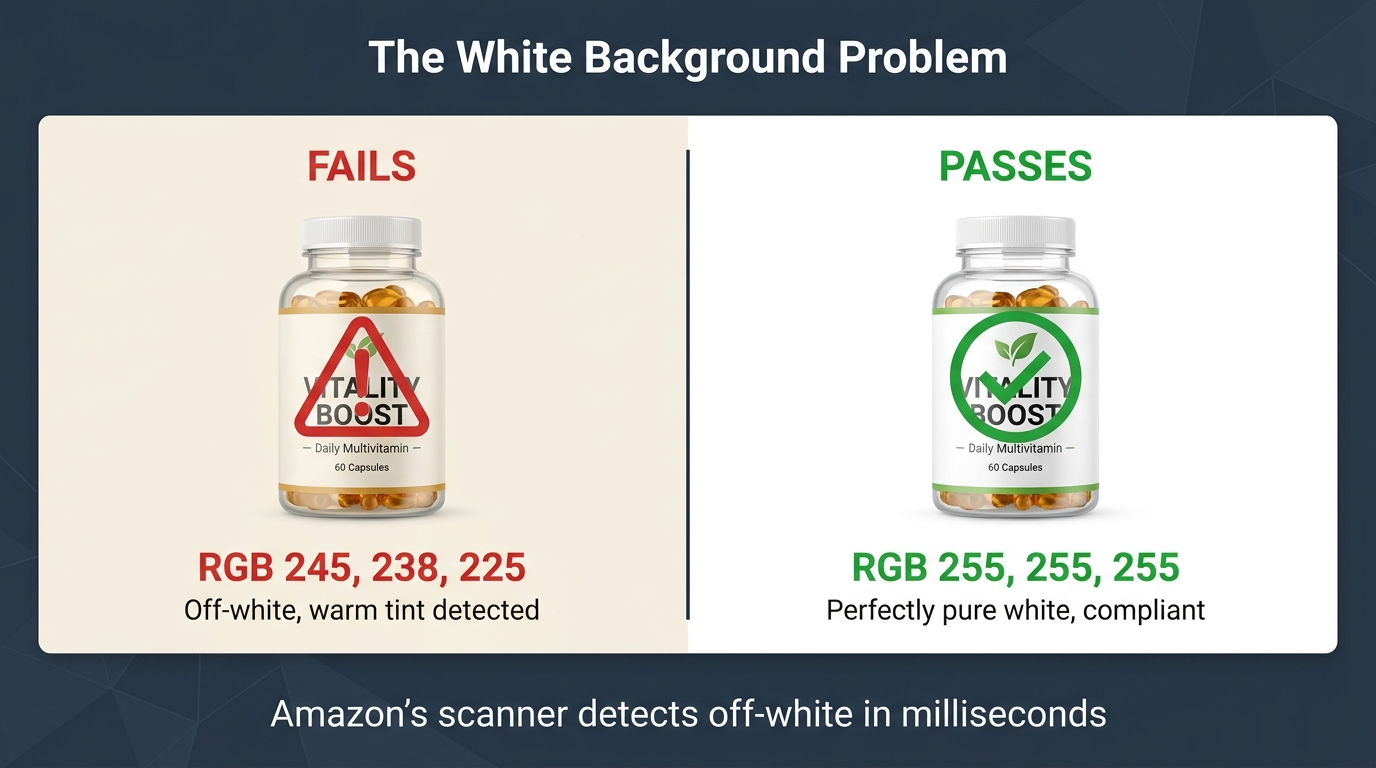
Ask any seller what Amazon requires for main image backgrounds and they’ll say: “pure white.” That’s technically correct. But there’s a critical gap between knowing the rule and understanding how the scanner actually validates it — and that gap is where a huge proportion of suppression events originate.
What “Pure White” Means to a Pixel-Based Scanner
Amazon’s scanner samples background pixels and compares them to RGB values. Pure white in digital terms is RGB 255/255/255. The issue is that most photo editing workflows — including Lightroom, Photoshop, and virtually every AI background removal tool — don’t produce pixel-perfect white. They produce near-white. Even Photoshop’s “white” canvas can output values like RGB 253/253/253 or RGB 250/248/245 depending on color profile settings and export compression.
An off-white background that looks identical to the human eye at a value of, say, RGB 240/238/235 can be enough to trigger the scanner’s background failure check. According to 2026 seller reports, approximately 72% of early-year image rejections were tied specifically to background color issues — making this the single most common compliance failure point by a significant margin.
Three Background Problems Most Sellers Don’t Catch
First: JPEG compression artifacts. When you export a white-background image as a JPEG, the compression algorithm introduces color variation in background pixels, particularly near product edges. The background that was 255/255/255 in your editing software may become slightly varied after export. PNG format preserves pixel values more reliably, which is why many compliance-focused sellers export secondary images as PNG even when JPEG is accepted.
Second: Drop shadows. A realistic drop shadow beneath your product is a hallmark of professional-looking photography. It’s also a violation. The shadow pixels are not white, and the scanner flags them. This catches sellers whose images look beautiful and photorealistic but fail the technical check. Remove all shadows, or ensure any shadow is so faint that the pixel values remain at or near 255/255/255.
Third: Color profile mismatch. Images shot in a color space other than sRGB (such as Adobe RGB or ProPhoto RGB) and not converted before upload can render background “white” in a way that translates to off-white pixel values in the sRGB color space Amazon’s system evaluates against. Always convert to sRGB before uploading.
The Practical Fix
After background replacement or editing, use your image editor’s color picker to sample at least five distinct points in the background area — especially near product edges, corners, and any area where lighting might create falloff. Every sampled point should read 255/255/255. If any point is off by even a few values, correct it before upload. This single habit eliminates the most common suppression trigger.
Seven Triggers That Catch Even Technically Correct Images
Beyond the white background, there’s a set of less obvious triggers that cause compliant-seeming images to fail. These are the violations that feel unfair — and that generate the most confusion in seller forums — because the images in question often do look correct to a human reviewer.
1. The 85% Fill Threshold — And How It’s Measured
Amazon requires the product to fill approximately 85% of the image frame. The issue is that “fill” is measured differently depending on product shape. A flat square item fills frame space easily. A long, narrow item — a yoga mat, a power strip, a fishing rod — fills frame space poorly in a standard 1:1 square crop, leaving dead space that the scanner reads as a fill deficiency. Sellers of elongated products need to either rotate the product diagonally, use a tighter crop, or shoot in a way that maximizes perceived fill without distorting the product’s actual dimensions.
2. Product Packaging When the Product Itself Is the Listing
If you’re selling the product unboxed, showing the product inside its packaging can trigger a suppression — because the scanner may interpret the packaging as a prop obscuring the main product. Conversely, if you’re selling a packaged item (like a gift set), the full package must be visible and must accurately represent what the buyer receives. The rule is: show exactly what arrives at the buyer’s door, nothing more.
3. Printed Text on the Product Itself
This is a surprisingly common false positive. A supplement bottle with a visible label, a branded t-shirt with text across the chest, a notebook with a printed cover — all of these can trigger OCR-based text detection, even though the text is part of the product, not an overlay. In most cases, Amazon’s system learns to distinguish product text from overlaid text, but newly listed ASINs are more vulnerable during the period before the system has established a baseline for that ASIN’s imagery.
4. Inaccurate Variation Images
If your listing has variations (colors, sizes, styles) and the images don’t match the specific variation selected, Amazon’s system can flag the mismatch. A red variation showing a blue product is a clear violation. But the more subtle issue is image stacks that show the full variation range in every image for every variation — shoppers see a product that doesn’t match what they’re purchasing, and the system catches it as inaccurate product representation.
5. Insufficient Resolution for Zoom
Amazon’s official minimum is 1,000 pixels on the longest side, but 2026 guidance consistently recommends 1,600 pixels minimum and ideally 2,000 pixels or more to activate zoom functionality. Images that meet the technical minimum but don’t support zoom are increasingly being flagged for quality issues — particularly in categories where detail matters (jewelry, electronics, textiles).
6. Borders and Frames
Any border around the main image — even a subtle 1-pixel border added during export, or a thin frame from a Canva template — is a violation. This sounds trivial but catches a meaningful number of images created using design tools that automatically add borders as part of their template formatting.
7. Transparent Backgrounds Exported as White
Some image editors and AI tools export transparent background images with the transparency layer rendered as a light gray or off-white rather than true white. This is especially common when the output format is JPEG rather than PNG, since JPEG doesn’t support transparency and the editor must choose a background color to render. Always explicitly set the background fill to RGB 255/255/255 before exporting as JPEG.
AI-Generated Images: The New Metadata Rules That Determine Pass or Fail

The single largest policy change affecting AI-generated Amazon images in 2026 has nothing to do with image quality, background color, or text overlays. It’s a metadata requirement — and most sellers have never heard of it.
What Changed in July 2026
In late July 2026, Amazon rolled out a new requirement tied to New York state’s synthetic performer disclosure law, which took effect in June 2026. The rule: any buyer-facing image or video that contains a photorealistic AI-generated person — not an edited real person, but a person entirely created by AI — must be tagged with specific metadata before upload. The required tag is the keyword contains-synthetic-performer added to the file’s XMP dc:subject metadata field.
When this tag is present, Amazon reads it on upload and adds a shopper-facing disclosure indicator where applicable. When the tag is absent from an image that contains AI-generated people, the image is at risk of suppression once Amazon’s system or a reviewer detects synthetic content — which is becoming increasingly likely as Amazon builds out its AI content detection capabilities.
What Images Are Affected
The requirement applies to images where a person is entirely generated by AI. This covers lifestyle imagery where a model is AI-generated rather than a real person. It covers A+ content featuring AI-generated people. It covers product-in-use shots where the hands or body visible in the frame are AI-rendered. It does not apply to images that simply use AI for background removal, color correction, or editing of real photography — the person must be wholly synthetic.
Importantly, this does not constitute a ban on AI-generated people in listings. Amazon is not prohibiting this content. It is requiring disclosure. Sellers who tag correctly can continue using AI-generated lifestyle imagery; those who don’t are taking on suppression risk as enforcement scales.
How to Add the Metadata Tag
The tag must be embedded in the image file’s XMP metadata before upload. This cannot be done by entering information into Seller Central — it’s a file-level requirement. The process:
- Use an IPTC-compatible metadata editor such as Adobe Bridge, ExifTool (free, command-line), or Photo Mechanic.
- Open the image file in the editor.
- Navigate to the XMP metadata panel and find the dc:subject field (sometimes labeled “Keywords” or “Subject” depending on the editor).
- Add the exact text:
contains-synthetic-performeras a keyword entry. - Save the file and verify the metadata was written correctly before uploading to Amazon.
For A+ content specifically, Amazon has reportedly added a checkbox within the A+ Content Manager that automatically applies this disclosure without requiring manual metadata editing. But for standard listing images, the file-level tag is the required path.
The Broader Implication for AI Image Workflows
This requirement signals a direction, not just a rule. Amazon is building the infrastructure to detect, disclose, and eventually audit AI-generated content in listings. Sellers who build their image production workflows with metadata compliance from the start — embedding the correct tags before assets go anywhere near Seller Central — are positioned significantly better than those who treat this as an afterthought.
The practical approach is to add metadata tagging as a mandatory step in your image handoff process. Every AI-generated lifestyle image goes through a metadata audit before it’s uploaded anywhere. This adds minimal time and eliminates a risk category that will only grow as Amazon’s detection capabilities improve.
Secondary Images: Where the Rules Get Complicated
Secondary images (images 2 through 7 in your gallery) operate under a materially different rule set than the main image — and the gap between what’s allowed in secondary positions versus the main image is where most of the conversion-driving creativity lives. Understanding this distinction clearly is essential for building galleries that are both compliant and high-performing.
What Secondary Images Can Include That Main Images Cannot
The main image must be product-only, pure white background, no text, no props. Secondary images allow considerably more latitude. Text overlays describing features, dimensions, or ingredients are generally permissible. Lifestyle scenes — the product in use in a realistic environment — are not only allowed but consistently cited as the highest-converting secondary image type in 2026 guidance. Comparison charts, infographics, size guides, and bundle representations are all acceptable in secondary positions provided they accurately represent what the buyer receives.
The Key Compliance Rules That Still Apply to Secondary Images
Flexibility in secondary images does not mean anything goes. Several rules apply across the entire gallery, not just the main image:
- Accuracy. Every image must accurately represent the product being sold. Lifestyle imagery that shows a product in a context or configuration that doesn’t reflect reality is a policy violation, even in a secondary position.
- No Amazon branding or badges. Third-party seller images cannot include Amazon’s logos, “Best Seller” badges, “Amazon’s Choice” labels, or any other Amazon-owned visual marks. This is a categorical prohibition.
- No contact information. Website URLs, email addresses, phone numbers, and QR codes that lead shoppers off Amazon are prohibited.
- No misleading claims. Infographics are allowed. Infographics that make unsubstantiated health claims, performance claims, or comparative claims without evidence are violations and can trigger suppression or, more seriously, category-level compliance reviews.
- No AI-generated people without disclosure. The
contains-synthetic-performermetadata rule applies to secondary images as much as main images.
The Gray Area: Bundles and Multi-Product Images
One of the trickier compliance questions in secondary image positions is how to represent bundles and included accessories. The rule is that what you show must be what the buyer receives. If your product includes an accessory, showing it is not only allowed but appropriate. If your secondary image shows a product lifestyle scene that includes items not included in the purchase, the scene must be clearly contextualized in a way that doesn’t imply the other items are included.
The safest approach for lifestyle images that include environmental props (a coffee mug next to your supplement, a cutting board near your kitchen gadget): show the product prominently, make the environmental elements clearly secondary in size and focus, and never imply that environmental elements are part of the purchase. Ambiguity in this area is what generates compliance flags.
The Image Stack Architecture That Passes Every Check
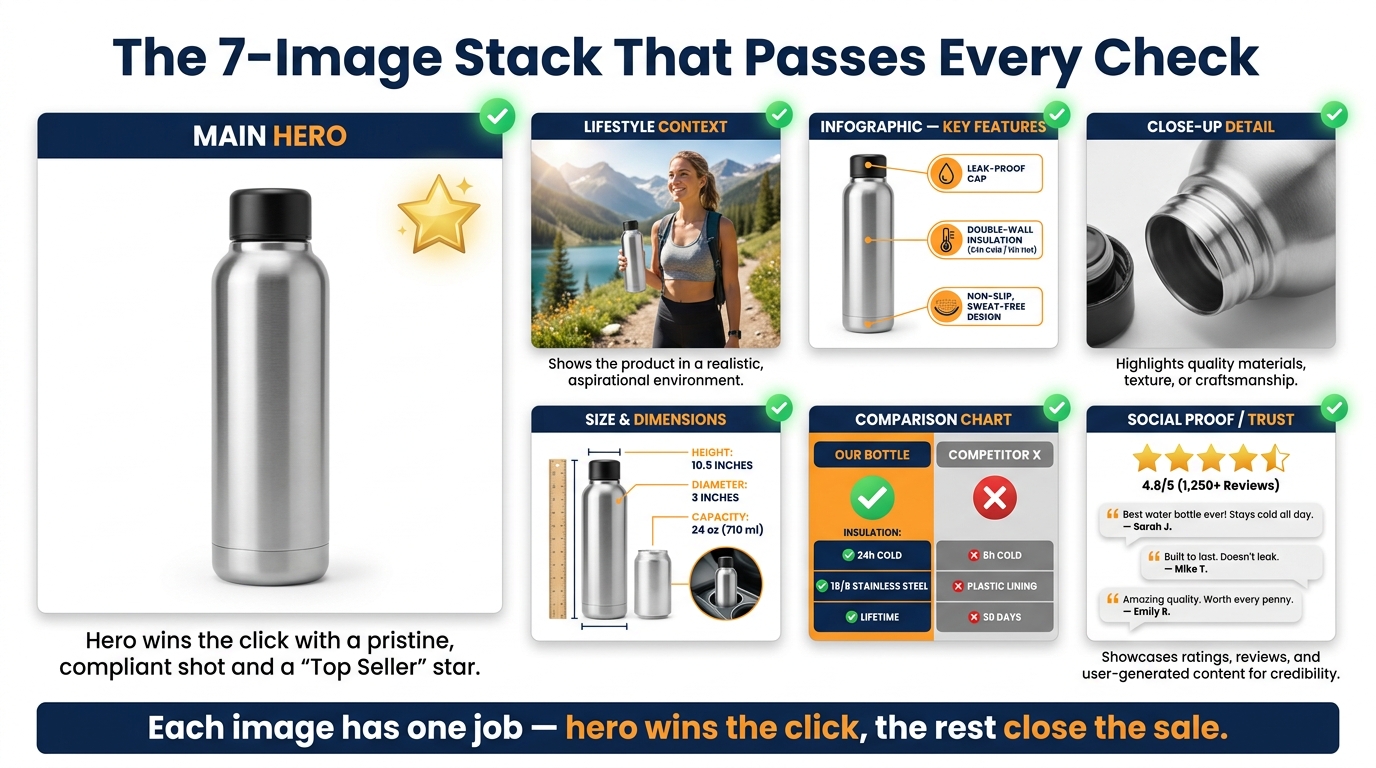
A compliant Amazon image gallery is not just a collection of images that each individually pass the rules. It’s an intentionally structured sequence in which every image has a defined role — both from a conversion perspective and a compliance perspective. The architecture matters because Amazon’s scanner evaluates the gallery as a set, and inconsistencies between images can trigger flags even when individual images look clean.
Image 1: The Compliant Hero
Position one must be the most rigorously compliant image in your gallery. It is the primary driver of click-through rate from search results, which means it must work at thumbnail size on mobile — typically displayed at around 100–150px — while also passing every automated compliance check. The hero image should feature the exact product sold, on a pure white background, filling at least 85% of the frame, in the highest resolution you can produce.
For products with multiple components included (a skincare set, a tool kit, a cooking bundle), show all included components arranged together on the white background. This satisfies both the “what the buyer receives” accuracy requirement and gives you maximum product fill without violating any single-product rules.
Image 2: Lifestyle Context — High Priority, High Compliance Risk
The lifestyle image is consistently cited as the highest-converting secondary image type. It’s also where compliance risk is highest, for the reasons described in the previous section. The lifestyle image should show the product in a realistic use context — the actual product, used by an actual person (or an AI-generated person with the correct metadata tag), in an environment that reflects the product’s intended use case.
Keep the product as the clear visual focal point. Use a professional photography or AI generation approach that produces photorealistic results. If using AI-generated models, apply the contains-synthetic-performer metadata tag before upload, every time, without exception.
Images 3–4: Feature Infographic and Close-Up Detail
The feature infographic is the workhorse of the gallery — it’s where you communicate specifications, key benefits, and differentiators using text overlays on a product image. This is fully permissible in secondary positions. Design clean, legible infographics with text large enough to read on mobile screens without pinching to zoom. Avoid making unsubstantiated performance claims in your callouts — every claim should be factually accurate and defensible if reviewed.
The close-up detail image serves a different function: reducing purchase uncertainty by showing texture, material quality, finish, connector types, thread count — whatever detail matters most for your product’s category. This image typically has the lowest compliance risk because it’s simply a tighter crop of the actual product.
Images 5–6: Size Guide and Comparison Chart
Size guides showing dimensions with overlaid measurements are permissible and highly effective for products where sizing uncertainty drives return rates. Comparison charts that contrast your product against alternative offerings (or against cheaper alternatives in your own lineup) are allowed, with the caveat that you must not misrepresent competitors or make claims that could be characterized as false advertising.
Image 7: Trust and Social Proof Signals
The final image slot is often used for trust signals: certifications, awards, guarantee messaging, or media mentions. These are permissible with important restrictions. Third-party certifications must be ones you genuinely hold. You cannot display Amazon “Best Seller” badges or Amazon’s own rating graphics. Awards or media mentions should reflect actual recognition rather than manufactured social proof. If you display a money-back guarantee in an image, that guarantee must be honored — it becomes part of your product claim set.
Before You Upload: A Pre-Flight Compliance Checklist
The most effective way to prevent suppression is to catch violations before upload rather than appeal them after the fact. The following pre-flight process is designed to catch every common compliance failure point at the image production stage, not the crisis management stage.
Main Image Pre-Flight
- Background pixel check: Sample at least 5 background pixels including corners and areas near the product edge. Confirm all read RGB 255/255/255.
- Product fill estimate: Visually estimate product fill — the product should occupy at least 85% of the canvas area. For elongated products, consider diagonal orientation if needed.
- Resolution check: Confirm the image is at least 1,600 pixels on the longest side (2,000+ preferred). Verify the file was not upscaled from a lower resolution source.
- Color profile: Confirm the image is in the sRGB color space before export.
- Text/watermark scan: Open the image full-screen and visually inspect for any text, watermark, or border. Check corners and edges carefully — borders can be easy to miss at reduced preview sizes.
- Shadow and reflection check: Confirm no visible shadow extends beyond the product area in a way that produces non-white pixels.
- Format check: Confirm the image is exported as JPEG or PNG with no transparency layer artifacts.
Secondary Image Pre-Flight
- Accuracy audit: Does every element shown in the image reflect what the buyer actually receives? Is the product configuration shown accurate?
- Claim review: Do any text callouts make claims (health, performance, comparative) that could be challenged? Remove or qualify any claims that lack clear evidence.
- Amazon marks check: Confirm no Amazon logos, star rating graphics, “Best Seller” text, or “Amazon’s Choice” language appears anywhere in the image.
- Contact info check: Confirm no URLs, QR codes, email addresses, or phone numbers are visible in the image.
- AI disclosure check: If any person visible in the image is entirely AI-generated (not a real photographed person), confirm the
contains-synthetic-performerXMP metadata tag has been applied to the file. - Mobile legibility: Reduce the image to 200px width and confirm all critical text is still legible. If it’s not, increase font size in the infographic design.
Catalog-Level Pre-Flight for Variation Listings
- Confirm that each variation’s image set shows the correct variation — color, size, style — in the hero image position.
- Confirm that the listed image set for each variation doesn’t show images from sibling variations as if they were the selected variation.
- Verify that bundle images show exactly the items included in each specific bundle variation, not the full range across all variations.
When Good Images Get Flagged: The False Positive Recovery Protocol
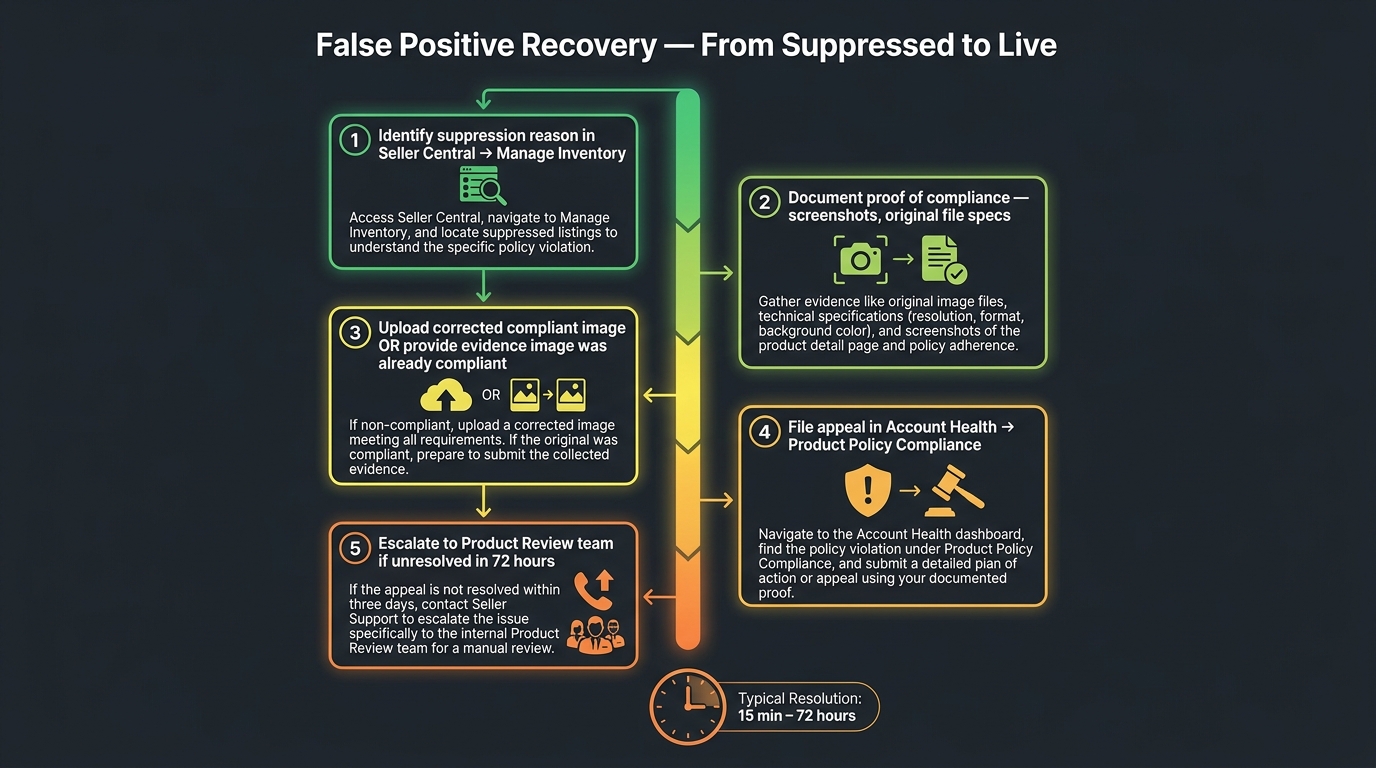
Even after executing a rigorous pre-flight checklist, image suppression false positives happen. When they do, the speed and structure of your response determines how much revenue you lose during the suppression window. Here is the exact protocol — based on how Amazon’s appeal and review systems actually function in 2026.
Step 1: Identify the Exact Suppression Reason (Don’t Skip This)
In Seller Central, navigate to Inventory → Manage All Inventory and filter for suppressed listings. Alternatively, go to Inventory → Fix Blocked Listings or check the Listing Quality Dashboard. Click into the affected ASIN and read the specific suppression reason — not the category, but the exact stated violation. This information is critical because the appeal path varies depending on whether the issue is classified as a technical image violation, an accuracy violation, an IP complaint, or a policy compliance matter.
Step 2: Document Before You Change Anything
Before you replace or modify the flagged image, take screenshots of: the suppression notice with its stated reason, the current image in the listing as it appears in Seller Central, and the original image file’s technical specifications (resolution, color profile, file size, pixel values). This documentation is your evidence in the appeal if you believe the suppression is a false positive.
Step 3: Decide — Fix and Resubmit, or Appeal Without Changing
If you believe the image is genuinely compliant and the suppression is a false positive, you can appeal without replacing the image — but this is slower. If you can quickly produce a clearly compliant replacement (which you should, if you’ve been building backup images as part of your compliance workflow), upload it immediately to restore the listing, then appeal the original suppression as a false positive. The priority is getting the listing live again; the appeal is a secondary concern.
Typical reinstatement timeline after uploading a compliant replacement: 15 minutes to 24 hours for straightforward cases. Complex cases or those requiring internal review can take 24 to 72 hours. Cases that require category-level or brand-level review may take up to 7 days.
Step 4: File the Appeal Through the Correct Path
Navigate to Account Health → Product Policy Compliance and find the specific violation record. Use the Appeal or Submit Additional Information option attached to that specific record — not a generic support ticket. In your appeal submission:
- State clearly that you believe the suppression is a false positive.
- Provide your documentation: pixel value screenshots, resolution data, comparison between your image and the stated violation reason.
- Be specific and factual. Appeals that say “my image is fine” without evidence are rejected at a much higher rate than appeals that provide concrete technical data showing compliance.
Step 5: Escalate If Not Resolved Within 72 Hours
If your appeal has not been resolved in 72 hours, open a new Seller Support case specifically referencing the ASIN, the suppression date, the appeal case number, and requesting transfer to the Product Review team. Generic case routing in Seller Support often cycles you back to the same automated responses. Explicitly requesting the Product Review team increases the likelihood of a human with appropriate authority reviewing your case. Do not accept a generic “your appeal has been received” response as a resolution — follow up until you have a written confirmation that the suppression has been cleared or a specific reason for rejection.
The Amazon Image Replacement Risk — And How to Protect Your Listings

Beyond the risk of suppression, 2026 has introduced a more insidious risk that many sellers don’t discover until after it’s already affected their listings: Amazon’s ability — and increasing willingness — to replace seller images on non-compliant or weak listings.
What Amazon’s Image Replacement Mechanism Actually Does
Amazon’s policies give it the latitude to modify or replace listing images when the current main image doesn’t meet standards. In practice, this means Amazon can pull in an alternate image from the catalog — sometimes from another seller on the same ASIN, sometimes from Amazon’s own vendor catalog, sometimes from indexed product images it has sourced independently — and promote that image as the main image for the listing.
This has been reported on brand-registered listings as well as non-brand-registered ASINs. Brand Registry provides stronger protection but does not provide absolute immunity, particularly if your own images have compliance weaknesses that give Amazon’s system a justification to intervene.
Why This Is a Conversion Threat, Not Just a Compliance Threat
The images Amazon selects as replacements are not optimized for conversion. They may be technically compliant but contextually wrong for your product positioning. They may show a different variation. They may show the product from an angle that emphasizes a feature that isn’t your primary selling point. They may simply be lower quality than your carefully produced imagery.
The conversion impact of a misaligned main image is significant. The main image is the primary driver of click-through rate from search results. An image that passes Amazon’s compliance check but doesn’t communicate your product’s key value proposition clearly is costing you clicks that should be yours.
Protection Strategy
The most effective defense against image replacement is ensuring your own images give Amazon’s system no reason to intervene. This means: every image in your gallery must be technically compliant before any automated check would flag it. Beyond compliance, this means maintaining a full image gallery — all 7 positions filled with compliant, high-quality images. Listings with sparse or incomplete galleries are at higher replacement risk than listings with complete, compliant galleries.
If you’re on Brand Registry, use the Brand Registry portal to monitor and manage your listing images actively rather than treating image uploads as a one-time task. Audit your gallery on a quarterly schedule — not just when a suppression notice appears.
Bulk Catalog Auditing: Finding and Fixing at Scale
For sellers managing catalogs of hundreds or thousands of ASINs, the image compliance challenge isn’t conceptual — it’s operational. A single pre-flight checklist applied image by image doesn’t scale. The question becomes: how do you systematically find and fix compliance risks across a large catalog before they turn into suppression events?
Start With Seller Central’s Built-In Suppression Reports
Seller Central’s suppression reports under the Listing Quality Dashboard and Fix Blocked Listings view provide the most direct signal of current compliance issues. Export these reports regularly — weekly for active catalogs — and build a tracking system that records suppression type, ASIN, date of suppression, date of fix, and outcome. Pattern recognition across this data will show you which image types, which product categories, or which production vendors are generating the most compliance risk.
Use Third-Party Auditing Tools Selectively
Several third-party listing audit tools — including those from Helium 10, DataDive, and listing quality SaaS platforms — offer background detection, resolution checks, and compliance scoring. These tools vary significantly in how current their rule databases are and how accurately they replicate Amazon’s actual detection logic. They are useful for initial bulk scans that surface obvious issues (off-white backgrounds, low resolution, text in main images) but should not be treated as a substitute for manual review of images flagged by Amazon’s own system.
Prioritize by Revenue Impact
When auditing a large catalog, not all ASINs carry equal weight. Prioritize compliance auditing in this order:
- High-revenue, high-traffic ASINs — the listings where a suppression event has maximum revenue impact.
- Recently launched ASINs — new listings are particularly vulnerable during the initial indexing period before the system establishes a compliance baseline for the ASIN.
- Variation parents with multiple child ASINs — a compliance issue on a parent-level image can cascade across all child variations.
- ASINs with AI-generated lifestyle imagery — these need an immediate metadata audit to verify
contains-synthetic-performertags are correctly applied. - Long-tail catalog depth — older, lower-traffic ASINs that haven’t been image-audited recently.
Build a Compliance Buffer: Backup Images
One practice that significantly reduces suppression recovery time for large catalogs is maintaining a library of pre-approved backup images for top-priority ASINs. These are fully compliant main image alternatives — different angles, different fills, same white background and technical specs — that can be uploaded immediately if the current main image is suppressed. The goal is to shrink recovery time from “time to produce a new compliant image” to “time to click upload.” For ASINs that generate significant daily revenue, that difference in recovery speed is directly measurable in dollars.
Building Compliance Into Your Creative Process — Not Onto It
The sellers who spend the least time managing image compliance crises are not the ones who have memorized every rule. They’re the ones who have embedded compliance checks into their creative workflow at the point of production — before any image reaches Seller Central.
The Handoff Protocol That Prevents Most Violations
If you work with photographers, designers, or AI image production vendors, the compliance burden needs to be defined in the brief, not discovered in the review. Every creative brief for Amazon imagery should include explicit requirements for: background color specifications (RGB 255/255/255, verified), minimum resolution, export format and color profile, prohibited elements checklist, and — for any content featuring AI-generated people — metadata tagging instructions.
Requiring vendors to deliver images with a technical spec sheet showing their compliance checks, rather than just the final image file, shifts accountability to the point of production. It’s far more efficient than discovering a background issue after 50 images have been shot in the same setup.
Use Staged Review Before Live Upload
Before uploading images to production listings, maintain a staging workflow: upload new images to a draft ASIN or use Amazon’s image preview tools to verify that images render correctly within the Seller Central environment before going live. This adds a day to the image deployment timeline but surfaces rendering issues — color profile mismatches, resolution problems, format artifacts — before they affect live listings.
Schedule Quarterly Gallery Audits
Amazon’s image rules evolve. What was compliant eighteen months ago may not meet current standards. A quarterly review of your full image gallery — not just checking for suppression flags but proactively comparing your images against the current published guidelines — catches drift before it becomes a problem. This is particularly important for sellers who produce images infrequently and whose galleries may be built on older production standards.
Track the Rules That Are Changing, Not Just the Rules That Are
The AI disclosure requirement that emerged in July 2026 is a clear signal that Amazon’s compliance framework is actively evolving in response to external legal and regulatory changes. Sellers who only pay attention to compliance rules when they get flagged will always be reactive. Building a practice of monitoring Amazon’s policy update announcements and, when relevant, the legal landscape that drives them — as the New York synthetic performer law did — positions your operation to adapt before enforcement arrives.
What All of This Actually Means for Your Image Strategy in 2026
The core insight across everything covered in this post is one that most sellers — even experienced ones — underestimate: Amazon’s image compliance system is not designed to be fair. It’s designed to be consistent. Automated scanning at the scale of hundreds of millions of ASINs cannot afford nuance. It catches the things it was trained to catch, in the order it was trained to check them, with the tolerance thresholds it was calibrated to enforce.
Working within that reality means building images that don’t require nuance to pass. Not images that are technically on the right side of a borderline — images that are unambiguously, verifiably compliant by every measurable parameter. And it means understanding that compliance and conversion are not in opposition. The sellers generating the strongest image performance in 2026 are those who have mastered the constraint: a bulletproof main image that Amazon’s scanner never has cause to touch, paired with a well-structured secondary gallery that does all the persuasion work within the rules that govern it.
Build to pass the scanner first. Then build to convert the human. In that order, every time.
Actionable Takeaways
- Run a pixel-level background check on every main image before upload — sample at least 5 background points and verify RGB 255/255/255 at each.
- Apply the
contains-synthetic-performermetadata tag to every image or video containing an entirely AI-generated person, before upload, every time. - Maintain a backup image library for top-revenue ASINs — pre-compliant alternatives that can be uploaded immediately if the current main image is suppressed.
- Embed compliance requirements in your creative brief — don’t review for compliance after production. Specify it before production begins.
- If you’re suppressed, document before you change anything — your original image evidence is the foundation of a successful false positive appeal.
- Audit your AI-generated lifestyle images immediately if you haven’t already checked for the metadata disclosure requirement — this is the most under-addressed compliance risk in catalogs right now.
- Schedule a quarterly gallery review across your full catalog. Image rules change. Your galleries shouldn’t be set-and-forgotten assets.
Leave a Reply